

If you want to create any visual you have in mind, from a scroll-stopping ad to a custom wallpaper to a brand logo, you can use Picsart’s AI Image Generator. Open the tool, type a description of what you want, pick a model and style, and hit Generate. The AI turns those words into a finished image in seconds. No drawing skills, no software training, no hours inside Photoshop. You describe, the AI creates.
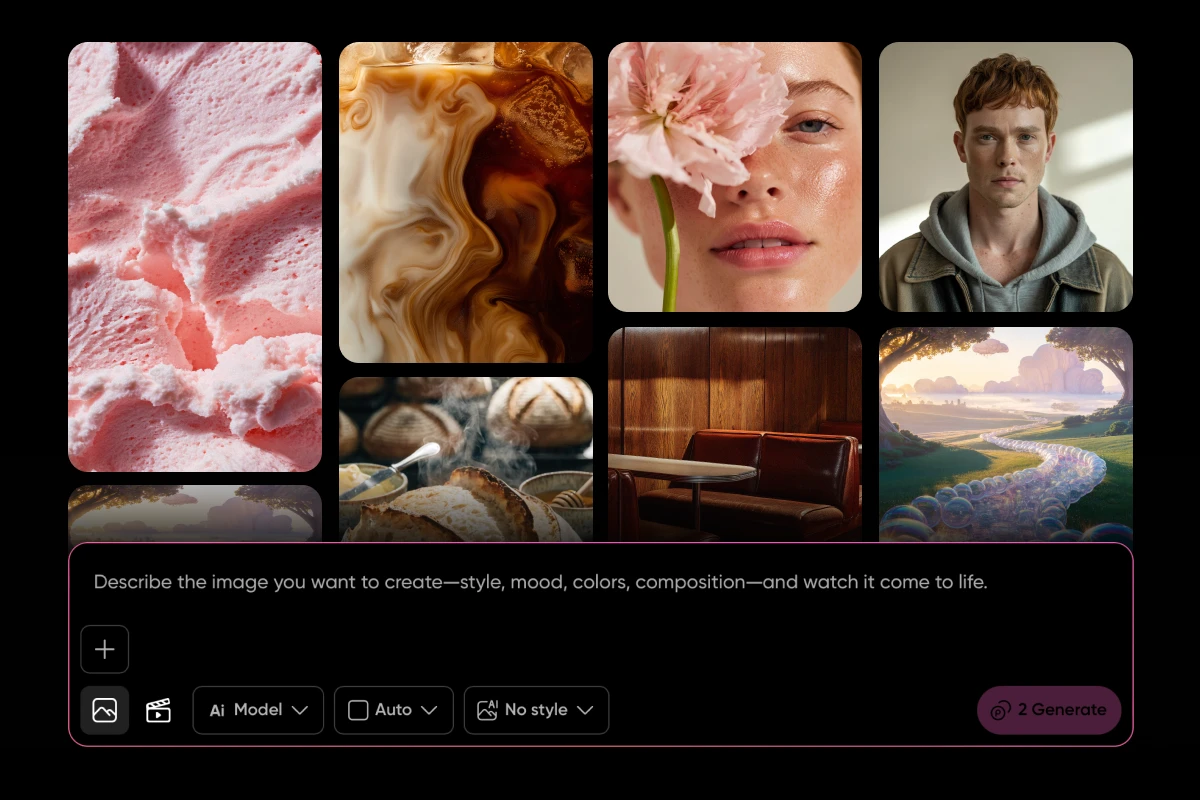
The Picsart AI Image Generator recently went full screen, and that changes how the whole thing feels. 30 models, 48 style presets, a browsable Discover feed, and a prompt bar sit inside one immersive workspace. Browse what other creators are making, remix any image that catches the eye, or start from a blank prompt, all without leaving the view.
Consider this the AI image generator guide for anyone who wants to move fast: what these tools actually do, what they’re useful for in real creative work, and a step-by-step walkthrough for getting clean results inside the Picsart full-screen generator.
See how an AI image generator works
An AI image generator is a tool that turns text descriptions, called prompts, into images using machine learning models trained on massive amounts of visual data. Type what you want, subject, style, mood, colors, composition, and the model interprets those words and paints the pixels.
The interesting part is that different models produce very different results from the exact same prompt. One leans photorealistic. Another lands more illustrated. Another is especially strong at rendering readable text inside an image. That’s why the model choice matters as much as the words. A sharp prompt run through the wrong model still misses, and a simple prompt run through the right model can land beautifully.
No technical knowledge is required on the user side. Modern generators handle the complexity behind the scenes, from diffusion and sampling to color balancing and upscaling. All that reaches the surface is a prompt bar and a Generate button. The result is a creative tool that responds to anyone who can describe what they want.
How to use Picsart’s full-screen AI Image Generator
The Picsart AI Image Generator now runs as a full-screen experience. Not a sidebar tool, not a small widget, but an immersive workspace built for making things. The layout puts inspiration, prompting, model selection, and style control in the same view, so nothing interrupts the flow.
The Discover feed is usually the first thing creators notice. It’s a gallery of AI-generated images from across the Picsart community, organized by category: Art & Abstract, People & Portraits, Anime & Manga, Fantasy & Sci-Fi, Nature & Wildlife, Food & Drink, Architecture, Product & Commercial, Typography & Logo, Fashion & Beauty, and more. Scroll, save, and click on anything compelling to see the exact prompt and model that produced it. Then hit Remix to use it as a starting point for a new version.
The prompt bar stays pinned to the bottom of the screen. Describe the image wanted, style, mood, colors, composition, and generate without leaving the view. Switching between 30 AI models happens directly from the prompt bar. Each one interprets prompts differently, so trying the same idea across a few models is often the fastest way to find the right look.
The 30 available models cover nearly every major image AI in play right now:
Flux: Flux Kontext Max, Flux Kontext Pro, Flux 2 Max, Flux 2 Pro, Flux 2 Flex, Flux Pro Ultra, Flux Pro
Imagen: Imagen 4.5 Fast, Imagen 4.0, Imagen 4.0 Ultra
GPT Image / OpenAI: GPT Image 1.5, GPT Image 1, DALL-E 3
Nano Banana: Nano Banana Pro, Nano Banana 2
Ideogram: Ideogram 3.0 Flash, Ideogram V2a, Ideogram V2a Turbo
Recraft: Recraft V4, Recraft V3
Kling: Kling V2.1, Kling V2
Other: Seedream 4.5, Gemini 2.5 Flash, Qwen Image, Grok Imagine, Luma Uni-1, Runway Gen4 Image, Hunyuan, Reve, WAN 2.6
The full catalog lives on the Picsart image models page.
48 style presets sit right next to the model picker. Apply a visual direction like Anime, Y2K, Cyberpunk, Studio Ghibli, Photorealistic, or Oil Painting before generating, and the style shapes the image from the very first pass. Aspect ratio can be set to 1:1, 9:16, 16:9, or 4:3, or left on Auto so the model picks the best frame. For creators who want to edit existing pictures, flipping from Discover to My Images switches the workspace into upload-and-edit mode.
Create anything with an AI image generator
AI image generators aren’t just for quick experiments. They’re practical tools for real creative work, and the range of what they handle keeps growing.
Social media content is the obvious one. Scroll-stopping visuals for Instagram, TikTok, and Pinterest without a designer on standby or a full photoshoot on the calendar. A clear prompt and the right model can produce a week’s worth of posts in under an hour.
Marketing and advertising are the next big use cases. Product mockups, campaign visuals, A/B test variations, seasonal graphics, and localized versions of the same concept. Teams lean on AI image generators to move from idea to asset in minutes instead of days.
Brand assets follow closely behind. Logo explorations, icon sets, mood boards, and style studies come together quickly, especially with models like Recraft V4 that export SVG vectors clean enough for production use.
Personal projects get a creative upgrade, too. Custom wallpapers, greeting cards, profile pictures, handmade-feeling gifts, and prints to hang on the wall. Anything that used to need a designer or a stock site now starts with a sentence.
Content and blogging round out the list. Blog headers, featured images, infographics, and thumbnails that actually match the piece instead of fighting it. The Picsart Discover feed helps before any of this begins, since seeing what others are making across categories like Product & Commercial or Typography & Logo sparks ideas faster than staring at an empty prompt bar.
Write sharper AI image prompts
The quickest way to upgrade AI images is to upgrade the prompt. Specific beats vague. “A golden retriever on a park bench, soft morning light, shallow depth of field” lands harder than “a dog.” Include mood and style cues like cinematic lighting, watercolor, 35mm film, or editorial photography. Use the 48 Picsart style presets as shortcuts, so the prompt itself can stay focused on the subject and scene rather than doing all the style work alone.
Run the same prompt through a few different models to see how each one interprets it. Flux 2 Pro is strong for artistic control, GPT Image 1.5 for fast, versatile results, and Ideogram V3 for accurate in-image text. For a deeper look at specific models, check the Nano Banana prompts, Grok Imagine prompts, and Flux prompts guides.
And when iterating, change one variable at a time, lighting, model, or mood, never all three at once. That’s how to actually learn what each piece of the prompt is doing.
Start generating with Picsart
AI image generators turn ideas into finished visuals in seconds, and Picsart puts 30 models, 48 style presets, a Discover feed, and a full-screen creative workspace inside a single view. Describe the image, pick the model, and hit Generate. The hardest part is choosing what to create first.
Frequently asked questions
AI Image Generator requires a Picsart subscription plan. Each generation uses credits included with the plan, and the credit cost depends on the model and resolution chosen.


