Create AI characters for videos and stories
Design an original character from a prompt or reference image. Explore looks for a short video, film, drama, or 3D-style concept, then use your chosen image to guide the next scene.


Create a character, then start a scene
Give your character details worth keeping
Design the lead before the first shot
A memorable lead starts with more than a face. Describe their silhouette, hairstyle, wardrobe, expression, and one detail a viewer could recognize in the next shot. Start from text or an image you have the right to use. Generate a few variations, then choose the one that fits your story before moving to video.
Explore 3D-style and animated characters
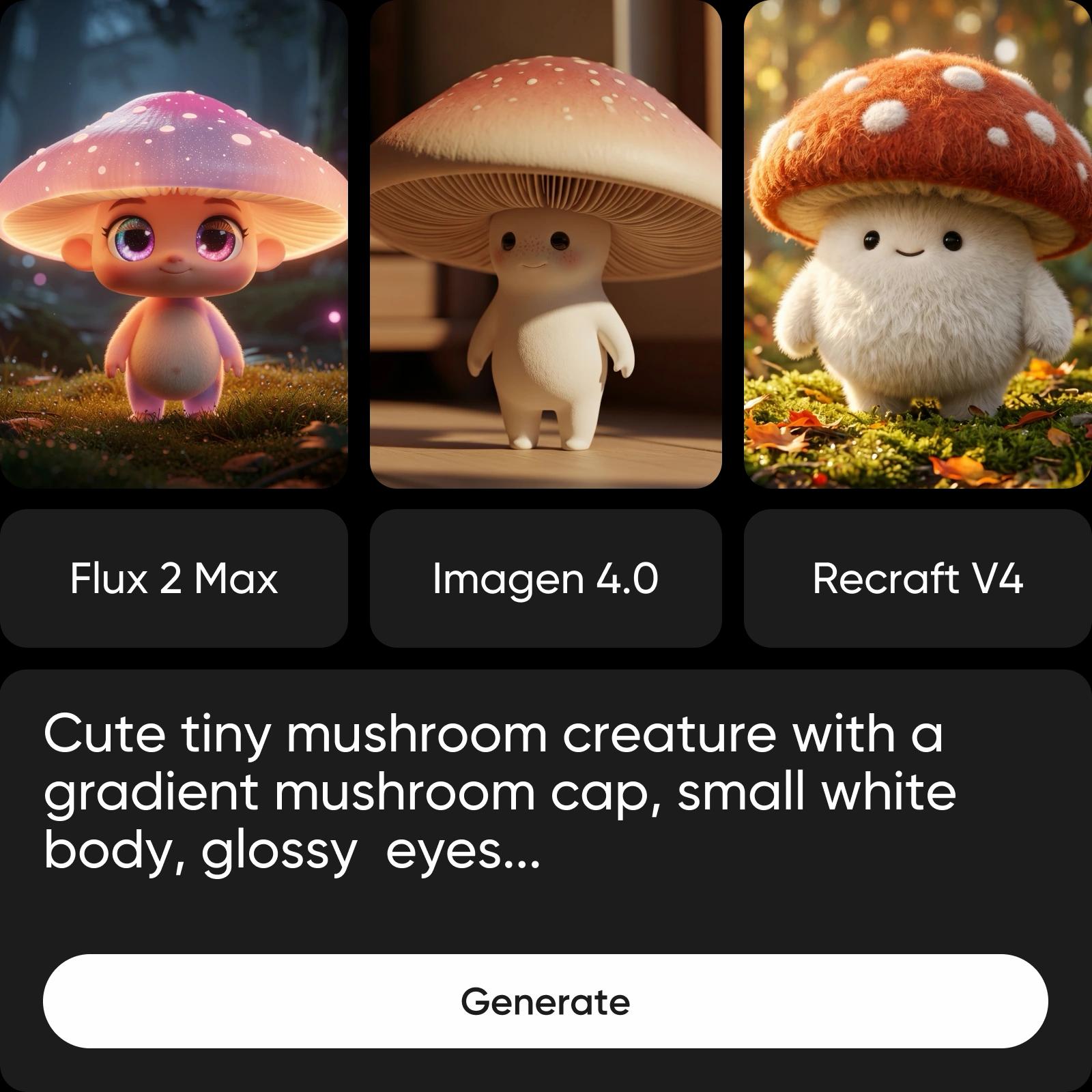
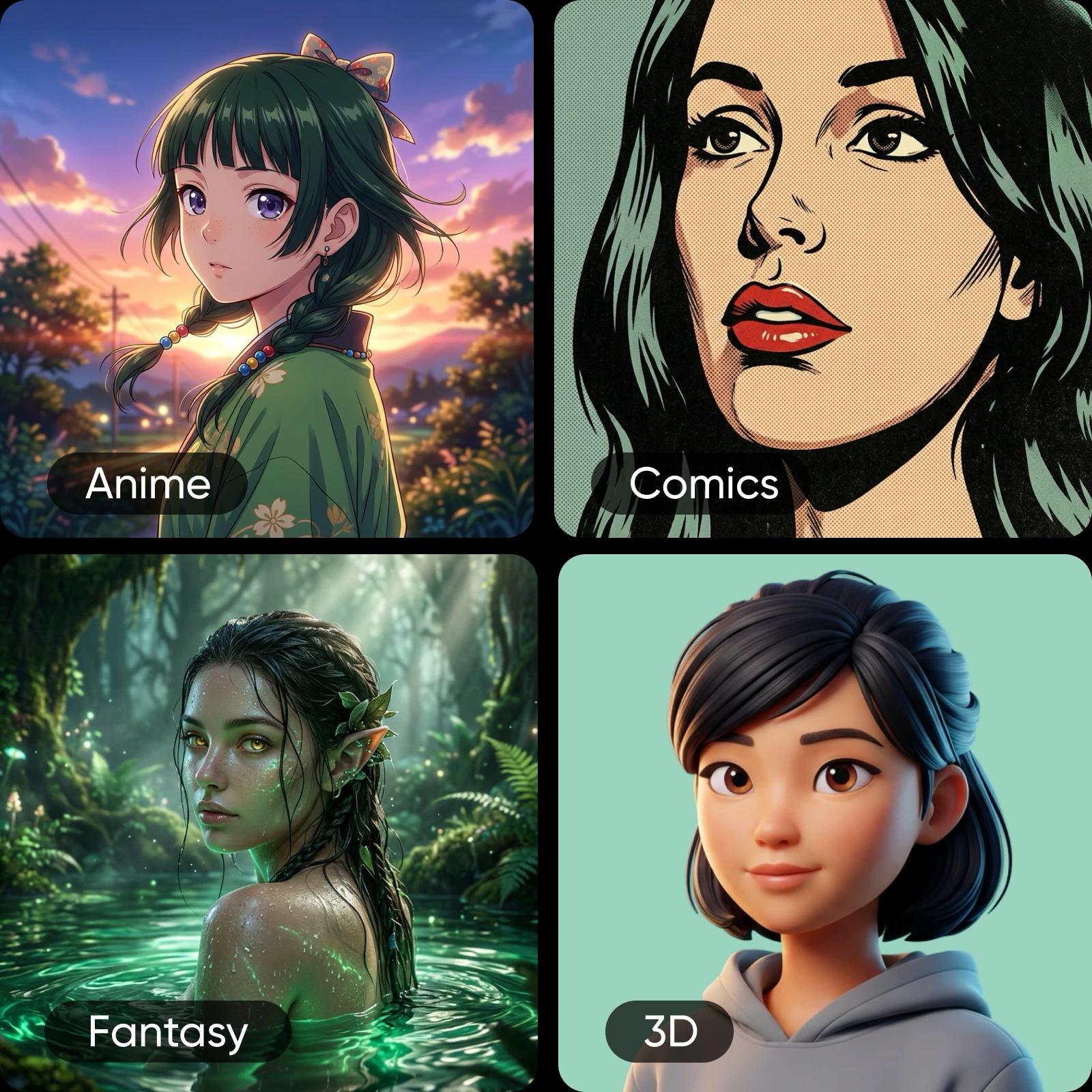
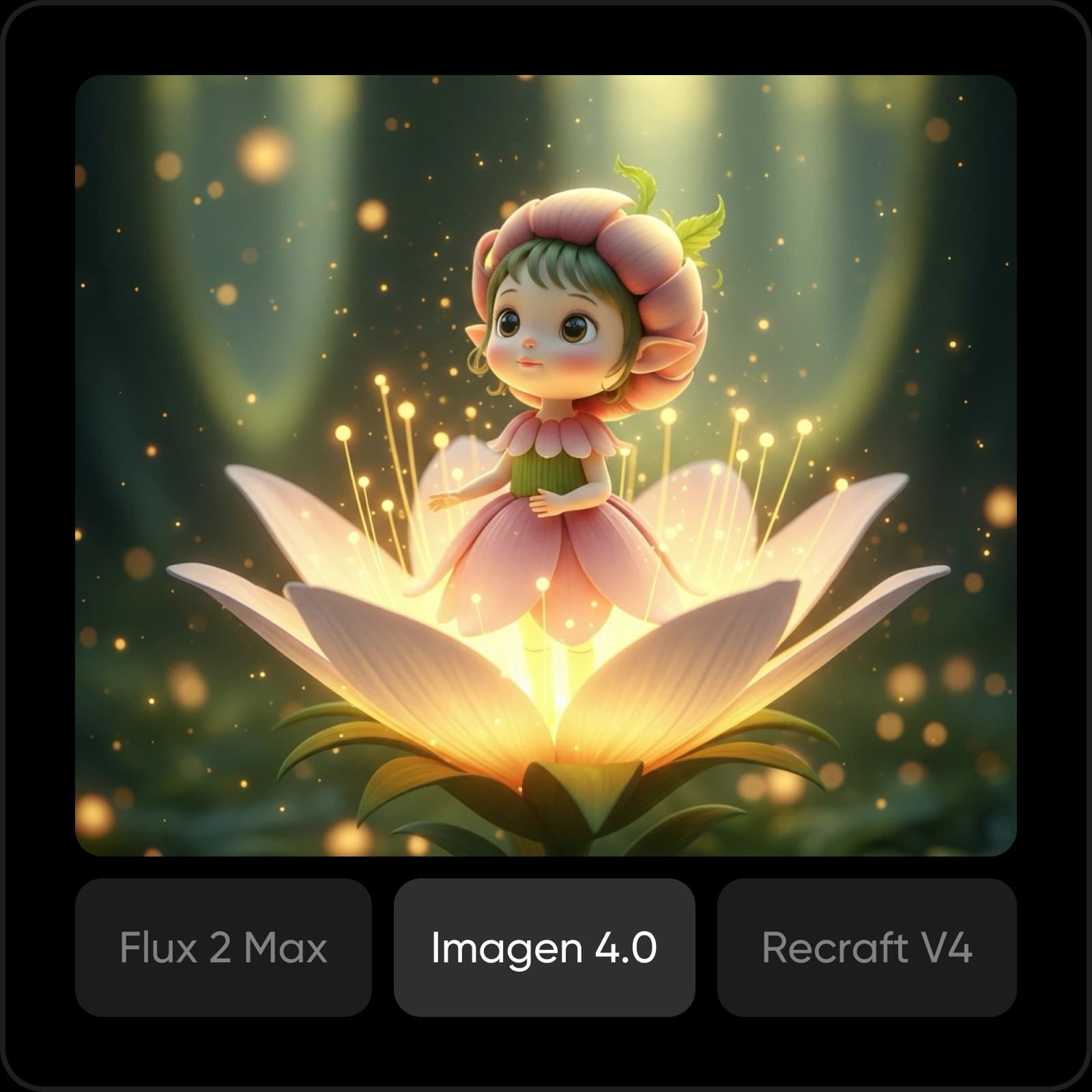
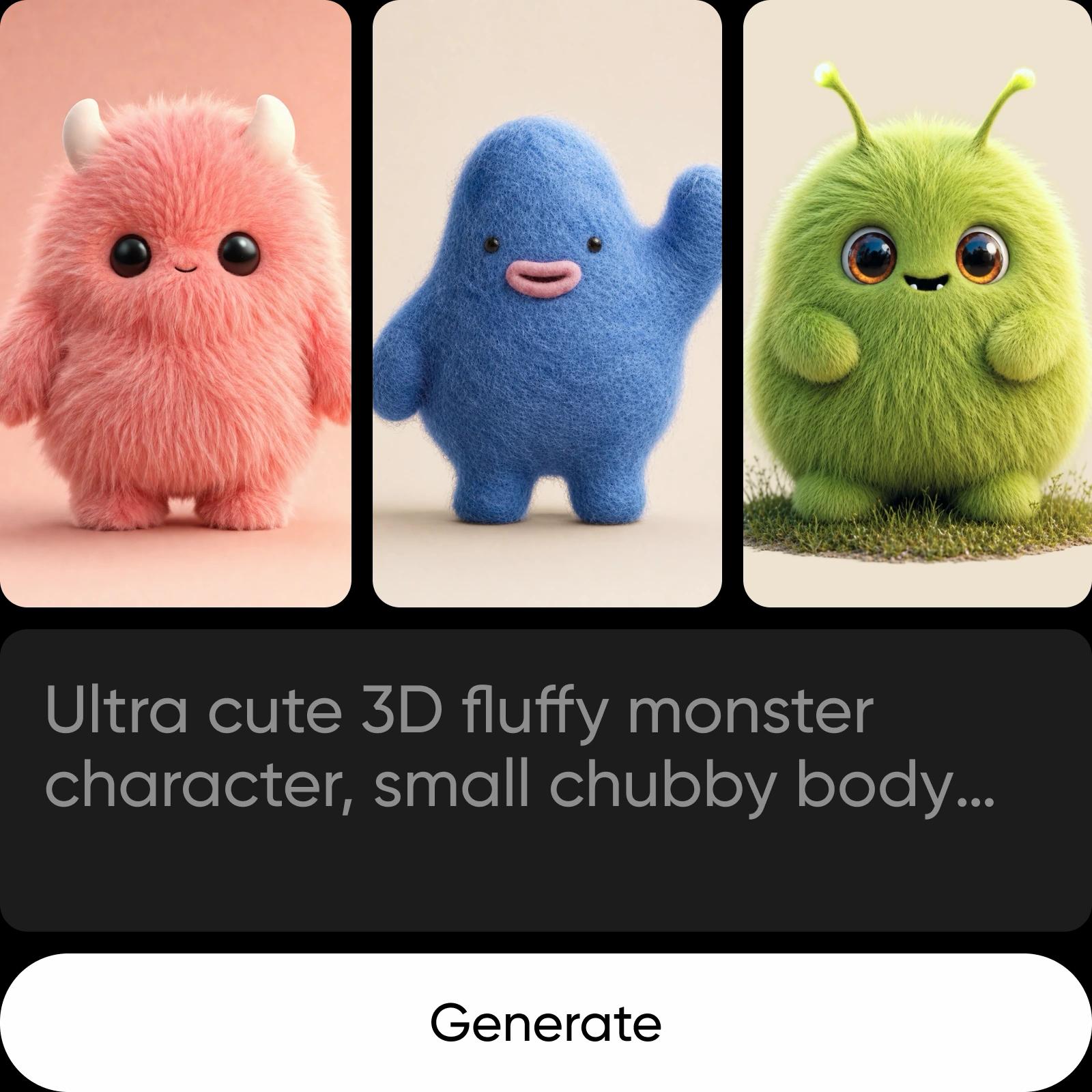
A character's look sets the tone before anyone speaks. Try realistic, illustrated, anime-inspired, clay, pixel art, or 3D-style images, then see which direction suits your story. Switch image models and styles as you compare concepts. A 3D-style picture is a visual concept; it is not a rigged 3D model you can animate directly.
Move your character into a video scene
Bring your character image into Picsart's image-to-video tool, then describe the action, setting, framing, and camera movement. Start with one short moment, such as walking into a room or reacting to someone offscreen. Watch for changes in the face or costume, and adjust the prompt or reference before making the next shot.
Keep your character recognizable across scenes
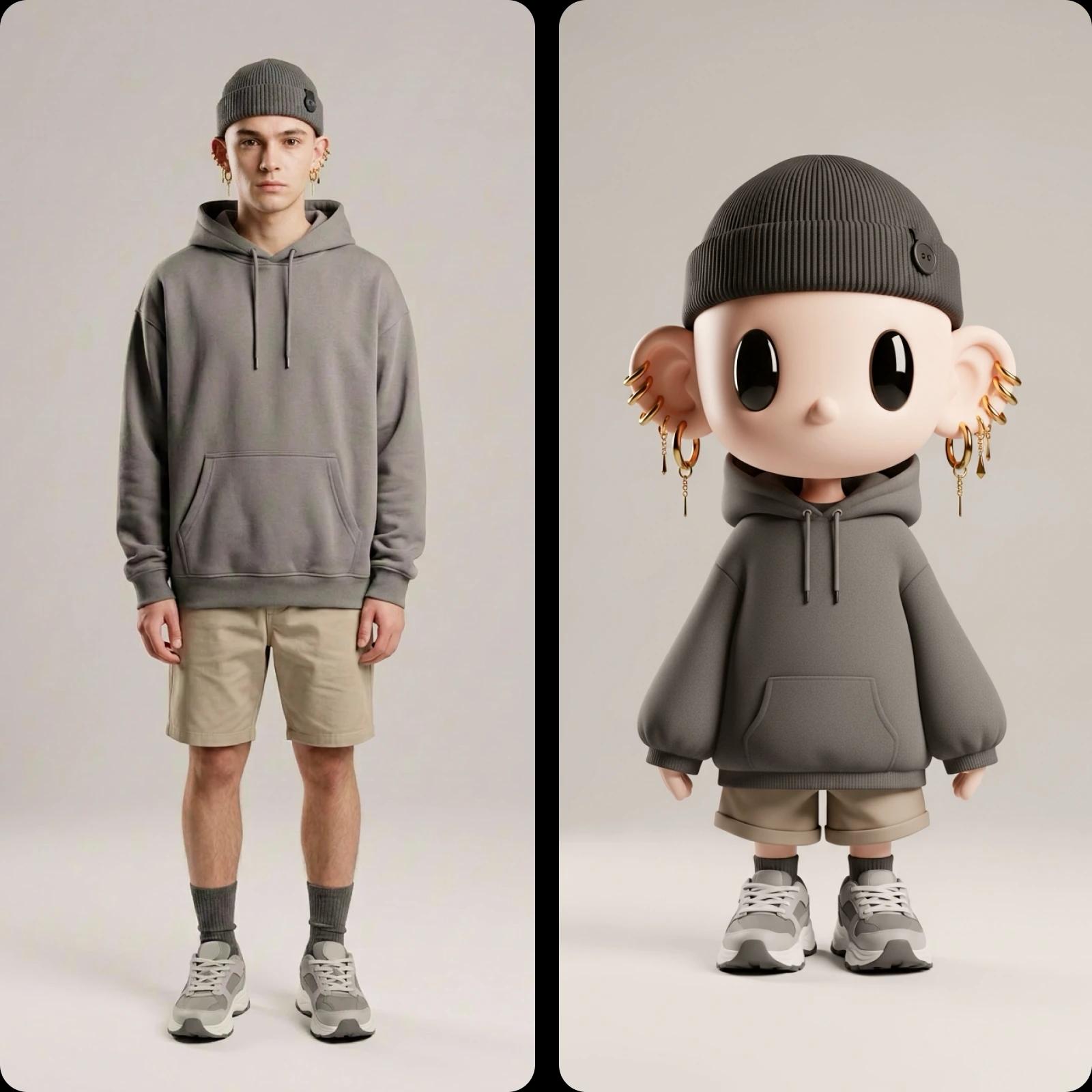
Save a clear reference image and note the details you want to repeat: face shape, hair, outfit, colors, and any distinctive prop. Use the image in later generations when the selected model supports references, and describe the new pose or setting separately. Check each result. A reference can guide the look, but it cannot lock every detail across shots.
Create characters for your next story
Short films
Sketch an original lead, choose a costume and mood, then test how they look in a short scene. A character image can help you begin a shot list or video experiment.

Keep creating after the character
AI character generator FAQ
An AI character generator creates original character images from a text prompt or reference image. You can use a character concept as the starting point for a video, film, drama, or illustrated story.
Continue from character to story
Explore the tools that can help you develop a look, plan a scene, and create motion.