Remove text from image AI: Free text remover for clean visuals
Erase unwanted text from images with an easy-to-use AI text remover tool. Remove text from images with just a few clicks for a professional look.

Clean and professional visuals
Remove text from images online and reclaim control of your photos for a clean, professional look.

AI-powered text remover
Get rid of unwanted text, adverts, and signs from images with the AI text remover.

High-quality results
Easily clean text from images without sacrificing your image quality.
How to remove text from image
Open the Remove tool
Upload your image to Picsart and open the Remove tool to start editing text directly on your photo.
Detect or select text
Remove and refine
Apply and download
Remove text from any image with AI
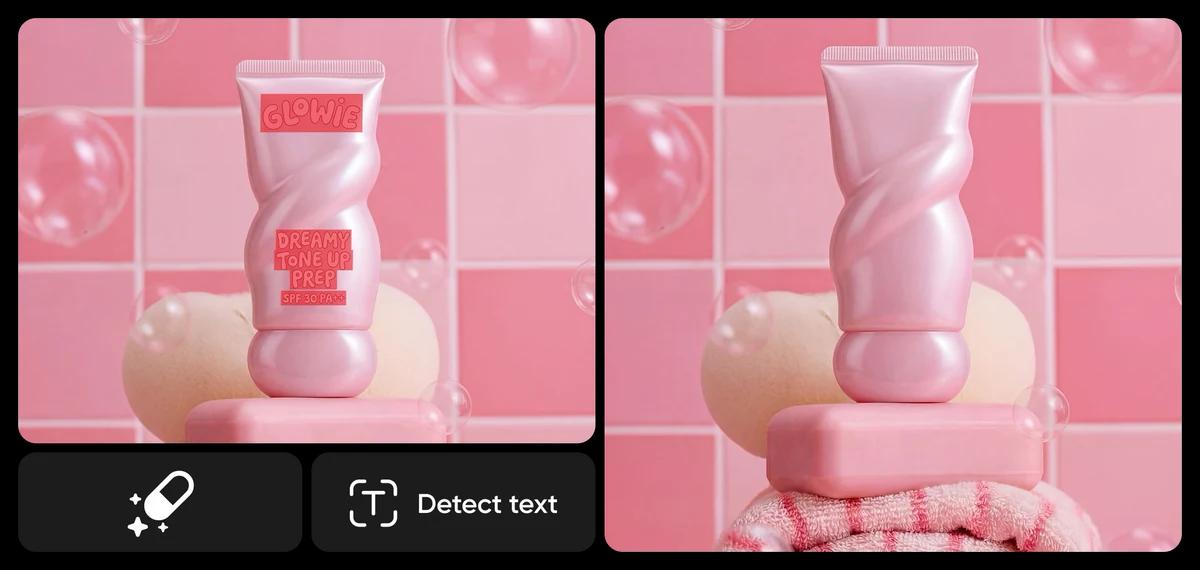
Easily remove unwanted text, from captions to watermarks, using two powerful AI-driven options. Use Detect text to automatically find and remove text elements with a single click, or choose Describe changes to AI and simply type what you want to be gone. Both methods work across all image types, from personal photos and product shots to memes and scanned documents, while preserving the original background for clean, natural-looking results.
Clean text from images without erasing the background
From captions to signs, text can be distracting — but there’s a solution. With Picsart’s Remove Object tool, you can easily remove text from an image without removing the background and destroying your visuals. All you need to do is upload your photo and use the object remover tool to erase your text. Then, simply click Remove to instantly remove text from your image.
Remove words from pictures to enhance marketing campaigns
Wondering how to remove words from a picture? When you’re working on marketing materials, overlays and signs can distract your audience. By removing the unwanted text from an image, you can create stunning marketing campaigns that shine a light on your brand. After removing unwanted text, you can add your own text or brand logo to the image for a stylish and professional look.
Erase text from image to clean up product photos
AI-powered text removal is a game-changer for e-commerce sellers, dropshippers, marketers, and designers. Quickly erase logos, watermarks, labels or text overlays from supplier or stock images to create clean, brand-neutral visuals. Perfect for product listings, ads and social posts, this tool maintains image quality while making content platform-compliant even when the original, text-free version isn't available.
Get a peek of the AI text remover in action
Refine your designs in seconds
After you’ve finished removing text from an image, you can let your creativity shine with Picsart’s easy-to-use photo editing tools. Elevate your image with AI photo editing tools to sharpen your image, add unique AI-generated backgrounds, increase clarity with the photo enhancer, and more. To add some extra artistic flair, transform ordinary pictures into beautiful, scroll-stopping works of art with trendy photo effects and filters.
Free online text remover: Erase text, captions, and watermarks
Gone are the days when object and text removal were only accessible to skilled professionals. Picsart’s AI makes it impossibly easy for everyone to remove objects from photos. No more ruined photos because of clutter, wandering strangers, and constructions that block a beautiful view.
Remove text from image FAQ
Yes. With Describe changes to AI, you can simply type what you want to be gone, such as “remove the text at the top” or “erase the logo in the corner.” AI understands your prompt and applies the edit using the best removal method automatically, saving time while keeping results clean and natural.
Upload your image and open the Remove tool in Picsart. Use Detect text to automatically select text elements, or click on specific words manually. Click Remove, and AI rebuilds the background naturally so the original image stays intact.
No. Picsart uses AI to fill in the area where the text was removed, preserving textures, colors, and details so your image stays sharp and high quality.
Yes. You can remove captions, watermarks, logos, signs, and overlays of any size. Detect text works best for clean, readable text, while the brush tool gives you precise control for smaller or stylized text.
Absolutely. Once the text is removed, you can continue editing your image with filters, effects, retouching tools, or add new text — everything stays fully editable in the Picsart editor.
Discover more background editing features