How to use reference images to guide AI generation
What you'll learn
What are AI reference images?
Common use cases
Use reference images step by step
STEP 1: Upload your reference image
- On web: Go to picsart.com/ai-image-generator → Click "Add reference image" → Upload from device or paste URL
- On mobile: Open Picsart → AI Image Generator → Tap image icon → Choose from gallery or camera
STEP 2: Set reference influence strength
Choose how strongly the reference affects your result:
- Low influence (20-40%): Use reference for color palette or general mood only
- Medium influence (50-70%): Balance reference composition with prompt creativity
- High influence (80-100%): Closely match reference style and structure, minimal variation
- Multiple references: Upload 2-3 images to combine different aspects (one for color, one for composition, one for style)
STEP 3: Generate with combined inputs
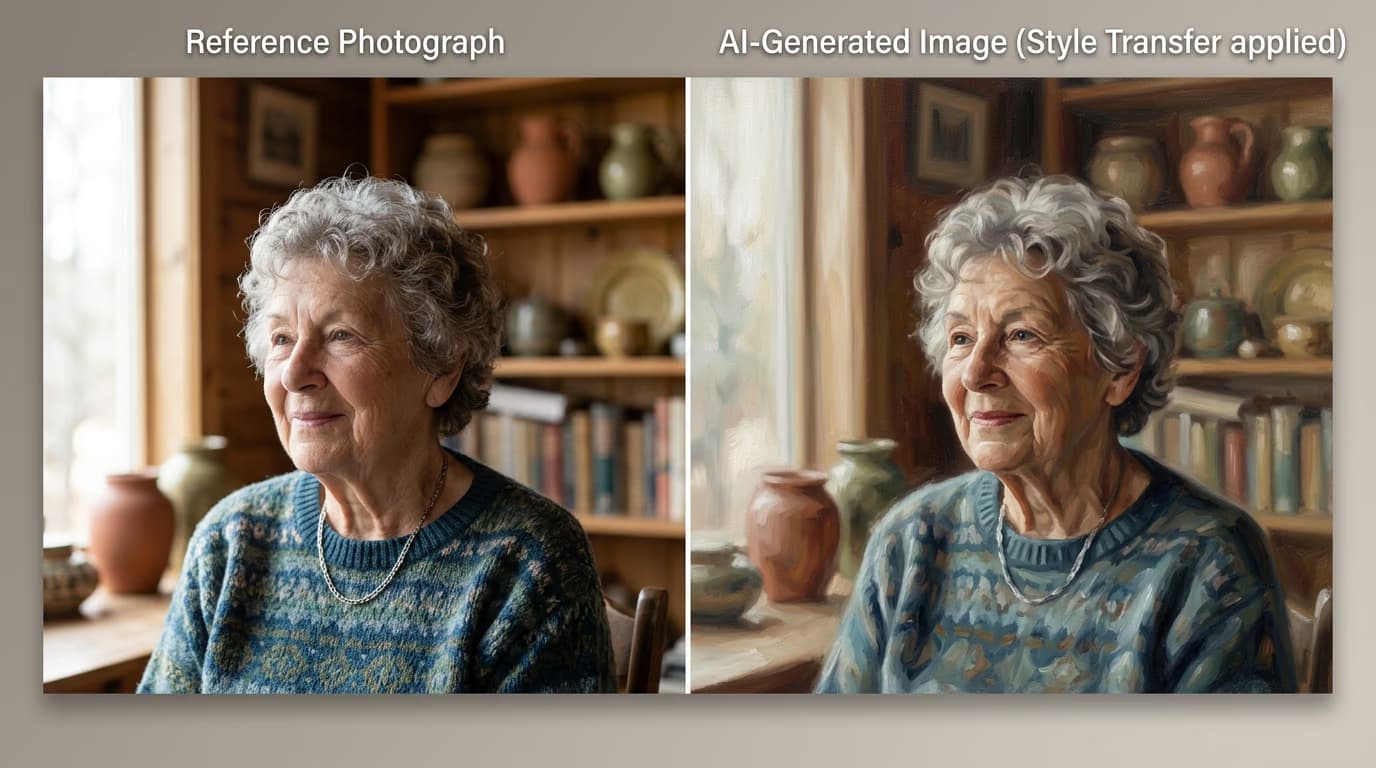
Write your text prompt describing what you want, then click "Generate." The AI will create images that blend your text description with the visual elements from your reference. The prompt provides the subject and details, while the reference controls the aesthetic.
STEP 4: Adjust reference balance
Check how well the reference and prompt combined: Not perfect? Lower reference strength if results look too similar to the original. Raise it if the AI is ignoring your reference. Adjust your text prompt to emphasize aspects the reference doesn't cover.
- Does the output match the reference's color palette and lighting?
- Is the composition similar to the reference framing?
- Did your text prompt details come through despite the reference?
Tips for best results
💡 Use high-quality reference images
Blurry or low-resolution references produce blurry outputs. Upload the highest quality version you have—at least 1024px on the shortest side. The AI can only match what it can see clearly in the reference.
💡 Match reference type to your goal
For color guidance, use references with clear, distinct palettes. For composition, use images with strong framing and layout. For style, use artwork that shows the aesthetic clearly. Don't expect one reference to control everything perfectly.
💡 Describe what's different from the reference
If your reference shows a beach sunset but you want mountains, emphasize "mountain landscape" heavily in your prompt. The AI defaults to recreating the reference, so you need strong text cues to override specific elements.
💡 Combine references strategically
Upload one reference for composition, another for color, another for style. Keep each reference focused on one aspect. The AI will blend them, so choose references that work together visually, not compete.
Frequently asked questions

Need precise control?
Combine reference images with prompts for accurate AI results.
Upload references