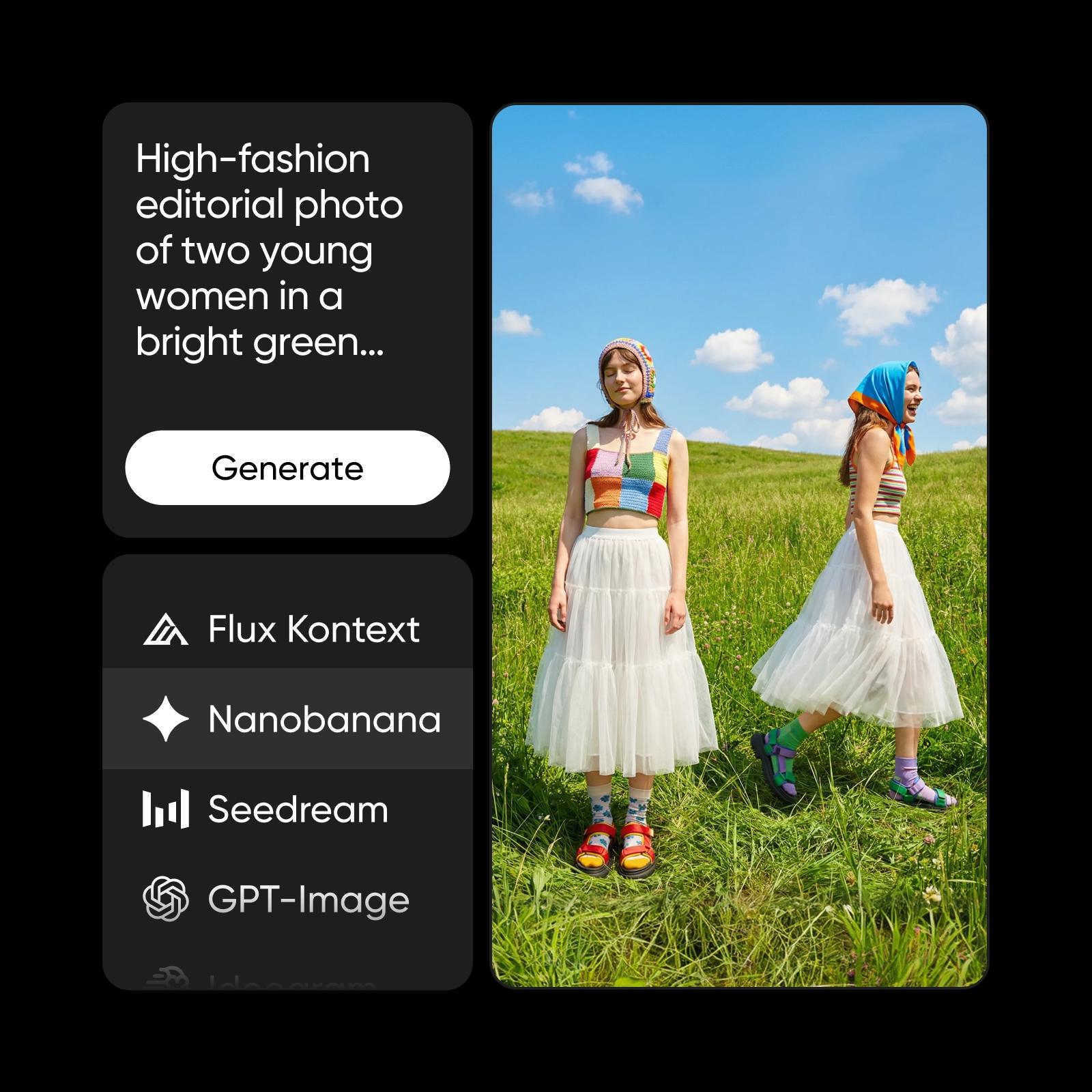
Picsart MCP image generation in GPT Astra
GPT ASTRA · PICSART MCP IMAGE GENERATION

Use Picsart MCP in GPT Astra

Bring Picsart MCP into GPT Astra - and ChatGPT, Claude, Cursor, Codex, and Windsurf - to generate images without a new app.

Connect Picsart MCP

Create images, video, and audio in your AI workspace. Choose your assistant and connect Picsart to start creating.

Swipe to see all platforms →

Connect ChatGPT

Open the Picsart plugin in ChatGPT, choose Install plugin, then connect your Picsart account.

After installing, complete Picsart sign-in and select Picsart in your chat.

Connect Picsart to ChatGPT

  1. 1. Open the Picsart plugin

    Open the Picsart listing and sign in to ChatGPT. If it opens a chat, find Picsart in Settings → Plugins, or paste the plugin link below into Safari or Chrome.

  2. 2. Install and connect

    Tap Install plugin, then Connect if prompted, and sign in to Picsart. After login, reopen the plugin link if needed.

    Manual setup or Codex

    Find Picsart in Plugins on ChatGPT web, desktop, or mobile. Install the plugin and select Connect if prompted. For an advanced custom MCP connection, use developer mode on ChatGPT web; workspace permissions apply.

    Server URL
    https://api.picsart.com/gen-ai/mcp
    Read the setup guide

    Use Codex

    Run this in your terminal, then complete Picsart sign-in.

    Use Codex
    codex mcp add picsart-gen-ai --url https://api.picsart.com/gen-ai/mcp
    codex mcp login picsart-gen-ai


  3. 3. Use Picsart in your chat

    Open a new chat using the same account. Tap + and choose Picsart, or mention @Picsart.

Get Picsart MCP running in GPT Astra in 3 steps

Add Picsart MCP, connect it to GPT Astra, and start generating.

  • Install Picsart MCP

    Add the Picsart MCP server to your setup.

  • Connect GPT Astra

    Link Picsart MCP to GPT Astra, Claude Code, Codex, Cursor, ChatGPT, or Windsurf.

  • Prompt GPT Astra

    Generate images through Picsart MCP right inside GPT Astra.

Picsart MCP, right inside GPT Astra

Picsart MCP is a server you connect to GPT Astra. It brings image and video generation into GPT Astra - call 150+ models on one credit balance without leaving your AI client.

What you can make with Picsart MCP in GPT Astra

Real outputs, generated through Picsart MCP.

Image made with Picsart MCP in GPT Astra
HIGH-FIDELITY VISUALS FROM PLAIN TEXT

One connection, many models

One Picsart MCP connection gives GPT Astra far more than a single model. It unlocks Fable 5.1 - plus 150+ other image, video, and audio models across 30+ providers, all on one credit balance and callable from the same prompt. Switch models without switching tools.

150+ models in GPT Astra through one Picsart MCP connection

A full toolkit through one MCP

One MCP connection reaches every core tool in Picsart.

  • Generate

    Create images from a prompt in GPT Astra.

  • Edit with a prompt

    Change any image by describing the edit you want.

  • Remove background

    Cut out subjects cleanly in a single call.

  • Upscale

    Boost resolution and detail on any image.

  • Video

    Generate and animate clips from the same server.

  • 150+ models

    Reach every model on one MCP connection.

One MCP, everything connected

  • 150+models
  • 30+providers
  • 10+tools
  • 12+AI agents

Picsart MCP in GPT Astra FAQ

  • GPT Astra is an AI client. With Picsart MCP connected to it, you can generate images directly inside GPT Astra, powered by 150+ Picsart models.

Start generating in GPT Astra

Install Picsart MCP and start generating images right inside GPT Astra.