Create a month of LinkedIn posts from your founder story with AI
What you'll learn
What is Picsart Flow for LinkedIn?
Common use cases
Generate your LinkedIn content step by step
STEP 1: Open Flow and start a LinkedIn workflow
- On web: Go to picsart.com/flow → Browse templates → Select LinkedIn content workflow
- On mobile: Open Picsart → Flow tab → Templates → Search "LinkedIn"
STEP 2: Input your founder story and brand assets
Fill in your brand details and upload visual assets:
- Founder story: Paste your company origin, mission, or recent milestone (200-500 words)
- Brand direction: Add tone of voice, target audience, and key messaging points
- Visual assets: Upload logo, product photos, or team images
- Style preferences: Choose professional, conversational, or technical tone
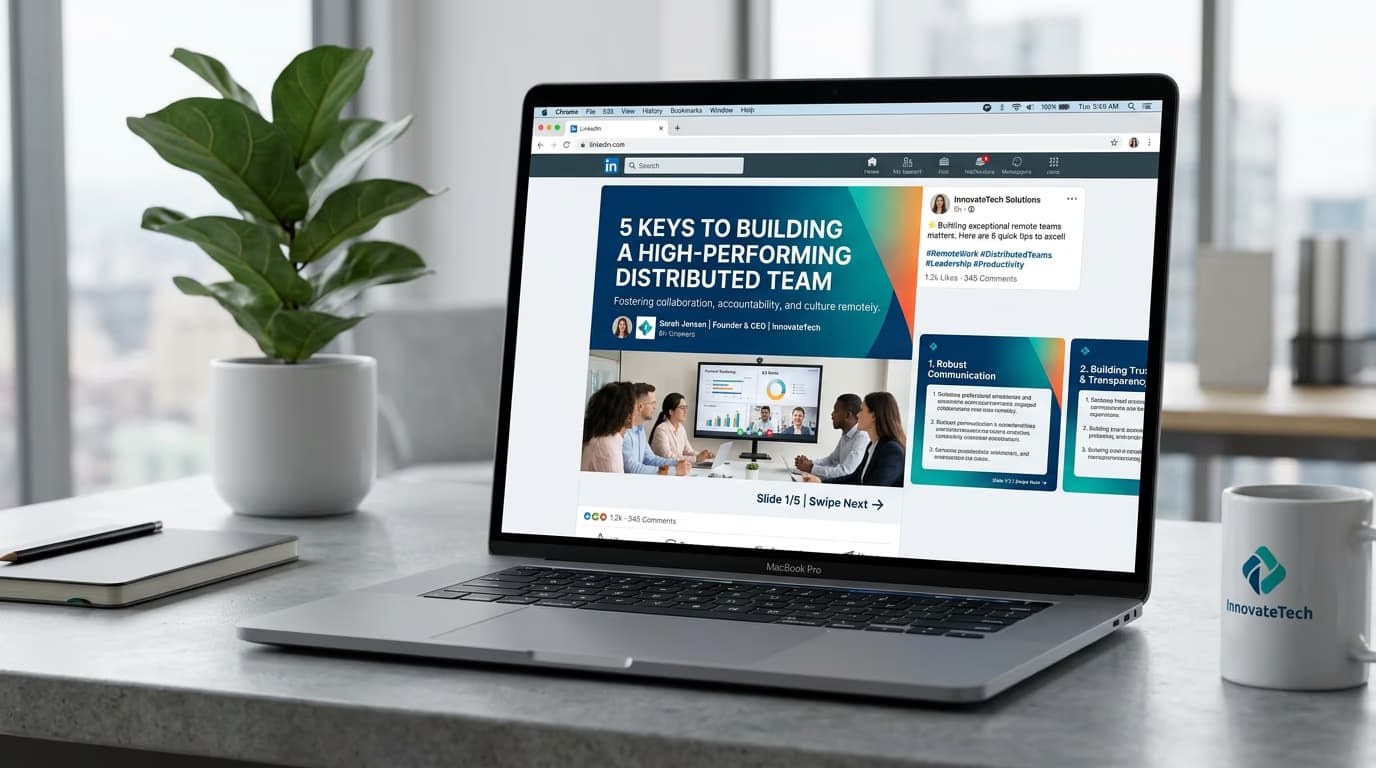
STEP 3: Generate post variations and carousels
Click "Generate" and Flow creates multiple content pieces. You'll get single-image posts, text-only updates, and multi-slide carousel concepts based on your inputs. The AI applies your brand voice consistently across all variations.
STEP 4: Review and export your content
Check that each post matches your brand standards: Not perfect? Regenerate individual posts, adjust the brand direction, or manually edit copy before exporting.
- Verify tone matches your authentic voice and LinkedIn audience expectations
- Check carousel flow tells a clear story without missing context
- Confirm visuals align with brand colors and image quality standards
Tips for best results
💡 Start with a strong founder story
Your initial input sets the tone for all generated content. Include specific details, real challenges, and authentic moments rather than generic company descriptions. The AI pulls better material from concrete stories.
💡 Save your brand direction as a template
Once you dial in tone, audience, and messaging that works, save it as a reusable template. You can generate new content batches without re-entering brand details every time.
💡 Mix post formats for algorithm performance
LinkedIn favors variety. Export a mix of text-only posts, single-image updates, and carousels. Test different formats to see what your audience engages with most.
💡 Review carousel sequencing carefully
Make sure each slide connects logically to the next. LinkedIn users swipe fast, so every slide should make sense on its own while building toward a clear conclusion.
Frequently asked questions

Ready to scale your LinkedIn content?
Turn one founder story into weeks of posts with Flow.
Start creating content