Create product assembly animations from a single image
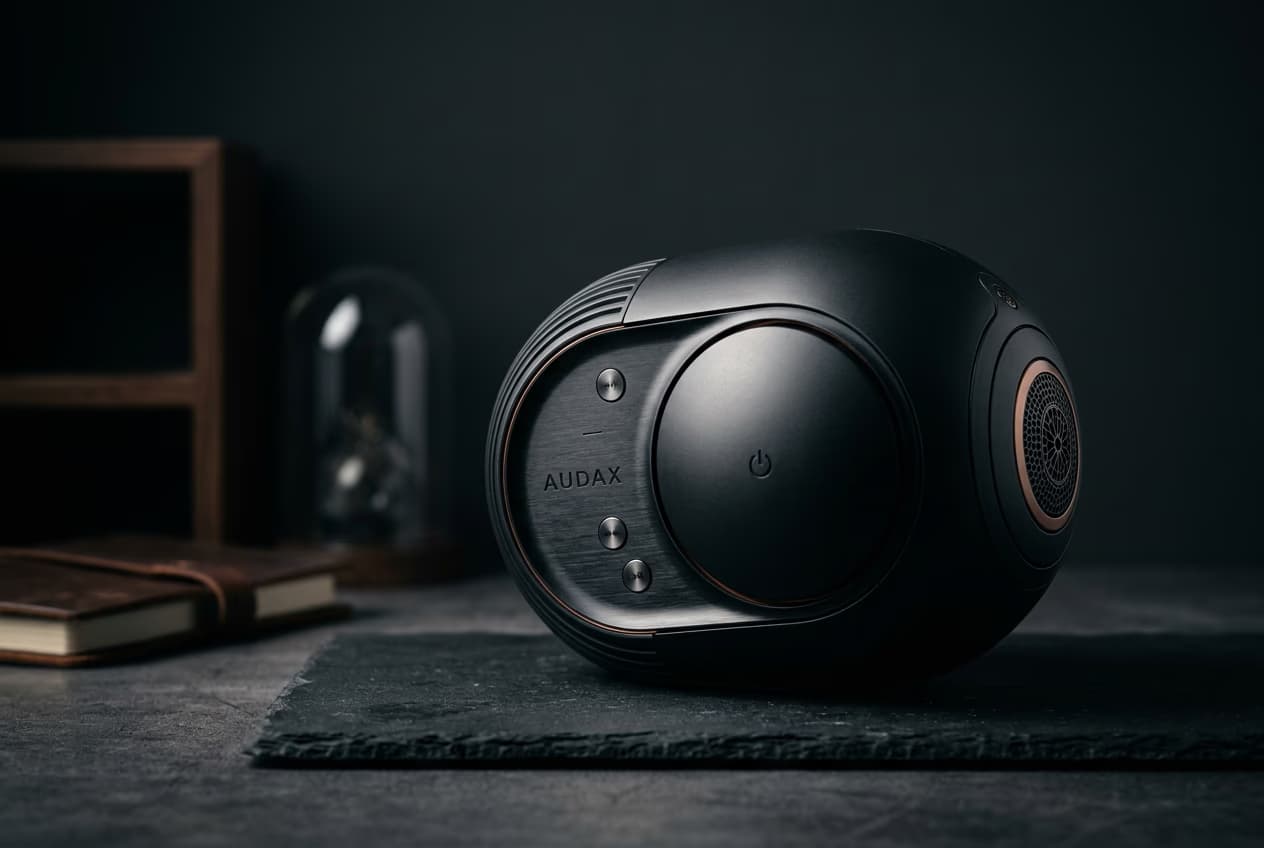
WORKFLOWS4 minBeginner

Turn one product photo into a build-up animation that reveals your product in clear steps.

Create product assembly animations from a single image

What you'll learn

  • How to select product images that work for assembly animations
  • Generate motion sequences that reveal product structure
  • Control pacing and timing for marketing videos
  • Export animations ready for social media and websites

What are product assembly animations?

Product assembly animations show your product being built from individual parts or revealed in stages. The AI analyzes your product image, identifies logical component sections, and generates an animated sequence. These animations help viewers understand product structure and create engaging marketing content. Think of it as an exploded-view diagram that moves.

Common use cases

  • E-commerce: Show product construction to build trust and explain features
  • Product launches: Create reveal videos that generate excitement
  • Marketing videos: Add dynamic visuals to ads and social content
  • Educational content: Demonstrate how products work or fit together
  • Website headers: Animate hero sections with product build-ups
  • Trade shows: Loop assembly animations on screens to attract attention

Generate your assembly animation step by step

STEP 1: Upload your product image

  • On web: Go to picsart.com/flow/templates → Search assembly → Upload product photo
  • On mobile: Open Picsart → Flow → Templates → Assembly animation → Select image
Create assembly animation

STEP 2: Set assembly sequence and timing

Choose how your product builds:

  • Bottom-up: Parts assemble from base to top (works well for stacked products)
  • Inside-out: Core components appear first, then outer layers
  • Sequential: Parts appear in logical assembly order
  • Speed: Adjust timing from quick reveal (2 seconds) to detailed build (10 seconds)
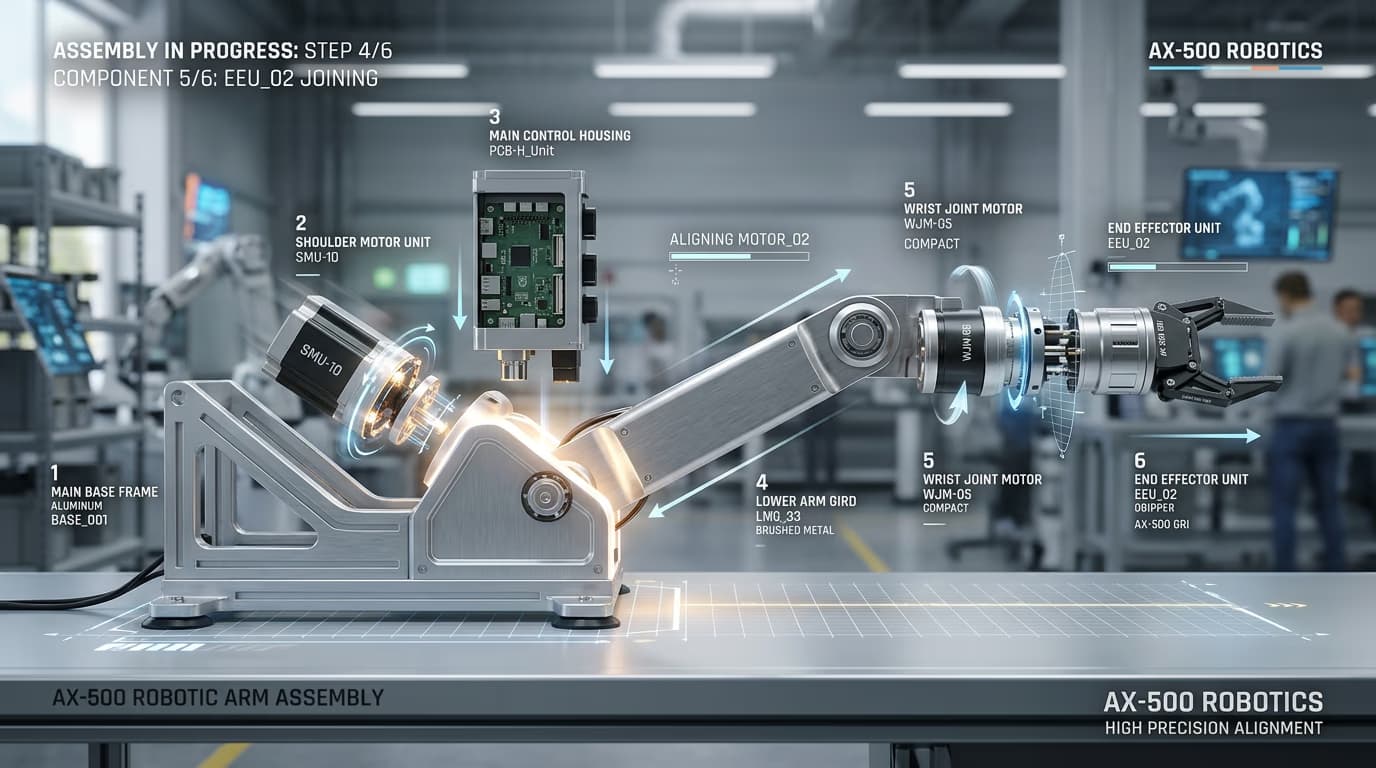
STEP 3: Generate motion asset

Click "Generate" and the AI creates your assembly animation. The system analyzes your product structure and generates a sequence showing parts coming together. Processing takes 15-45 seconds depending on product complexity.

STEP 4: Review and export for marketing

Check that the sequence tells a clear story: Not perfect? Regenerate with different timing, or adjust the sequence order to match actual assembly logic.

  • Verify parts appear in a logical order that makes sense to viewers
  • Check that pacing gives viewers time to understand each step
  • Confirm the final assembled product matches your original image
Start animating products

Tips for best results

💡 Use clean product photos with clear backgrounds

White or solid color backgrounds work best. The AI needs to clearly distinguish your product from the background to generate accurate assembly sequences. Remove shadows and reflections for cleanest results.

💡 Slower pacing for complex products

Products with many components need more time per step so viewers can follow along. Simple products can use faster reveals. Test different speeds to find what gives viewers enough time to understand without dragging.

💡 This creates visual representations, not engineering documentation

The animations show a stylized build-up sequence for marketing purposes. They illustrate product structure but should not replace actual assembly instructions or technical documentation. Use these for engagement, not as how-to guides.

Frequently asked questions

The AI analyzes your product image to identify distinct components and logical assembly order. It creates an animation showing parts appearing and connecting in sequence. The result is a visual representation of how your product builds up, optimized for marketing rather than actual assembly instructions.

You can choose overall sequence patterns like bottom-up, inside-out, or sequential. The AI determines specific part order based on product structure. For precise control over individual component timing, you would need to manually edit the output or provide multiple reference images showing desired sequence.

Products with visible distinct parts work best. Tech products, furniture, vehicles, appliances, and equipment with clear component structure produce strong results. Soft goods, liquids, and products with minimal visible structure are harder to animate meaningfully as assembly sequences.

No. The animation creates a stylized visual representation for marketing purposes, not engineering documentation. It shows a build-up sequence that helps viewers understand product structure and creates engaging content. Do not use these animations as actual assembly instructions or claim they represent real manufacturing processes.

Ready to animate your products?

Turn product photos into engaging assembly animations.

Create animation now