How to access 140+ AI models from the terminal with Picsart CLI
What you'll learn
What is Picsart CLI?
Common use cases
Access AI models from your terminal step by step
STEP 1: Install the CLI
- On macOS: Open Terminal → Paste the install command from picsart.com/cli → Press Enter
- On Linux/Windows: Visit picsart.com/cli → Copy the install command for your OS → Run in your terminal
STEP 2: Authenticate your account
Run the login command to connect your Picsart account:
- Type gen-ai login in your terminal
- A browser window opens automatically
- Click "Allow" to grant terminal access
- Credentials are saved locally — you only do this once
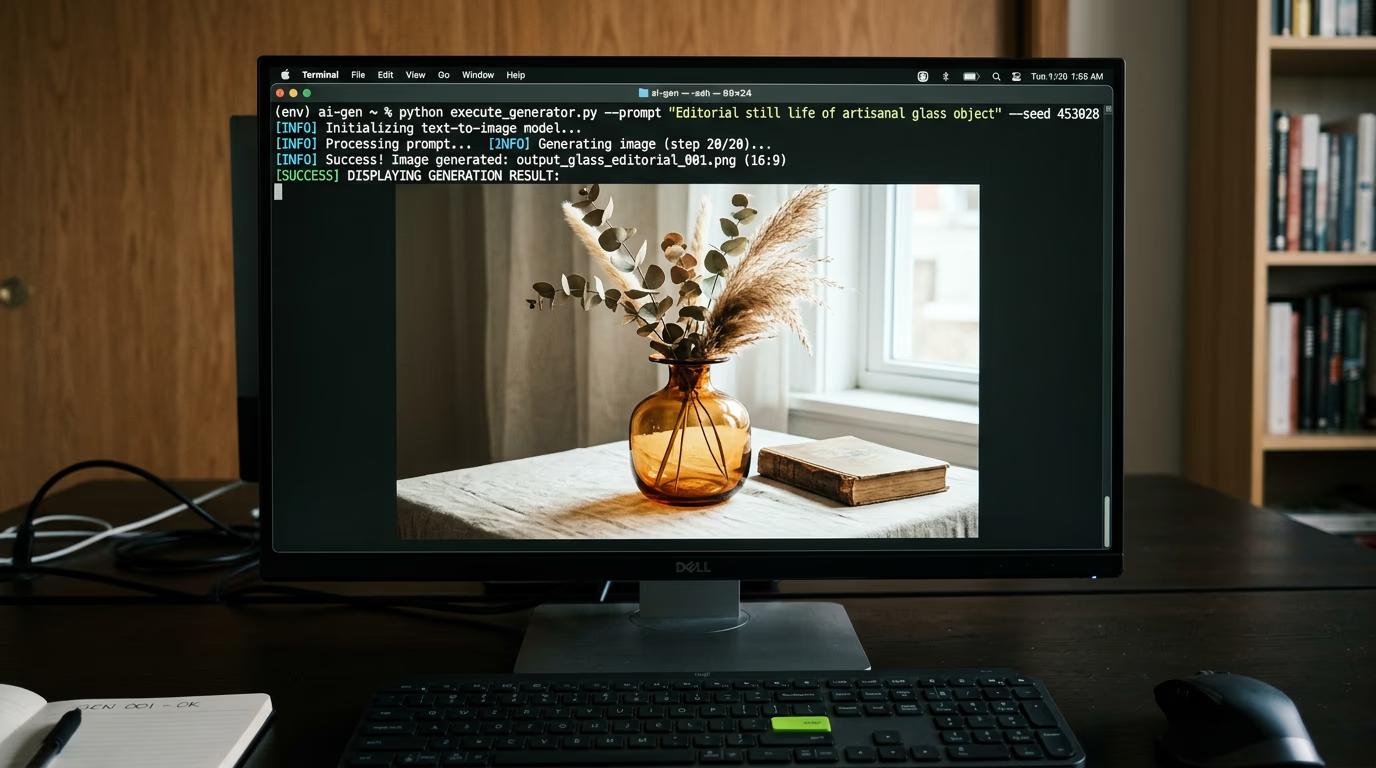
STEP 3: Generate your first image
Run a generation command with a prompt and the current CLI syntax from the official docs. Review the saved output in your working directory and adjust your prompt or model choice as needed.
STEP 4: Review output and explore models
Check that your generated file saved correctly: Not the result you wanted? Try a different model flag, adjust your prompt, or pipe the output through Picsart editing tools like background removal or upscale.
- Look in your terminal for the saved file path
- Open the file to confirm quality and content match your prompt
- Run gen-ai generate --help to see all available models and options
Tips for best results
💡 Use model flags to pick the right tool
Different models excel at different tasks. Flux works great for realistic photos, Recraft V4 handles editorial and branding better, and Sora or Kling are built for video. Check the CLI docs or run gen-ai generate --help to see the full list of available models and their strengths.
💡 Pipe CLI output into batch workflows
The CLI supports JSON output and silent mode, which makes it easy to drop into bash scripts, Next.js build steps, or CI jobs. You can also pass a manifest file to generate multiple assets in one command and control concurrency.
💡 Chain video generations for longer outputs
Most video models generate short clips (5-10 seconds). Use the CLI's video extend feature to stitch multiple generations together, or attach AI-generated audio tracks to match the length you need.
💡 Wire CLI into AI agents for plain-English control
Picsart CLI includes an MCP server that works with Claude Code, Codex, Cursor, Windsurf, and ChatGPT. Connect it once, then ask your agent to generate images or videos in natural language — no manual flags or syntax required.
Common task types
Frequently asked questions

Ready to generate from the terminal?
Install Picsart CLI and get access to 140+ AI models in one command.
Get started now