How to apply artistic style transformations to images with Style Remix
Transform photos with consistent artistic styles using AI-powered style transfer and remixing.
- Category: AI AGENTS
- Reading time: 3 min
- Difficulty: Beginner
What you'll learn
- Upload images and choose artistic style references
- Apply AI-powered style transformations consistently
- Adjust intensity and preservation of original details
- Export styled images for creative projects and branding
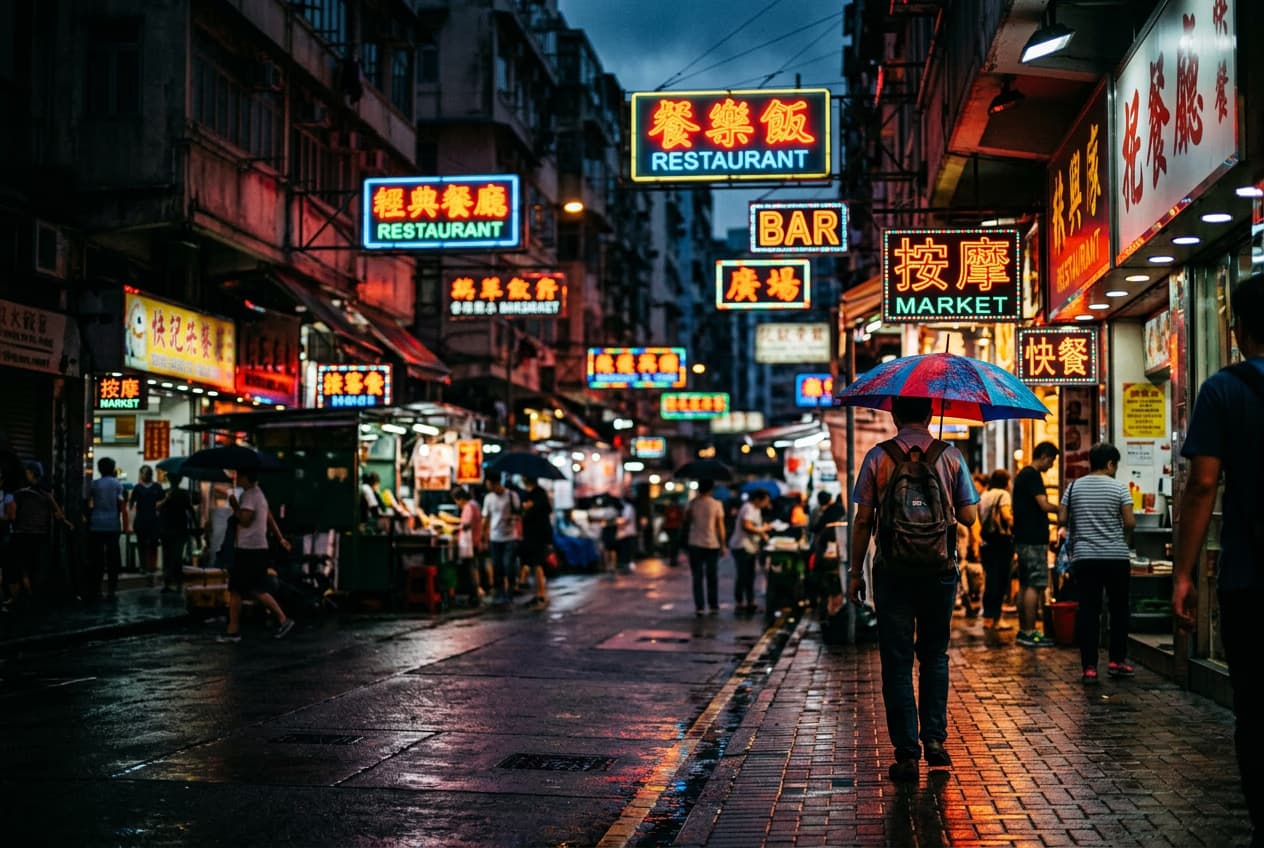
Remix your style step by step
STEP 1: Upload your image
- On web: Go to picsart.com/ai-agent/?agentId=style-remix → Upload your photo
- On mobile: Open Picsart → Chat with Style Remix agent → Attach your image
STEP 2: Choose your artistic style
Select how you want to transform your image:
- Preset styles: Choose from impressionism, pop art, watercolor, sketch, oil painting, anime, and more
- Reference image: Upload an artwork or photo whose style you want to copy
- Text description: Describe the style you want — "bold comic book lines" or "soft pastel painting"
- Intensity slider: Control how strongly the style is applied — subtle enhancement or full transformation
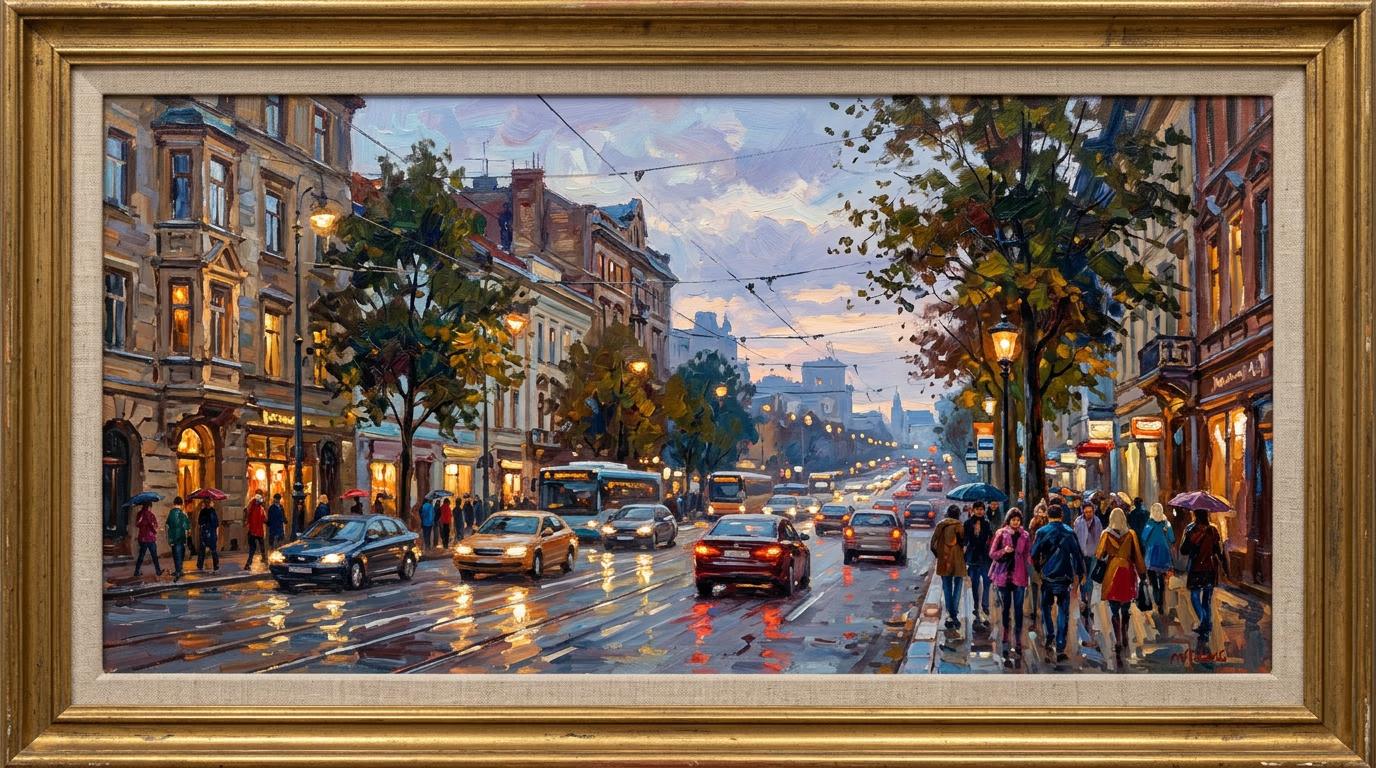
STEP 3: Generate styled version
Click "Remix" and wait a few seconds. Style Remix analyzes the artistic characteristics you selected and applies them to your photo while preserving the original subject, composition, and recognizable details. Preview the transformed image to see the style applied.
STEP 4: Review and adjust
Check that the style transformation looks natural and matches your creative vision: Not quite right? Adjust the intensity slider for a stronger or subtler effect, or try a different style preset.
- Original subject is still recognizable and not overly distorted
- Artistic style is visible and consistent across the entire image
- Important details (faces, text, key objects) remain clear enough for your use case
Tips for best results
Start with high-contrast images
Photos with clear subjects, strong lighting, and good color separation give the AI more to work with. Low-contrast or muddy images may lose important details when heavily stylized.
Use lower intensity for faces
If your image includes people, start with a lower intensity setting to keep faces recognizable. Heavy stylization can distort facial features in ways that look artistic but might not be flattering for portrait work.
Match style to content
Some styles work better with certain subjects — watercolor looks great on nature scenes, comic book style suits action shots, impressionism flatters landscapes. Experiment to find what fits your content.
Maintain consistency across a series
If you're styling multiple images for a cohesive project, use the same style preset and intensity for all of them. You can also upload one styled image as a reference to apply its exact style to other photos.
Frequently asked questions
- Traditional filters apply preset color and contrast adjustments. Style Remix uses AI to analyze and recreate artistic techniques — brushstrokes, textures, composition choices — from reference art or style descriptions. It understands the structure of your image and applies the style intelligently, preserving important details while transforming the overall aesthetic. The result looks like your photo was actually painted or drawn in that style, not just color-shifted.
