How to batch-create product ad creatives from multiple photos with AI
Turn multiple product photos into a consistent set of product ad creatives with one reusable Flow template.
- Category: WORKFLOWS
- Reading time: 4 min
- Difficulty: Intermediate
What you'll learn
- Upload multiple product photos into one repeatable workflow
- Keep layouts and brand treatment more consistent across outputs
- Review, refine, and rerun the same template when a batch needs adjustment
- Prepare a reusable ad-creative workflow for future product launches
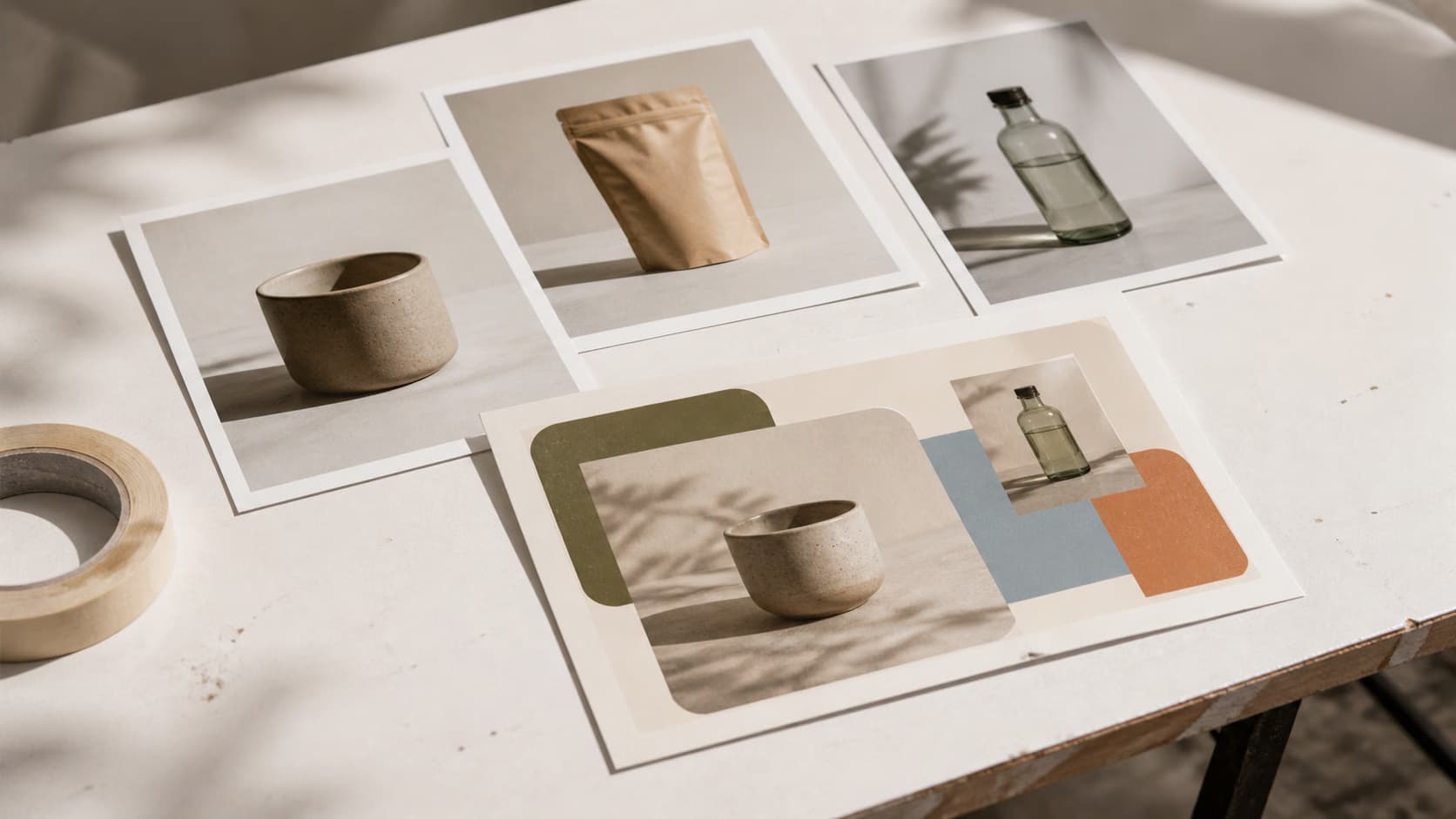
Create your product ads step by step
STEP 1: Open the template
- Open the "Batch Skincare Ad Creation" template in Picsart Flow.
- Review the default layout before you add your own product photos.
STEP 2: Upload your product images
Add the product photos you want to turn into ad creatives.
- Upload a consistent set of source images.
- Use clear, well-lit photos so the workflow has cleaner input.
- If you are trying the template for the first time, begin with a smaller sample set.

STEP 3: Run the batch workflow
Run the workflow and review how the template applies the same layout and treatment across your product photos. If needed, adjust the workflow settings and rerun the batch.
STEP 4: Review and export creatives
Check each output before export and make manual edits where needed. Not perfect? Tweak the template and rerun with the same source set.
- Verify product images are properly centered and scaled
- Check that text is readable and positioned correctly on all variations
- Confirm backgrounds are clean with no leftover artifacts
Tips for best results
Use consistent input photos
Similar lighting, angles, and crop styles make batch outputs feel more unified.
Test with a small batch first
A small sample run helps you spot layout or cropping issues before you scale the batch.
Name your files strategically
Clear filenames make it easier to track which outputs belong to which products after review.
Save successful templates
Once the workflow works for your brand, keep that version so future product launches are faster.
Frequently asked questions
- Batch processing runs the same workflow on multiple images so you can apply one visual setup across a larger product set. You still review the outputs and can rerun the workflow if the first pass needs adjustment.
