How to batch-create skincare ad creatives with Picsart Flow templates
Turn multiple product photos into polished ad creatives with a reusable template workflow.
- Category: WORKFLOWS
- Reading time: 4 min
- Difficulty: Intermediate
What you'll learn
- How to upload multiple product images into a batch processing node
- How to apply consistent branding across all creatives automatically
- How to save and reuse your workflow template for future campaigns
- How to export finished ad creatives in multiple formats at once
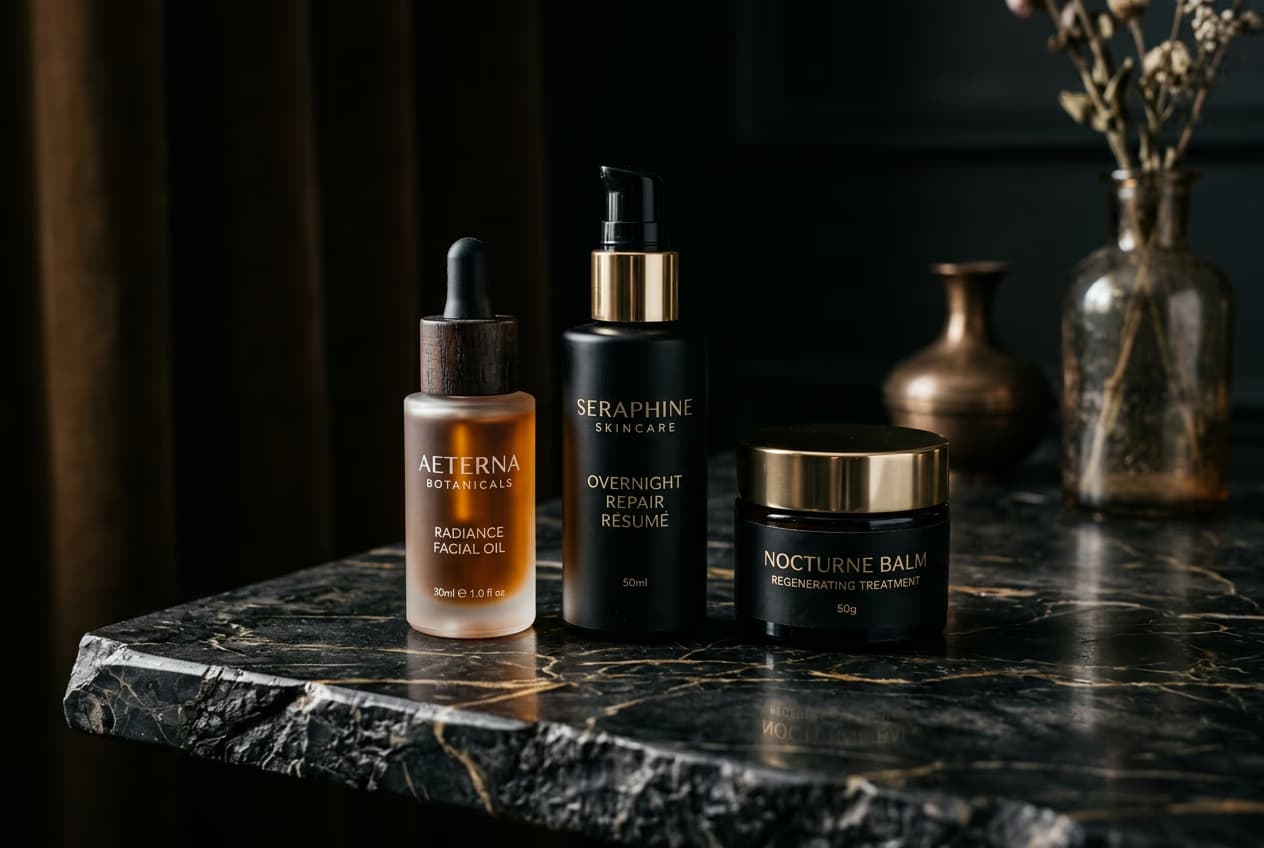
Create your batch ad workflow step by step
STEP 1: Open the template
- Open the "Batch Skincare Ad Creation" template in Picsart Flow on the current available surface.
STEP 2: Upload your product images
Click the batch input node and add your product photos:
- Upload a consistent set of product images.
- Use clear, well-lit photos so the template has cleaner source material.
- If needed, test with a small sample first before running a larger set.

STEP 3: Generate all creatives
Run the template and review the generated creatives. If needed, refine the workflow settings and rerun with the same source set.
STEP 4: Review and export
Review each creative before export and make manual edits where needed.
- Verify product placement and cropping looks correct on all images
- Check that text overlays are readable and positioned consistently
- Confirm background removal worked cleanly without artifacts
Tips for best results
Standardize your product photos first
Use consistent lighting, angles, and distances across all input images. The more similar your source photos are, the more consistent your final ads will look.
Save your workflow as a reusable template
Once you've perfected your ad design, save it as a custom template. You can run it again next time with different products without rebuilding anything.
Use high-resolution source images
Start with at least 1000x1000px product photos. Higher quality inputs mean sharper final ads, especially important for print or large display formats.
Test your template with one image first
Before running a full batch, process a single product photo to check positioning, colors, and text placement. Fix any issues, then batch the rest.
Common ad format specifications
- Instagram Feed (1:1)1080x1080px – Square format for main feed posts
- Instagram Story (9:16)1080x1920px – Vertical format for Stories and Reels
- Facebook Ad (1:1 or 4:5)1080x1080px or 1080x1350px – Feed and mobile-optimized
- Pinterest Pin (2:3)1000x1500px – Standard Pin format
- Twitter Post (16:9)1200x675px – Horizontal timeline image
- LinkedIn Sponsored (1.91:1)1200x627px – Feed ad format
Frequently asked questions
- Batch size, processing speed, and export options can vary by current product settings. Check the current Flow experience for the latest limits before running a large set.
