How to build a complete marketing campaign with Claude and Picsart MCP
Connect Picsart MCP to Claude and use three Picsart skills to create product launch assets, test ad variations, and adapt an ad for five markets.
- Category: MCP
- Reading time: 4 min
- Watching time: 6 min
- Difficulty: Intermediate
What you'll learn
- Connect Picsart MCP to Claude with a custom connector.
- Install the three Picsart skills used in the fragrance launch.
- Generate a campaign kit from a brief and create variations of an existing ad.
- Adapt an ad’s copy and scenery for five markets.
Build your campaign step by step
Step 1: Open Picsart MCP and connect Claude
- On web: Open the Picsart MCP page and copy the custom connector link. In Claude, go to Customize → Connectors → + → Add a custom connector. Name the connector, paste the link, and click Add.
Open Claude connectors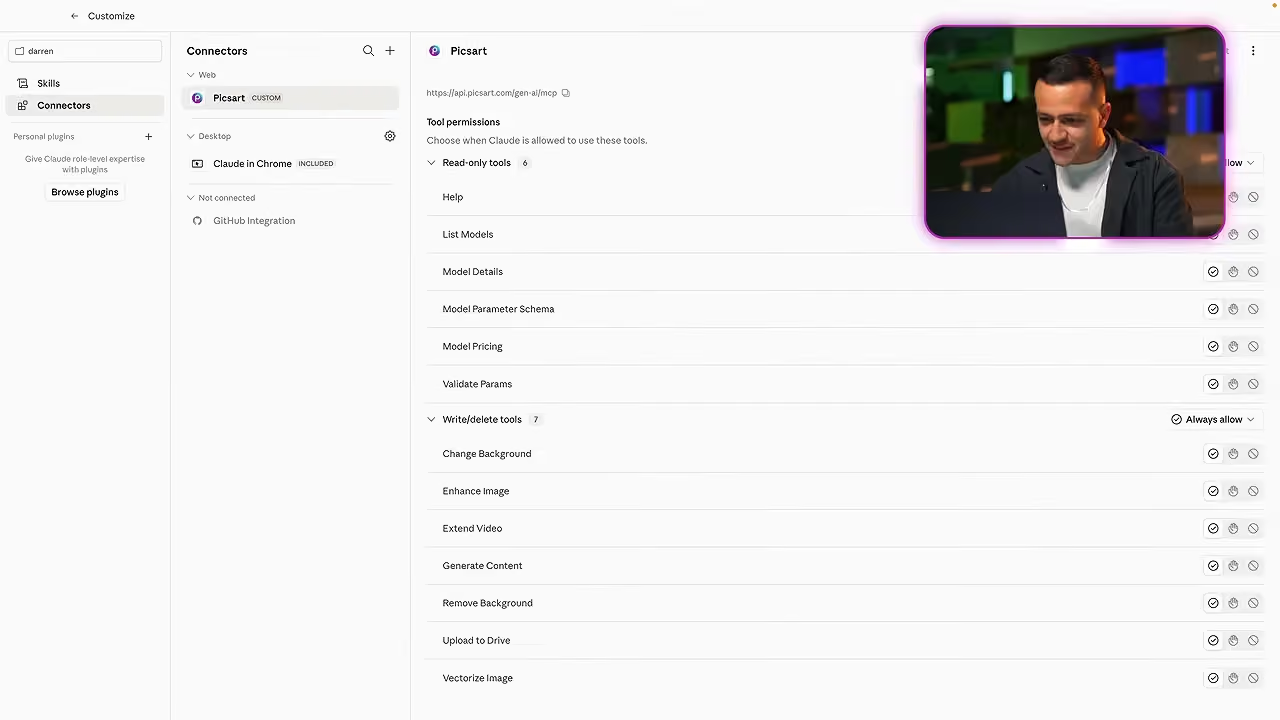
Step 2: Choose and install your campaign skills
Scroll to the starter skills on the Picsart MCP page and select Marketer. Download the three skills below, then go to Customize → Skills → + → Create skill → Upload a skill in Claude. Upload each download.
- Campaign kit: Build the product launch assets.
- Ad variant factory: Make variations of an existing ad.
- Localized campaign: Adapt an ad for different markets.
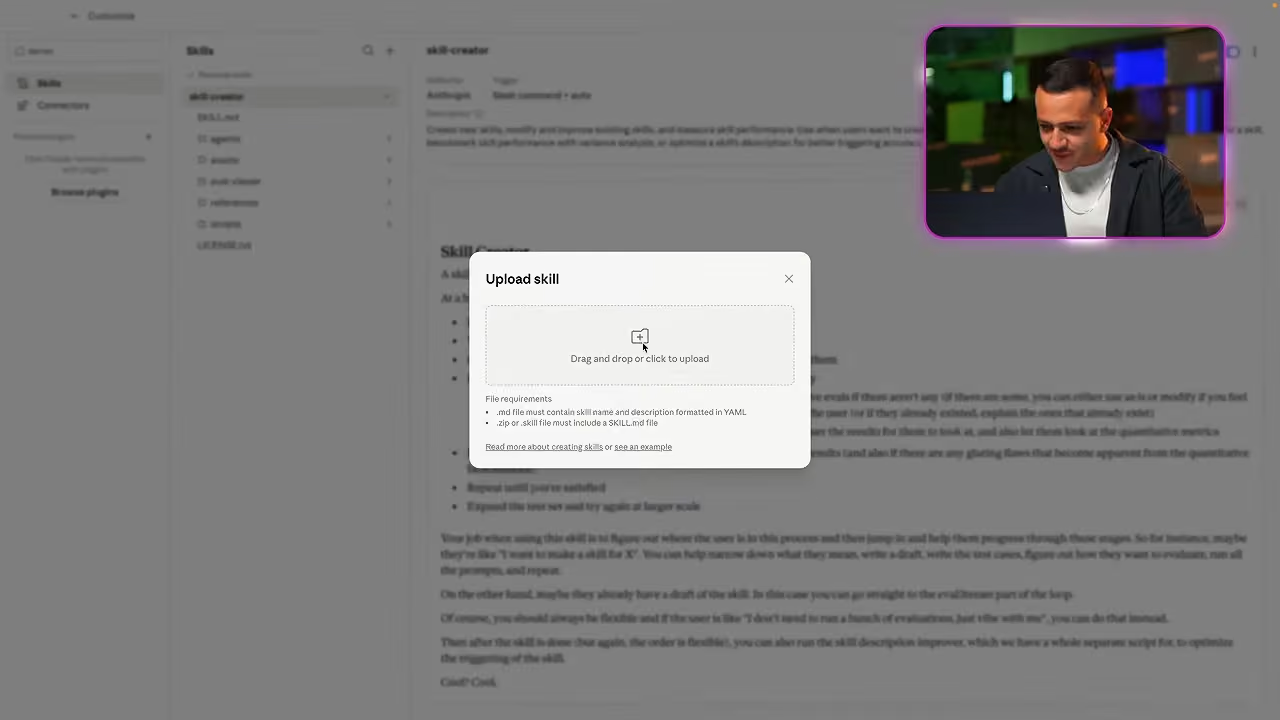
Step 3: Generate your campaign kit
In Claude, submit your prompt with a brief and product image. For the demo, ask for two variations each for the blog, LinkedIn, Instagram, and X. Respond to any approval requests, then open the generated assets before moving on to ads.
Generate a campaign kit from this brief below using Nostos bottle image from my desktop.
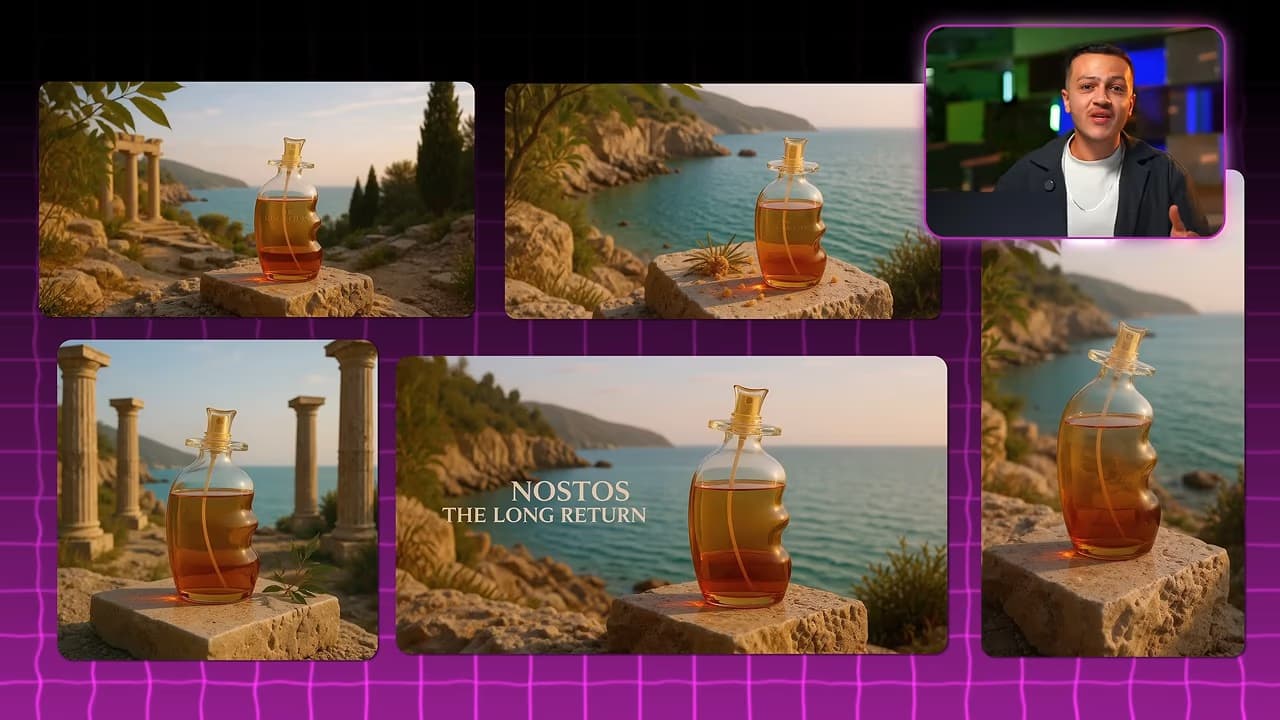
Step 4: Generate ad variants
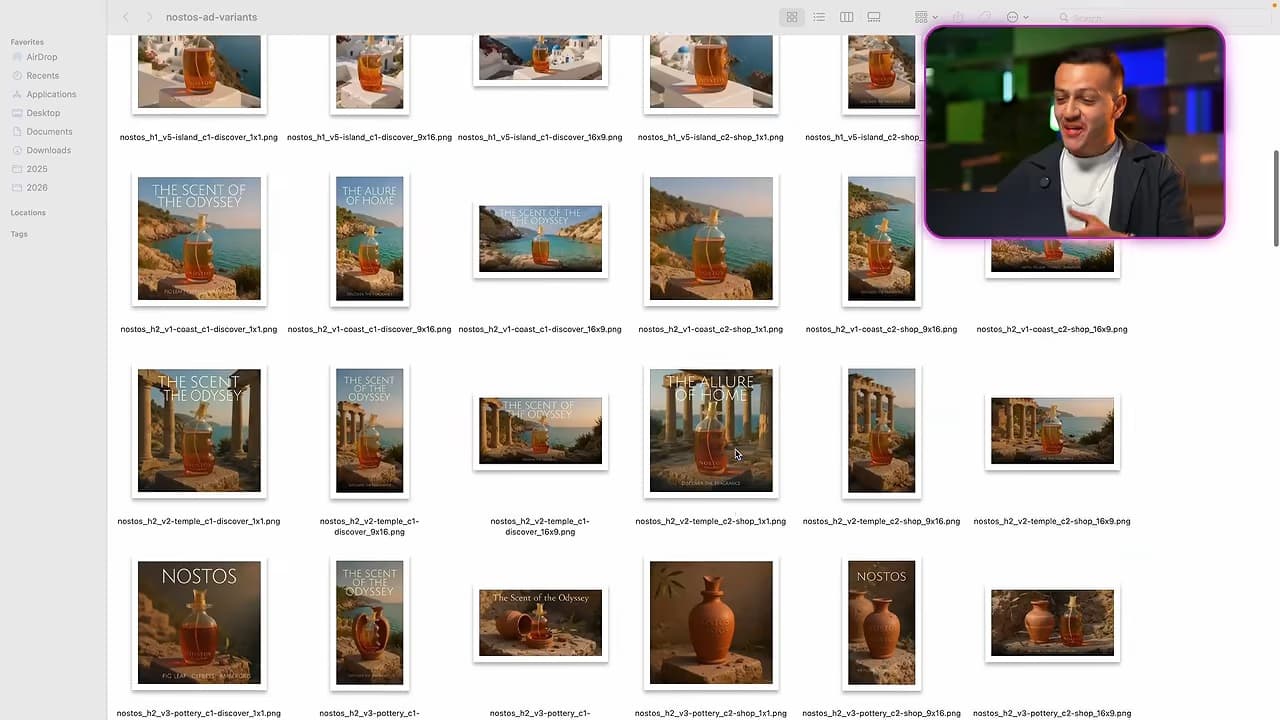
Use an existing ad image and ask Claude for variations that change the headline, call to action, and size. Submit the request, answer Claude’s questions, and compare the variants it returns.
Step 5: Localize an ad for five markets
Choose an ad variant and open the prompt box in Claude. Ask Claude to translate the copy and change the scenery for Germany, France, Spain, Portugal, and Sweden.
Localize this campaign ad nosttos ad variant 1 PNG across Germany, France, Spain, Portugal, and Sweden. translate, copy, and swap the scenery to make it local for each region.

Step 6: Review your campaign assets
- Verify that the kit has two variations per requested channel and that the branding feels consistent across them.
- Compare the ad variants with the original and check for the requested headline, call to action, and size changes.
- Check each localized ad for translated copy and scenery that fits the intended market.
Open Claude connectors
Campaign variations from the Picsart demo
Get better results
Give Claude a clear brief so you have specific changes to check in each output.
Name your channels
List every channel in your brief and say how many versions you want for each. The demo asks for two each for a blog, LinkedIn, Instagram, and X.
Specify what changes
Tell Claude exactly which parts of your existing ad to vary. In the demo, those are the headline, call to action, and size.
Adapt the scenery
If you want more than a translation, name the target markets and ask Claude to change the scenery as well as the copy.
Reuse the video prompts
Start with the presenter’s wording, then swap in your own brief, image, or target markets.
Product launch kit
Use this when you have a product photo and a brief for multiple channels.
Generate a campaign kit from this brief below using Nostos bottle image from my desktop.
Regional ad versions
Use this when you want one ad adapted for several markets, with changes to both copy and scenery.
Localize this campaign ad nosttos ad variant 1 PNG across Germany, France, Spain, Portugal, and Sweden. translate, copy, and swap the scenery to make it local for each region.
Find your use case
Use this workflow if you create product launch assets, social content, or ads.
- Product launches
- Blog images
- Social media assets
- Ad variations
- Localized campaigns
Frequently asked questions
Find out what the connection does, how skills fit in, and where Claude puts assets.
- Picsart MCP connects Claude to Picsart’s creative AI tools so you can use them inside Claude. MCP stands for Model Context Protocol, a standard that lets an AI agent communicate with external tools and services. For your campaign, that means Claude can use Picsart tools rather than relying only on its built-in capabilities.
