logo

How to build your first AI workflow in Picsart Flow
WORKFLOWS4 minIntermediate

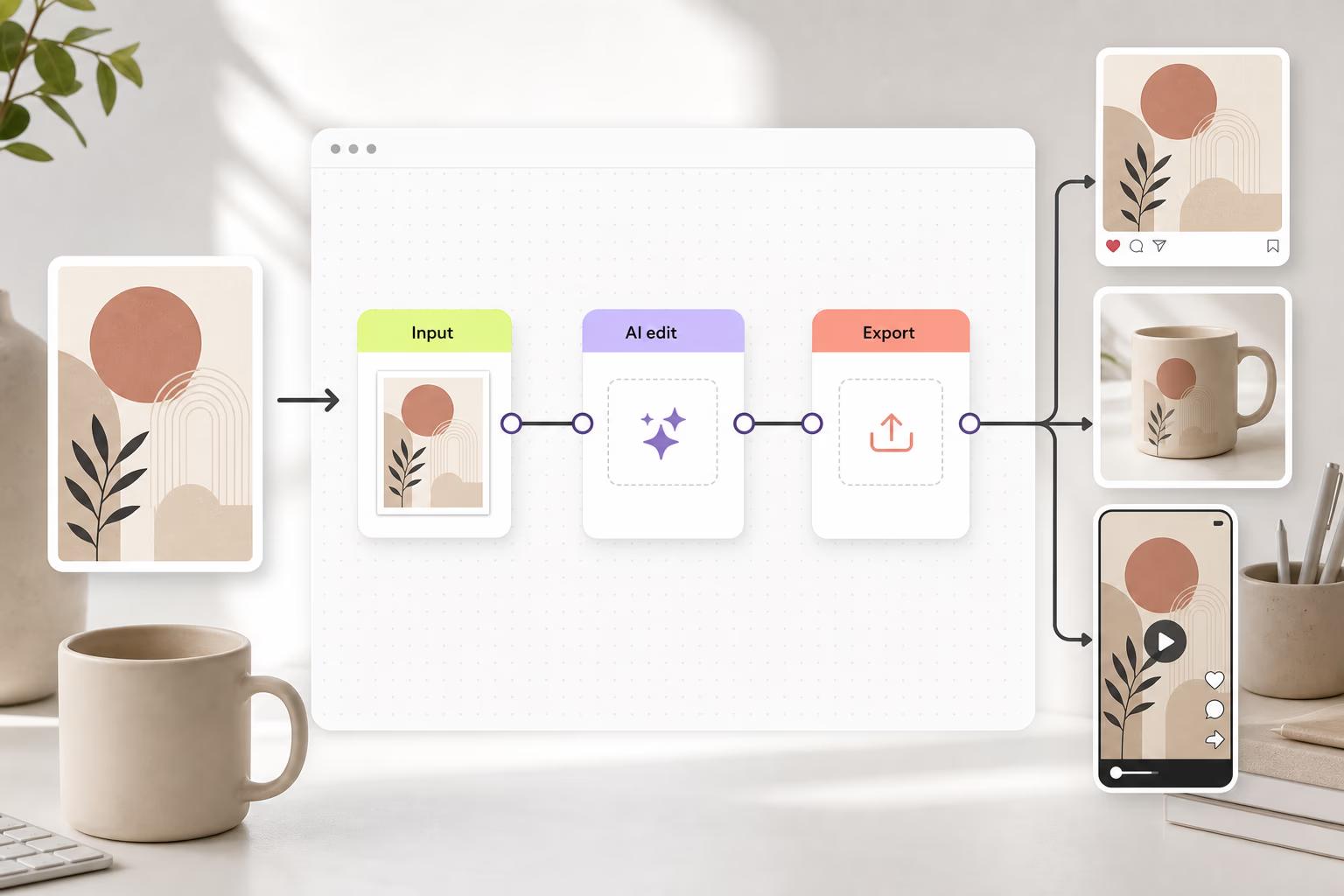
Connect multiple AI tools into a reusable one-click workflow that generates, edits, enhances, and exports your designs automatically.

How to build your first AI workflow in Picsart Flow

What you'll learn

  • How to connect multiple AI tools into a single workflow
  • How to configure workflow steps and parameters
  • How to save and reuse workflows for consistent results
  • How to automate your creative process from start to finish

What is Picsart Flow?

Picsart Flow is a no-code workflow builder that lets you chain together multiple AI tools and edits into a single automated process. Instead of manually repeating the same steps every time you create content, you build the workflow once and run it with a single click. Think of it like creating a recipe: you define the ingredients and steps once, then anyone can follow it to get the same delicious result every time.

Common use cases

  • Content creation: Generate social media posts with consistent branding and style
  • Product photography: Remove backgrounds, add lifestyle scenes, and enhance quality automatically
  • Marketing assets: Create ad variations with different text, colors, and formats in one run
  • Video content: Generate storyboards, create visuals, and prepare vertical video assets
  • Team collaboration: Share standardized workflows so everyone produces on-brand content
  • Batch processing: Apply the same edits to hundreds of images without manual work

Build your workflow step by step

STEP 1: Open Picsart Flow

  • On web: Go to picsart.com/create/workflows → Click "Create new workflow"
  • On mobile: Open Picsart → Tap "+" → Select "Workflow" → "New workflow"
Start creating workflows

STEP 2: Add and connect workflow steps

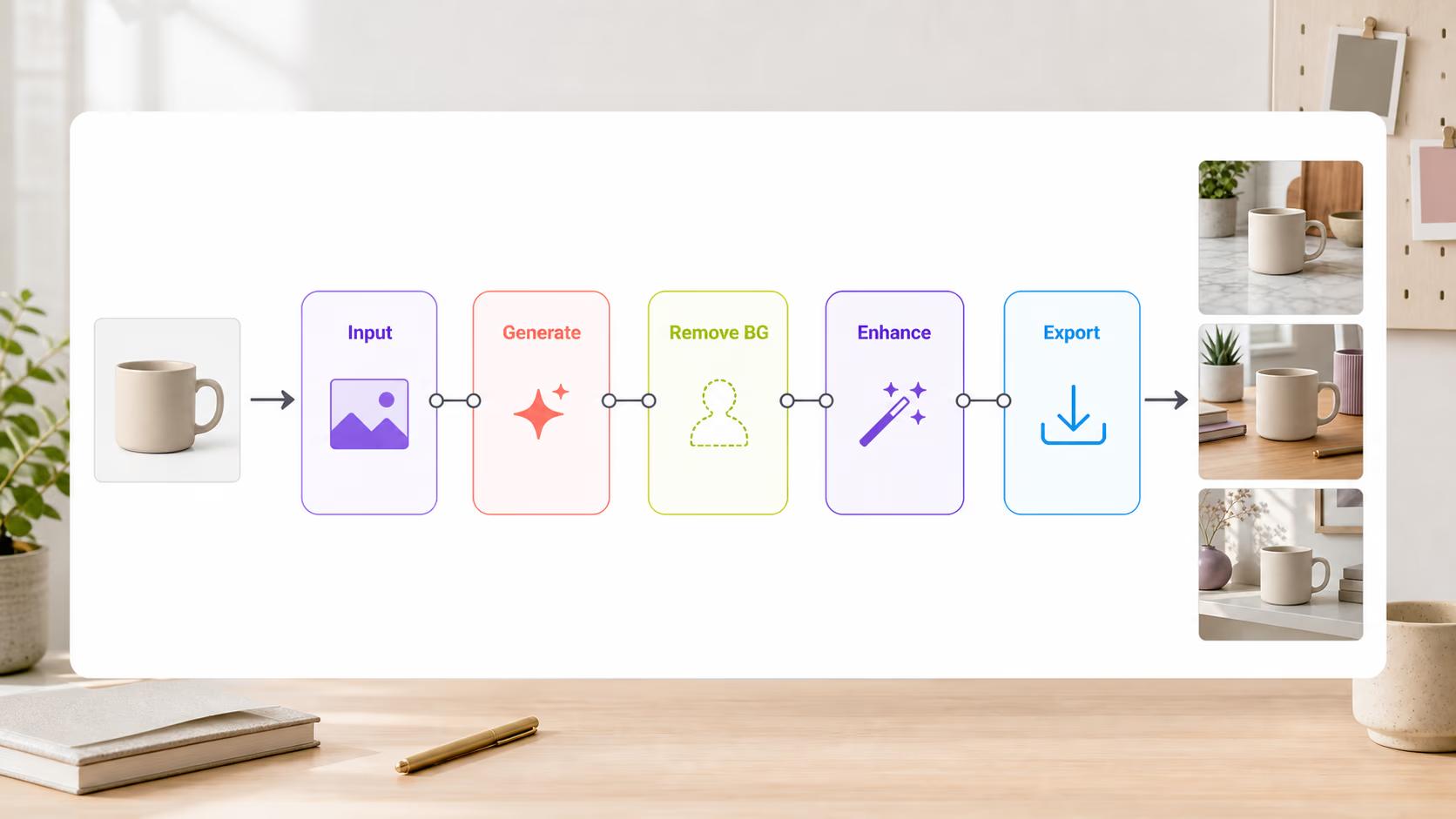
Build your workflow by adding tools in sequence:

  • Input step: Choose your starting point (upload image, text prompt, or blank canvas)
  • Processing steps: Add AI tools like generate, remove background, enhance, or apply effects
  • Output step: Select export format and quality settings
  • Connect steps: Drag from one step's output to the next step's input to create the flow
STEP 3: Configure each step

Click each step to set its parameters. Choose AI models, adjust settings, and add any text or design elements. Test individual steps to make sure they work before running the full workflow.

STEP 4: Save and run your workflow

Check that your workflow makes sense: Not working right? Edit any step and test again. Once you're happy, save the workflow to reuse it anytime.

  • Verify all steps are connected in the right order
  • Confirm each step has the correct settings
  • Test with sample input to preview the final output
Build my workflow

Tips for best results

💡 Start simple

Build your first workflow with just 3-4 steps. Once you understand how steps connect, you can create more complex workflows with branches and conditions.

💡 Name your steps clearly

Label each step with what it does (like "Remove background" or "Add brand colors"). This makes workflows easier to edit later and helps team members understand what's happening.

💡 Test as you build

Don't wait until the end to test your workflow. Run each step individually to catch problems early, before they affect later steps.

💡 Save workflow templates

Create variations of successful workflows for different use cases. Having a library of templates saves time when starting new projects.

Frequently asked questions

A workflow is an automated sequence of AI tools and edits that runs with one click. You connect multiple steps (like generate image, remove background, add text) into a single process. Instead of manually doing each step every time, the workflow remembers your settings and applies them automatically to any input you provide.

Yes, Picsart Flow works on both web and mobile apps. The mobile interface is optimized for touch, making it easy to drag and connect workflow steps on your phone. All workflows sync across devices, so you can build on desktop and run on mobile or vice versa.

You can create and test workflows for free, but running workflows that use AI tools requires credits or a paid plan. Free users get limited credits to try workflows. For unlimited access to all AI models and batch processing, you'll need a Pro or Business subscription.

Open your saved workflow and click the share icon. You can invite specific team members by email or generate a shareable link. Team members can view the workflow, run it with their own inputs, or duplicate and modify it for their needs. On Business plans, you can also set workflows as team templates that everyone can access.

Ready to automate your creativity?

Build your first workflow and save hours of repetitive work.

Create workflow now