How to create a facial expression sheet with AI from one portrait
Turn a single headshot into 12 emotion-rich portrait variations for avatars and character design.
- Category: AVATARS
- Reading time: 4 min
- Difficulty: Beginner
What you'll learn
- Generate 12 emotion variations from one portrait
- Maintain consistent identity across all expressions
- Export high-resolution 2K expression sheets
- Choose the right source photo for best results

Create your expression sheet step by step
STEP 1: Upload your portrait
- On web: Go to the Facial Expression Sheet template → Click "Use this template" → Upload your photo or use the sample portrait
- On mobile: Open Picsart → Flow → Search "expression sheet" → Select template → Upload your portrait
STEP 2: Review the emotion set
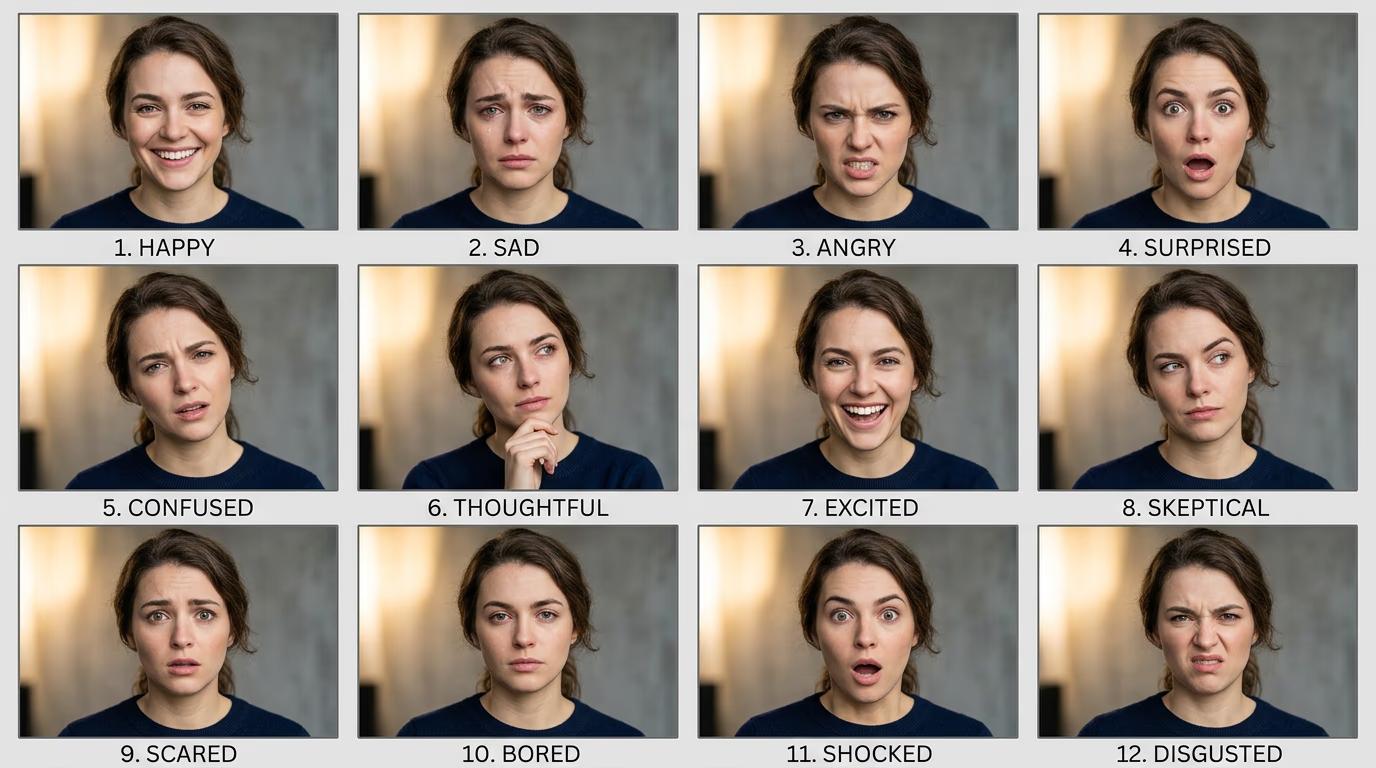
The template generates these 12 expressions automatically:
- Happiness: Joyful, smiling expression
- Sadness: Downcast, melancholic look
- Anger: Intense, frustrated expression
- Fear: Worried, anxious appearance
- Disgust: Repulsed, uncomfortable reaction
- Confusion: Puzzled, uncertain expression
- Thoughtfulness: Contemplative, focused look
- Shyness: Timid, reserved demeanor
- Surprise: Shocked, astonished reaction
- Excitement: Energetic, enthusiastic expression
- Embarrassment: Flustered, self-conscious look
- Worry: Concerned, anxious appearance
STEP 3: Generate your expression sheet
Click the generate button and wait about 30-60 seconds. The AI analyzes your portrait's features, lighting, and style, then creates 12 variations that maintain your subject's identity while changing only the facial expression.
STEP 4: Download your results
Check that all 12 expressions look natural and consistent: Not perfect? Generate again for different expression interpretations, or adjust your source photo and try again.
- Verify the subject's identity stays consistent across all 12 images
- Check that clothing, hairstyle, and background remain similar
- Make sure each emotion reads clearly and feels authentic
Tips for best results
Start with a neutral expression
A calm, relaxed starting photo gives the AI more room to create distinct emotions. Avoid photos where you're already smiling or frowning strongly.
Use clear, front-facing portraits
Sharp focus and direct eye contact work best. Profile shots or angled poses may produce inconsistent results across the 12 variations.
Choose good lighting
Well-lit portraits with even lighting help the AI maintain consistent shadows and highlights across all expressions. Avoid harsh backlighting or extreme shadows.
Keep backgrounds simple
Plain or blurred backgrounds stay more consistent across all 12 images. Busy backgrounds with specific details may shift between expressions.
Frequently asked questions
- Expression sheets show the same character displaying different emotions, making them perfect for avatar sets, character design references, and visual storytelling. You can use them to create consistent reaction images for social profiles, emotion guides for illustration projects, or thumbnail variations for content. The 12-expression format covers the full emotional range you need for most creative projects.
