How to create a product shot studio workflow in Picsart Flow
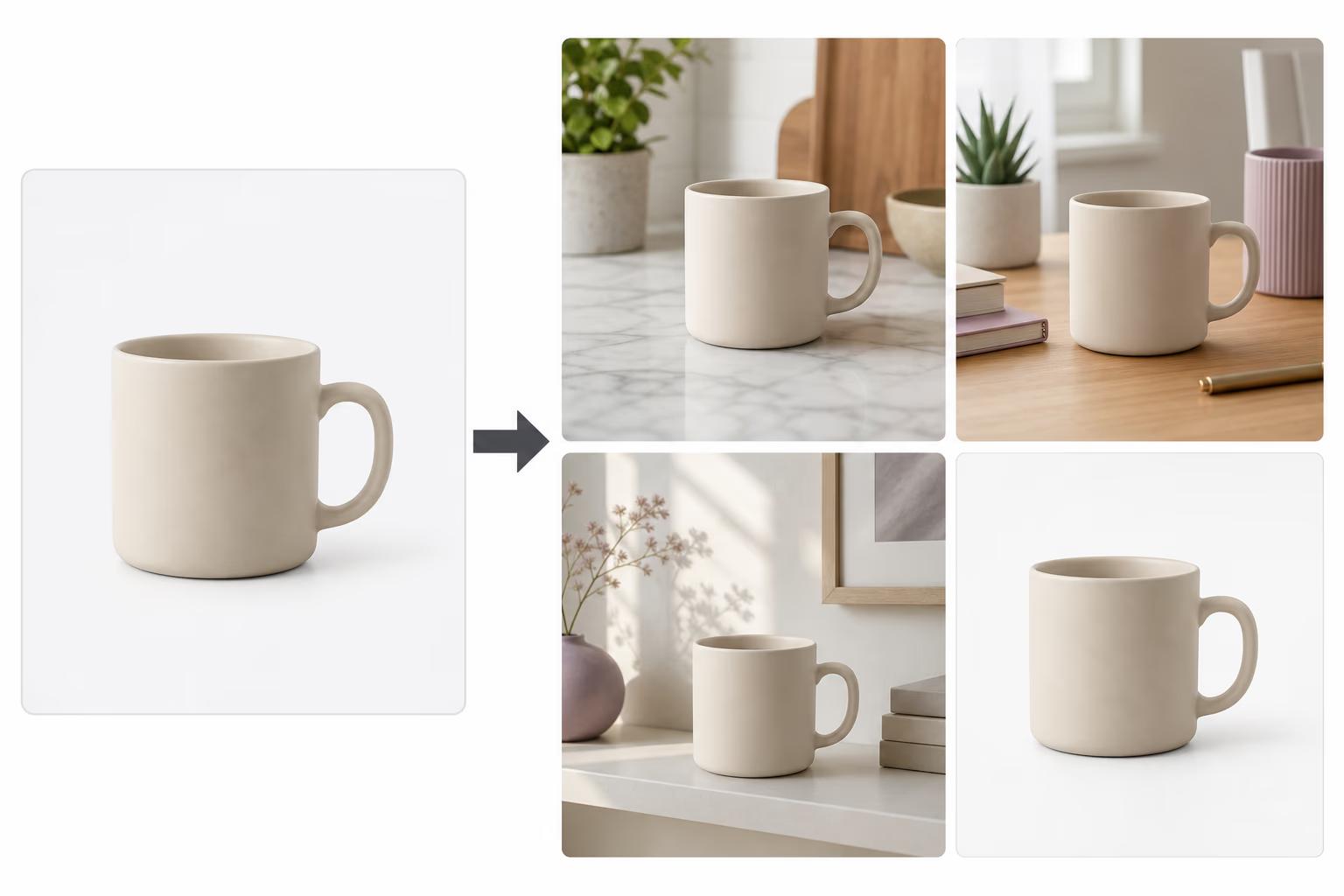
What you'll learn
What is a product shot workflow?
Common use cases
Build your product studio step by step
STEP 1: Upload your product photo
- On web: Go to picsart.com/create/workflows → "Create new workflow" → "Product photography" → Upload image
- On mobile: Open Picsart → "+" → "Workflow" → "Product studio" → Select photo from gallery
STEP 2: Configure scene generation
Set up your workflow processing steps:
- Background removal: Automatically isolate product from original background
- Scene generation: Create 5 different lifestyle backgrounds (kitchen counter, office desk, outdoor table, etc.)
- Lighting enhancement: Adjust brightness, contrast, and color for professional look
- Shadow generation: Add realistic shadows so product looks natural in scenes
- Output formats: Export as square (1:1), vertical (4:5), and horizontal (16:9) for different platforms
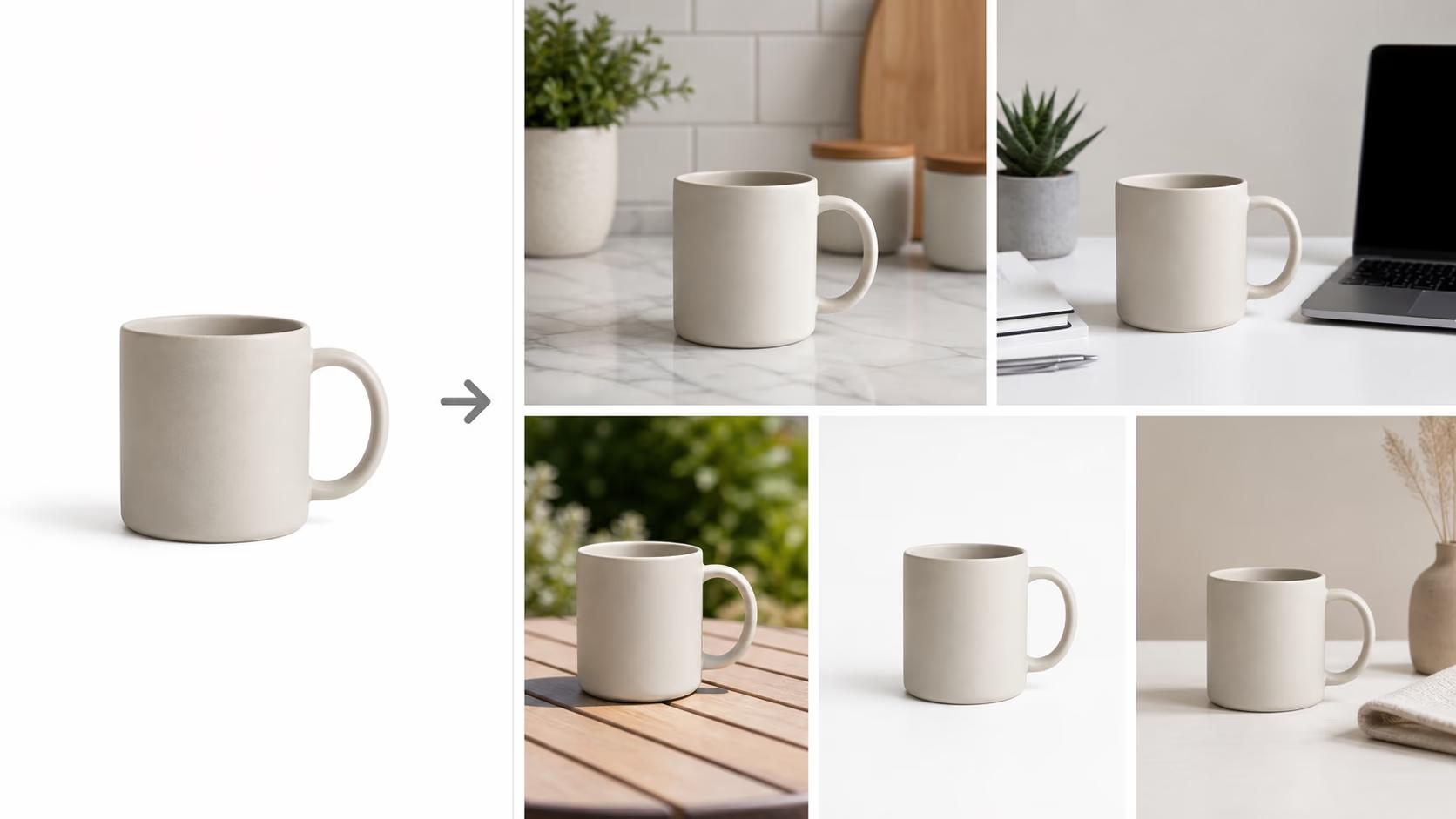
STEP 3: Generate product variations
Click "Run workflow" and wait 1-2 minutes. The AI removes the background, places your product in different scenes, adjusts lighting to match each environment, and exports all variations at high resolution.
STEP 4: Review and export listing images
Check that product images meet your standards: Not quite right? Adjust scene descriptions or lighting settings and regenerate. Once you're happy with the results, download all variations for your product listings.
- Verify background was cleanly removed with no edge artifacts
- Confirm product looks natural in each generated scene
- Check that lighting is consistent and colors are accurate
Tips for best results
💡 Start with good source photos
The workflow works best with well-lit product photos taken against simple backgrounds. Use natural light or soft studio lighting, avoid harsh shadows on the product itself, and make sure the product fills most of the frame.
💡 Describe scenes specifically
Instead of generic "lifestyle scene," specify details like "modern white marble kitchen counter with morning sunlight" or "minimalist office desk with laptop and coffee cup." Specific descriptions generate more convincing results.
💡 Match scenes to your product
Choose background scenes that make sense for your product category. Kitchen items look natural on counters or dining tables, tech products work well on desks, fashion items need lifestyle settings like bedrooms or outdoor scenes.
💡 Batch process entire catalogs
Once you dial in a workflow that works, save it and run your entire product catalog through it. You'll get consistent, professional imagery across all listings without shooting each product separately.
E-commerce image specifications
Frequently asked questions

Ready to automate product photography?
Transform basic photos into professional listings in minutes.
Create product workflow