How to create a travel vlog thumbnail with AI in Picsart Flow
Design a travel vlog thumbnail with your own destination visuals and clear, readable text.
- Category: WORKFLOWS
- Reading time: 4 min
- Difficulty: Intermediate
What you'll learn
- How to use Flow templates for automated thumbnail creation
- How to integrate your travel photos into pre-designed layouts
- How to customize text and styling for different destinations
- How to export thumbnails optimized for YouTube specifications
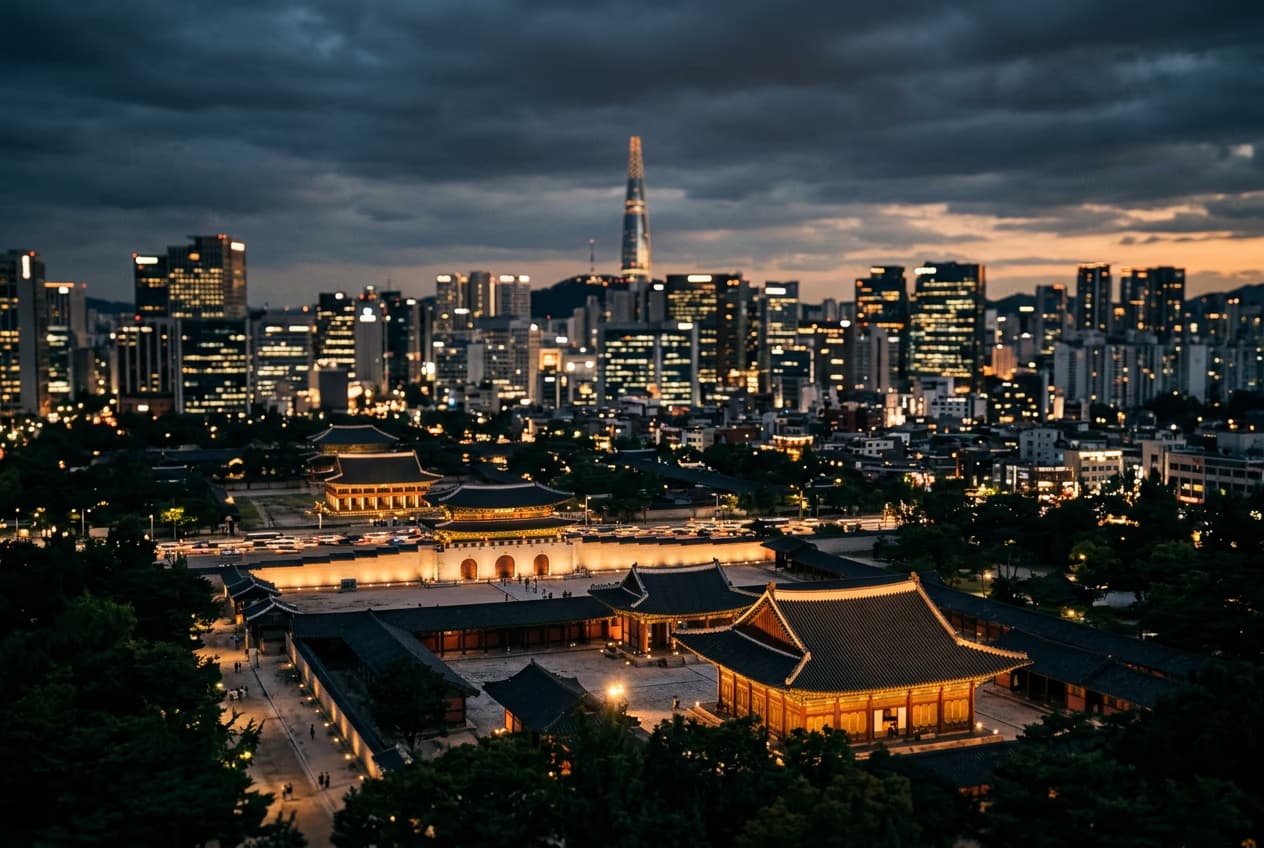
Create your travel thumbnail step by step
STEP 1: Open the template
- Open the travel vlog thumbnail template in Picsart Flow and review the default layout.
STEP 2: Upload your travel photo
The template requires a portrait-oriented photo of yourself or your subject:
- Portrait orientation: Works best with vertical photos where the subject faces forward
- Clear subject: Choose photos with good lighting and a visible face
- Neutral background: Simple backgrounds make AI integration smoother
- High resolution: Upload at least 1080px tall for crisp results
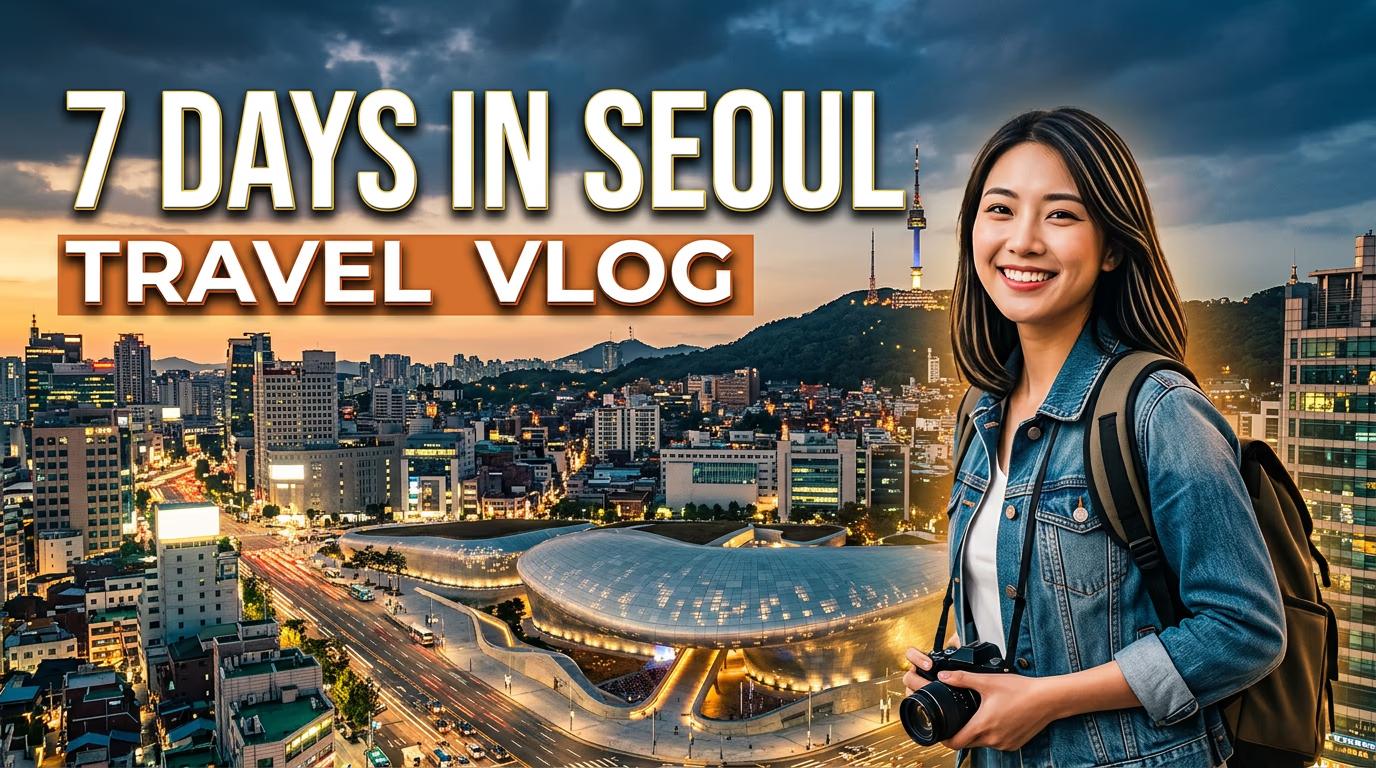
STEP 3: Customize destination text
Replace the sample destination text and imagery with your own city, trip angle, and portrait photo while keeping the layout readable at small sizes.
STEP 4: Preview and export
Check that your thumbnail meets YouTube requirements: Not satisfied? Generate again with a different photo, or manually adjust text size and position in the editor.
- Text is readable at small sizes (thumbnail preview mode)
- Your portrait blends naturally with the background
- Colors are vibrant and contrast is strong enough to stand out
Tips for best results
Use expressive photos
Photos with emotion or action (pointing, smiling, looking surprised) perform better than neutral poses. Your expression sets the tone for the entire video.
Match text to your destination vibe
Beach destinations work with bright, bold text. Historic cities look better with elegant fonts. Adjust the template's text style to match your location's personality.
Create variations for A/B testing
Generate 2-3 thumbnail versions with different photos or text layouts. Test which design gets more clicks in your first 24 hours, then stick with the winner.
Keep text short and punchy
Viewers see thumbnails at tiny sizes on mobile. Limit text to 3-5 words maximum. "TOKYO STREET FOOD" works better than "Trying Amazing Street Food in Tokyo."
YouTube thumbnail specifications
- Resolution1280×720 pixels (16:9 ratio minimum)
- File sizeUnder 2MB for best upload compatibility
- File formatJPG, PNG, or WebP accepted by YouTube
- Safe areaKeep important elements away from edges (avoid cutoff on mobile)
- Text sizeUse at least 60pt font for readability at small sizes
- Color modeRGB color space (not CMYK)
Frequently asked questions
- Template availability can vary by current product surface. Check the latest Flow experience to confirm where this template is available.
