How to create AI yearbook and retro portraits
What you'll learn
What is an AI yearbook portrait?
Common use cases
Create your yearbook portrait step by step
STEP 1: Upload your photo
- On web: Go to picsart.com/ai-avatar → Click "Create image avatar" → Upload a clear front-facing photo
- On mobile: Open Picsart → Tap "+" → Select your photo → Choose "AI Avatar"
STEP 2: Choose your decade
Browse the yearbook and retro categories, then pick your era:
- 1980s: Big hair, bold colors, geometric backgrounds, and high-contrast lighting
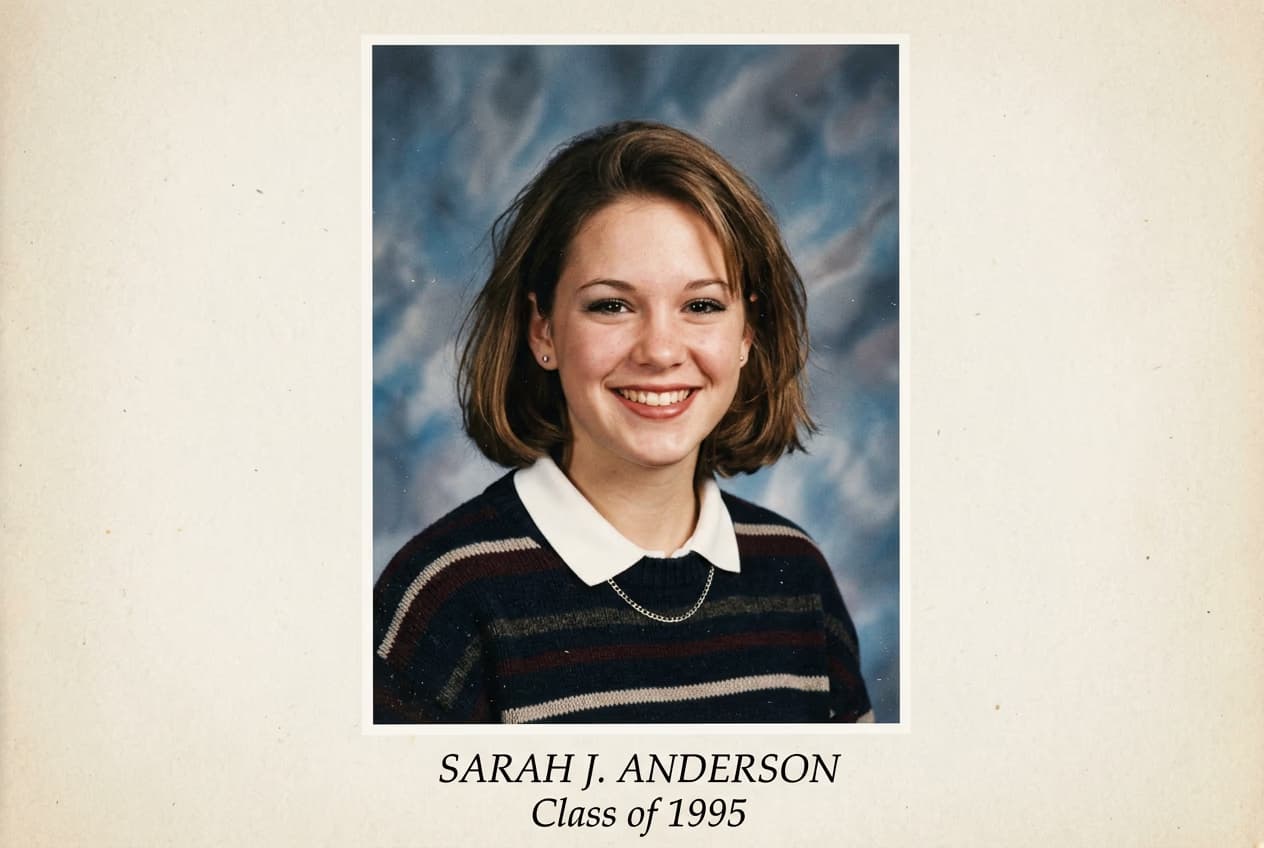
- 1990s: Soft focus, muted pastels, laser backgrounds, and relaxed casual styling
- 2000s: Digital camera look, glossy finish, neutral backgrounds, and early-digital aesthetic
- 1970s: Warm film tones, wood-paneled backgrounds, and groovy vibes
- Classic black & white: Timeless yearbook look that works for any era
STEP 3: Generate your retro portrait
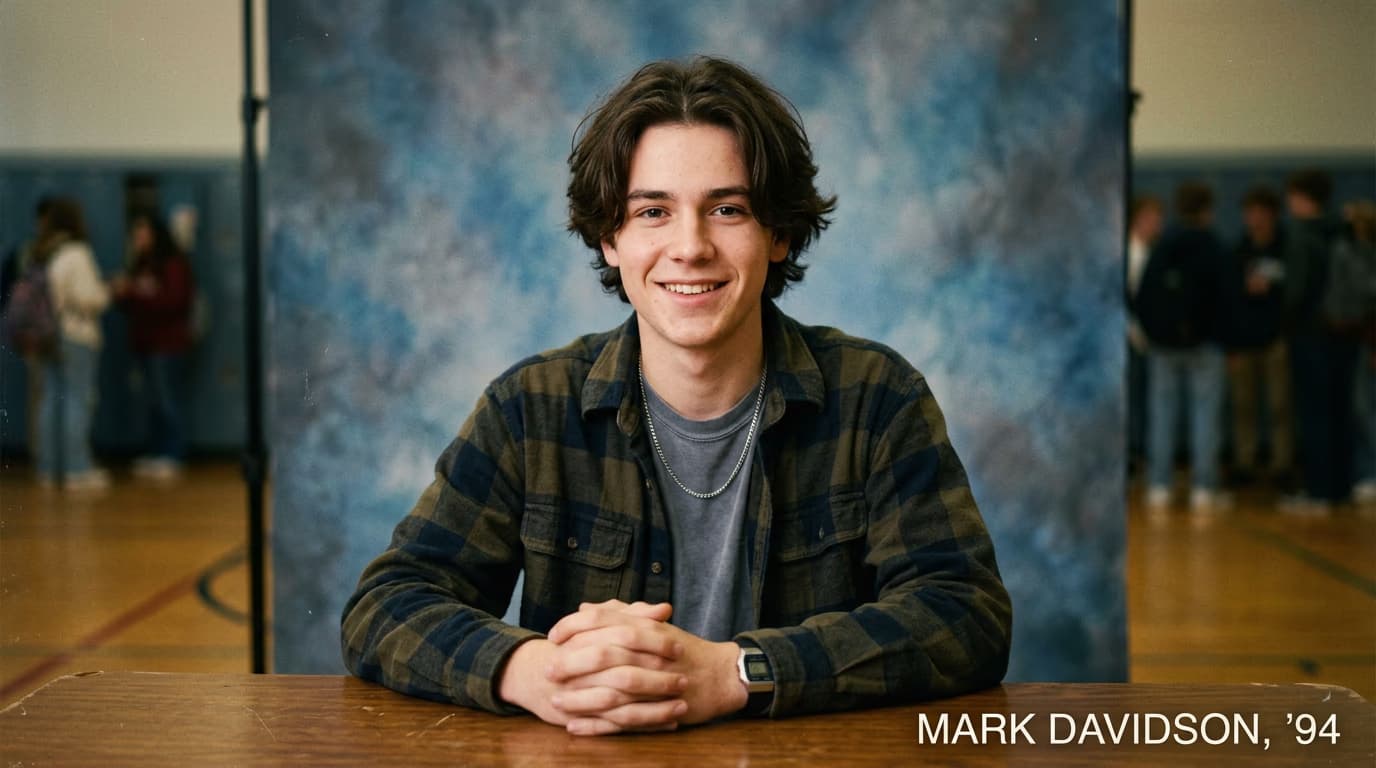
Click "Generate" and wait 10-15 seconds. The AI applies period-accurate styling, adjusts your clothing and hair to match the era, adds vintage color grading, and places you against an authentic yearbook backdrop.
STEP 4: Review and export
Check that your yearbook portrait captures the authentic retro aesthetic: Want to try another decade? Generate again with different era settings. Each decade has multiple style variations, so experiment to find your favorite.
- Verify the color grading matches the period (warm for '70s, bold for '80s, soft for '90s)
- Check that clothing and hair styling look era-appropriate
- Make sure the background has authentic yearbook elements like lasers, clouds, or geometric patterns
Tips for best results
💡 Match your expression to the era
Yearbook photos from different decades had different vibes. '80s photos were more posed and serious, '90s photos had relaxed smiles, and 2000s photos were casual and natural. Your expression affects the final authenticity.
💡 Start with neutral clothing
The AI adds period-appropriate clothing, but it works best when your original photo has simple, solid-colored clothing. Avoid busy patterns, logos, or distinctly modern styles that clash with the retro aesthetic.
💡 Try multiple decades
Your face might suit some eras better than others. Generate versions from all three major decades (80s, 90s, 2000s) to see which one looks most authentic and flattering.
💡 Share with context
When posting yearbook portraits on social media, add captions that play up the nostalgia: mention the decade, reference trends from that era, or create a fake yearbook quote for maximum engagement.
Frequently asked questions

Ready for a throwback?
Travel back in time and create nostalgic yearbook portraits from any decade.
Create yearbook photo