How to create cinematic videos from text with Cinema Studio
Generate short cinematic videos from text descriptions — AI plans scenes, generates shots, and assembles the final movie.
- Category: AI AGENTS
- Reading time: 4 min
- Difficulty: Intermediate
What you'll learn
- How to write effective prompts for cinematic video generation
- How Cinema Studio plans and structures scenes
- How to control visual style and cinematography
- How to export and refine generated videos
Create your video step by step
STEP 1: Open Cinema Studio
- On web: Go to picsart.com/ai-agent → Find Cinema Studio → Click "Hire Cinema Studio"
- On mobile: Open Picsart app → AI Agents → Cinema Studio → Start creating
STEP 2: Describe your video
Write a detailed description of the video you want to create:
- Setting: Describe location, time of day, weather, and atmosphere
- Action: Explain what happens in the scene and character movements
- Style: Specify cinematic style (noir, sci-fi, documentary, music video, thriller)
- Mood: Define emotional tone through lighting, color palette, and pacing
STEP 3: Generate video
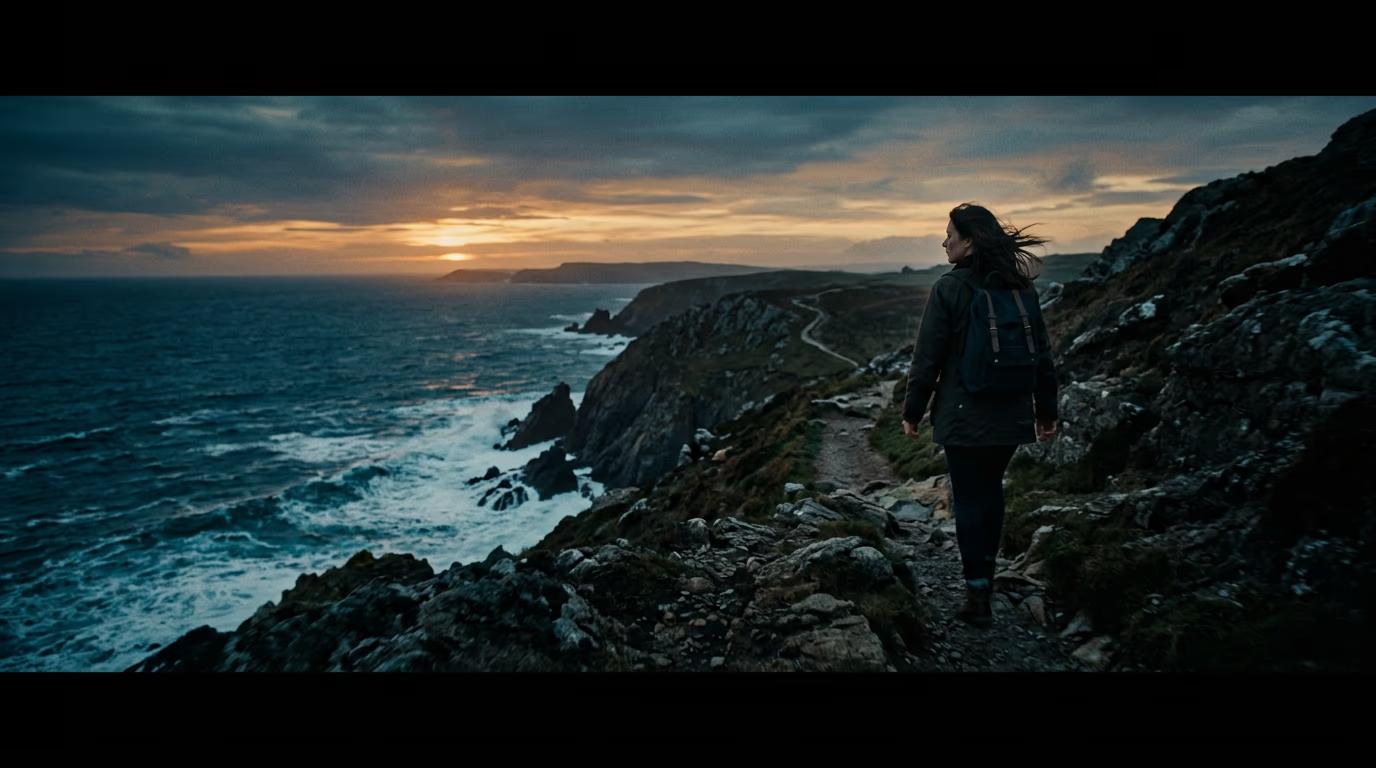
Click "Create Video" and wait 2-5 minutes. Cinema Studio plans scene structure, determines shot list with camera angles and movements, generates each shot with cinematic lighting and composition, and assembles shots into a timed sequence with transitions. Processing time depends on video length and complexity.
STEP 4: Review and refine
Watch your generated video and check quality: Not perfect? Regenerate with adjusted prompts, request specific shot changes in chat, or export and edit manually for final polish.
- Check that scene pacing matches your intended mood and tone
- Verify visual consistency across shots (lighting, color, style)
- Confirm camera movements and framing support the story
Tips for best results
Be specific about cinematography
Instead of "a person walking," try "wide tracking shot following a person walking down a rain-soaked street at night, neon reflections, shallow depth of field." Cinema Studio responds to cinematography terms like establishing shot, close-up, Dutch angle, and dolly zoom.
Reference film styles directly
Mention specific genres or directors to set visual style. Say "Blade Runner aesthetic" or "Wes Anderson symmetrical framing" rather than describing every detail. Cinema Studio understands cinematic references.
Keep scenes short and focused
Cinema Studio works best with 15-30 second scenes focused on one moment or action. For longer stories, generate multiple short scenes and combine them in the video editor.
Use mood words for lighting
Words like moody, dramatic, ethereal, harsh, or soft control lighting automatically. Combine with time of day (golden hour, blue hour, noon) for precise atmosphere.
Frequently asked questions
- Cinema Studio generates videos between 5 and 60 seconds. Shorter videos (5-15 seconds) process faster and maintain higher visual consistency. For longer content, create multiple short scenes and combine them in the Picsart video editor or a tool like Premiere Pro.
