How to create smooth video transitions with AI effects
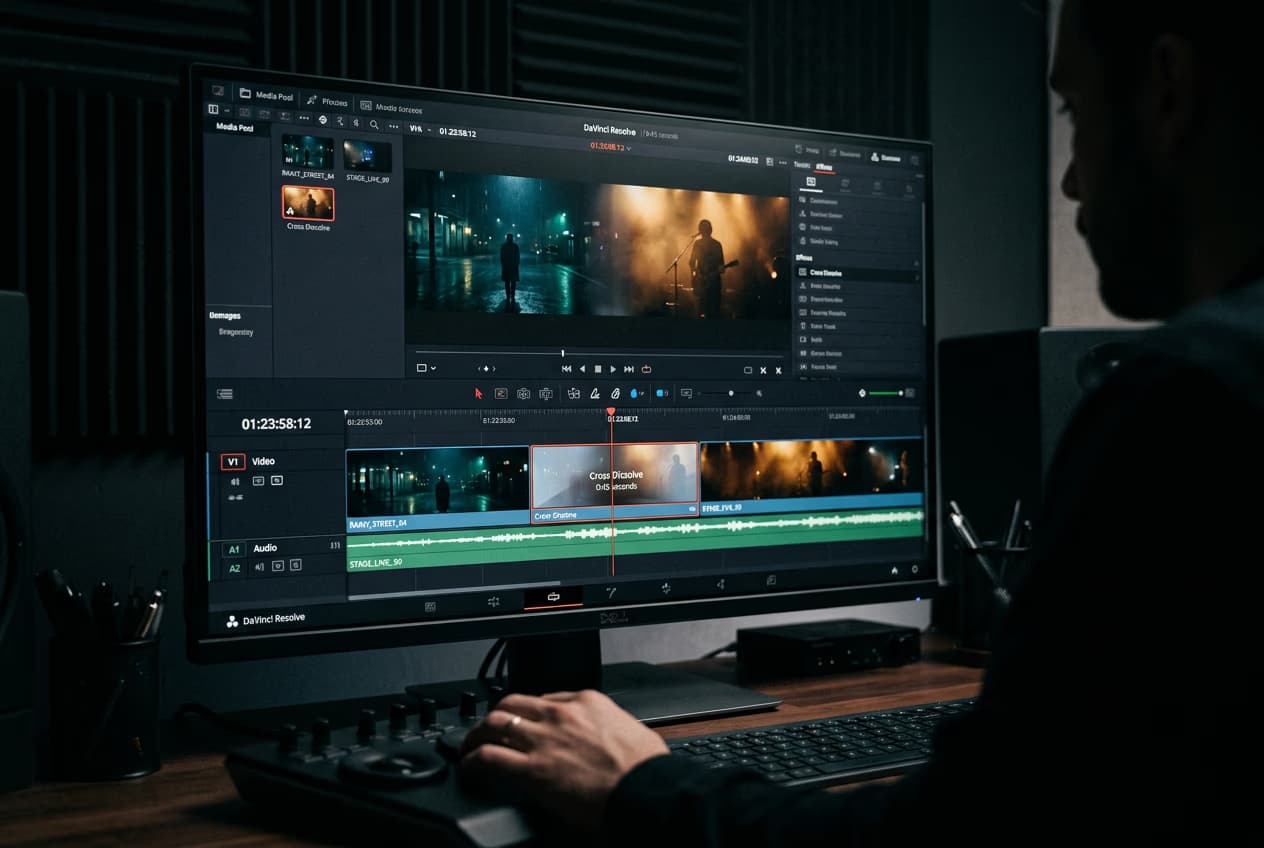
What you'll learn
What are video transitions?
Common use cases
Add transitions to your video step by step
STEP 1: Open Gen AI Studio
- On web: Go to gen.ai → Browse "Frame Transitions" or "Image to Video Effects" → Upload clips
- On mobile: Open Picsart → "Explore" → Search "transitions" → Select effect → Upload videos
STEP 2: Select transition type
Choose the transition style that fits your content:
- Cut: Instant switch, no animation — best for fast-paced content
- Fade: Gradual dissolve from one clip to next — classic, always works
- Wipe: One clip pushes or slides over another — directional and dynamic
- Morph: AI analyzes clips and creates smooth blend — best for similar subjects
- Duration: Set how long transition lasts (0.5-2 seconds recommended)

STEP 3: Generate transition
Click "Apply" and the AI processes both clips to create your transition. For morphing effects, the AI identifies matching elements between clips and creates smooth motion between them. This takes 10-20 seconds depending on transition complexity and clip length.
STEP 4: Fine-tune timing
Play through the transitioned sequence to verify: Timing feels off? Adjust transition duration or try a different transition type. Some clips naturally work better with certain effects.
- Transition doesn't happen too fast to see or too slow to feel sluggish
- Audio crossfades match visual transition without abrupt cuts
- Motion between clips flows naturally without jarring jumps
Tips for best results
💡 Match transition speed to content pace
Fast-paced action videos need quick transitions (0.3-0.5 seconds). Slow, cinematic content works better with longer fades (1-2 seconds). Match your transition speed to the energy of your video.
💡 Use morphing for similar subjects
AI morphing works best when transitioning between clips with similar composition or subjects — like two portraits or two landscape shots. Morphing between completely different scenes often looks unnatural.
💡 Sync transitions to audio beats
If your video has music, place transitions on beat drops or rhythm changes. This creates a polished, professional feel that makes the whole video more engaging.
💡 Don't overdo effects
Use fancy transitions sparingly — save them for important moments. Most professional videos use simple cuts 80% of the time, with special transitions only for emphasis or scene changes.
Frequently asked questions

Ready to connect?
Create smooth, professional transitions that make your videos flow perfectly.
Try transitions