How to edit videos with AI using Video Director
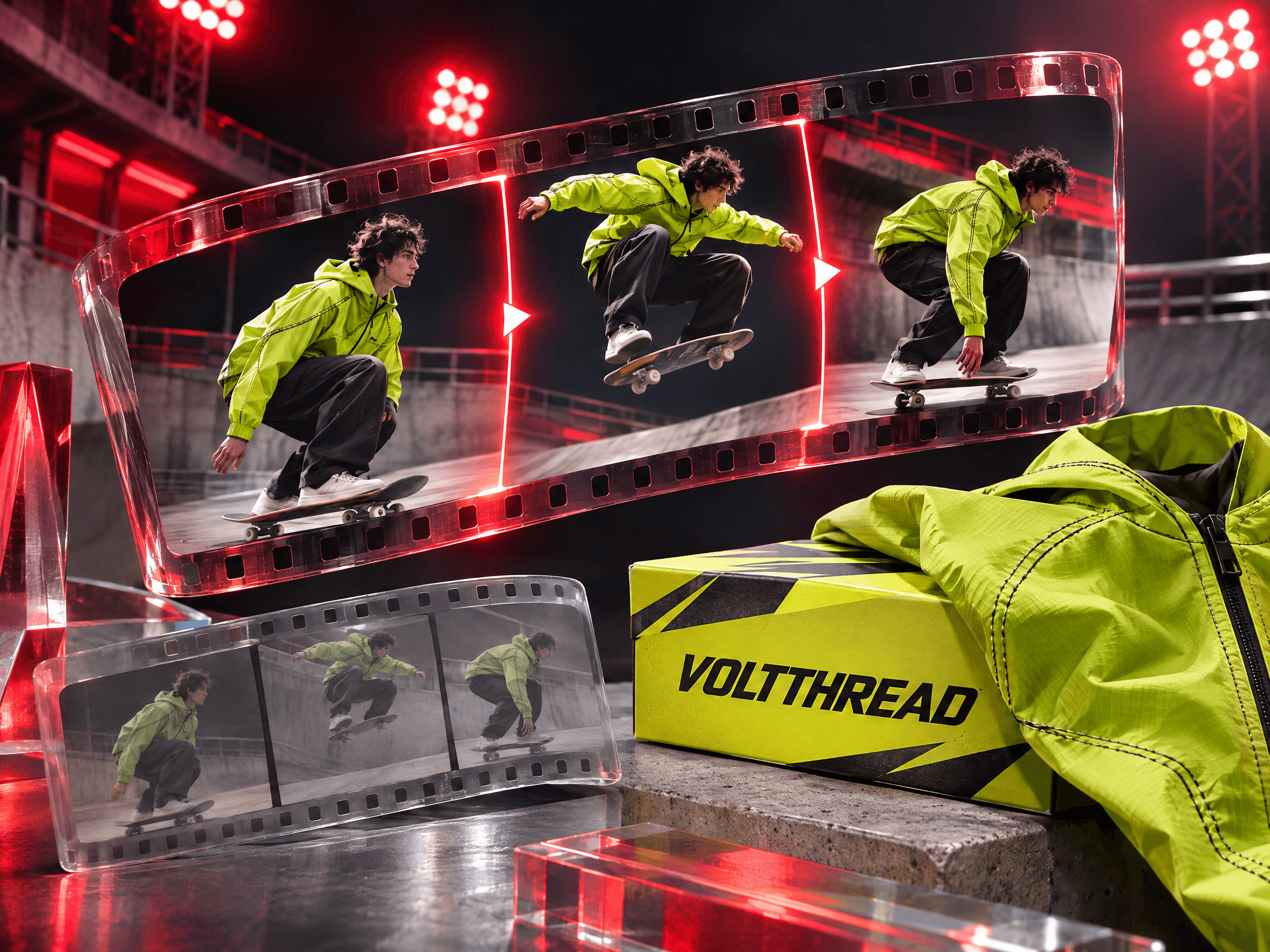
Generate cinematic video from prompts, curate source footage with beat-synced cuts, or combine both approaches. Cover artwork is an AI-generated illustration for the fictional VOLTTHREAD campaign.
- Category: AI AGENTS
- Reading time: 5 min
- Difficulty: Advanced
What you'll learn
- How to generate cinematic video from text prompts
- How to create beat-synced montages from source footage
- How to mix AI-generated and real footage
- How to auto-reframe videos for multiple platforms
Direct your video step by step
STEP 1: Choose your workflow
- On web: Go to picsart.com/ai-agent → Video Director → Select: Generate from prompt, Edit source footage, or Mix both
- On mobile: Open Picsart app → AI Agents → Video Director → Pick workflow type
STEP 2: Provide content and settings
Set up your video based on chosen workflow:
- Prompt generation: Describe video concept, style, and mood in detail
- Source footage: Upload video clips and select music track for beat-sync
- Mixed mode: Provide both prompt and footage—Video Director blends them
- Genre: Select from music video, product ad, trailer, documentary, short film, animation, sports
- Platforms: Choose aspect ratios (16:9, 9:16, 1:1, 4:5) for multi-platform delivery
STEP 3: Generate video
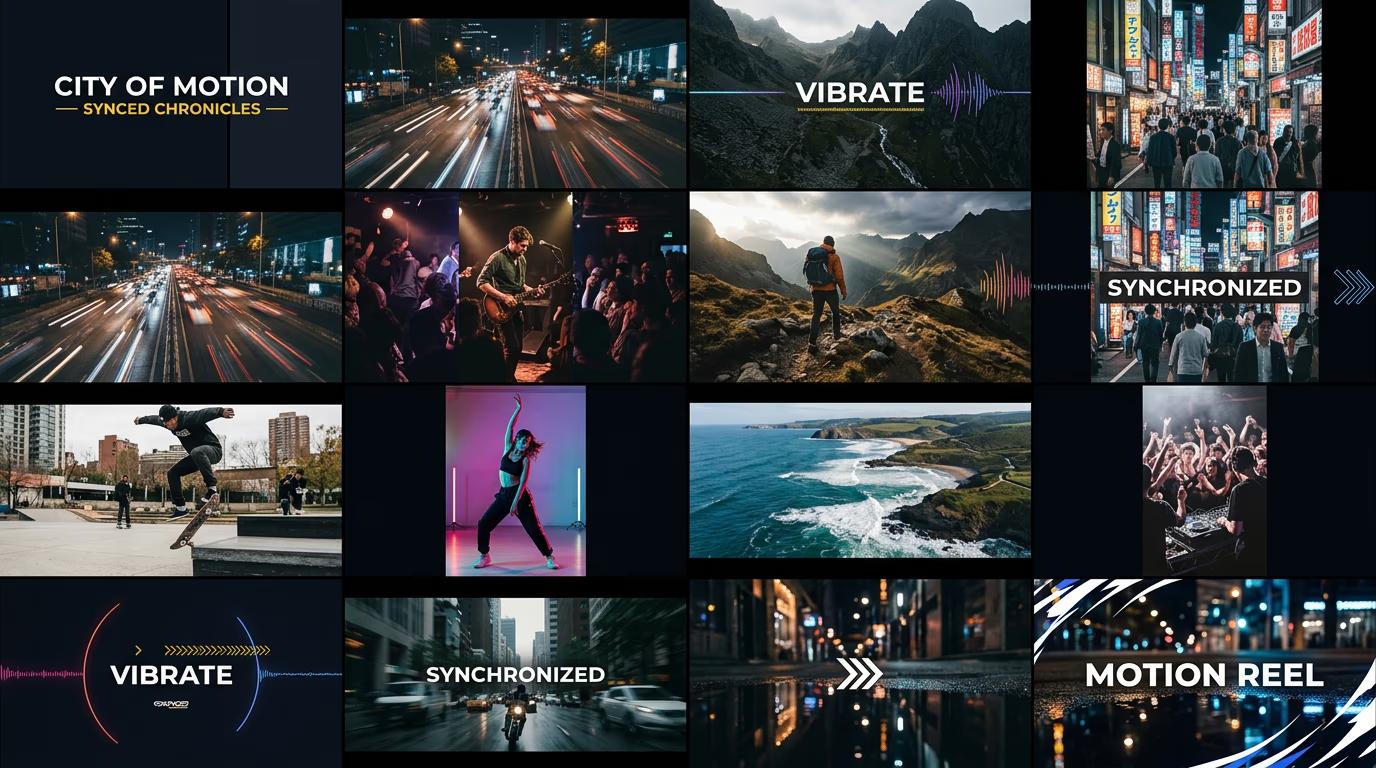
Click "Direct" and wait 3-7 minutes. Video Director analyzes your content, plans scene structure based on selected genre, generates AI footage or curates source clips, syncs cuts to music beats or creates dramatic pacing, adds branded title cards with locked typography, auto-reframes for all selected aspect ratios, and applies optional AI score or sound effects.
STEP 4: Review and export
Watch all platform versions and check quality: Not perfect? Regenerate with adjusted settings, request specific changes in chat, or manually edit in the timeline before exporting.
- Verify cuts sync with music beats and dramatic moments
- Check that auto-reframed versions keep important content in frame
- Confirm brand elements (title cards, colors) match your guidelines
Tips for best results
Match genre to content type
Each genre has specific editorial rules. Music videos emphasize rhythm and visual variety. Product ads focus on clean hero shots. Trailers build tension. Choose the genre that matches your content goal—Video Director applies appropriate pacing and cuts.
Upload high-quality source footage
For source footage editing, Video Director works best with 1080p or 4K clips. Higher resolution gives more flexibility for auto-reframing to vertical formats without quality loss. Avoid heavily compressed or low-light footage.
Use beat-sync for music-driven content
Upload music before footage when creating music videos or dance content. Video Director analyzes beat structure and cuts footage to match—resulting in tighter, more professional rhythm than manual editing.
Lock brand DNA before generating
Set brand colors, fonts, and logo in your Picsart account settings before using Video Director. Title cards and graphics will automatically match your brand, saving manual adjustments on every video.
Genre guide
- Music videoBeat-synced cuts, visual variety, rhythm emphasis, performance focus
- Product adClean hero shots, benefit-driven pacing, lifestyle context, clear CTA
- TrailerTension building, dramatic cuts, sound design, hook-driven structure
- DocumentaryInterview-driven, B-roll support, narrative flow, informational pacing
- Short filmCinematic framing, story arc, character focus, emotional beats
- AnimationStylized visuals, smooth transitions, graphic elements, motion design
- SportsAction emphasis, slow-motion highlights, energy-driven cuts, competitive tension
Frequently asked questions
- Cinema Studio generates new video from text descriptions only—it creates scenes from scratch. Video Director has three modes: generate from text, edit existing footage, or combine both. Use Cinema Studio for pure AI generation. Use Video Director when you have real footage to edit or want to mix AI and real content.
