How to generate AI images with readable text and logos
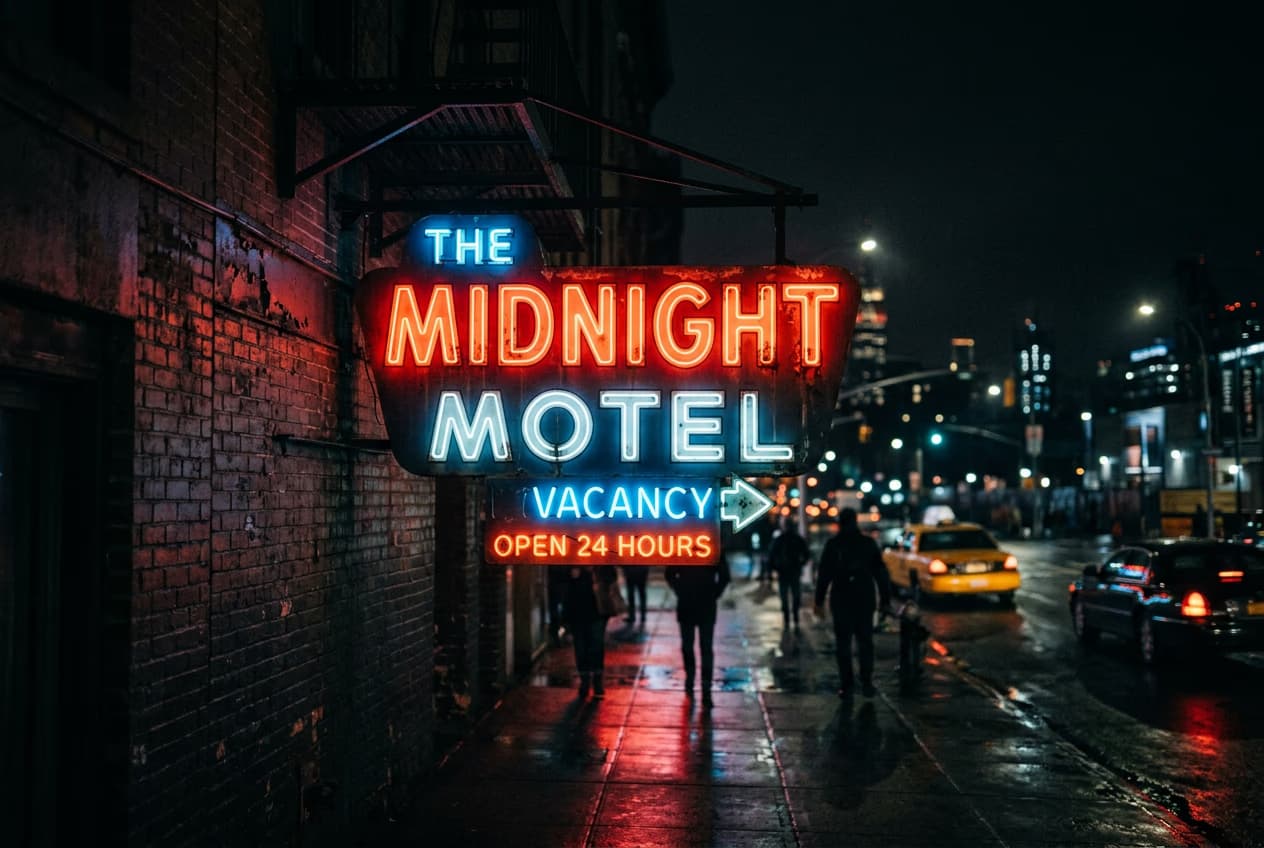
What you'll learn
What is AI text generation?
Common use cases
Generate images with text step by step
STEP 1: Open AI generator and choose the right model
- On web: Go to picsart.com → AI Image Generator → Select Flux (best for text)
- On mobile: Open Picsart → "+" → AI Image → Pick Flux model
STEP 2: Write your text-focused prompt
Format your prompt to maximize text readability:
- Put exact text in quotes: "OPEN" sign, "Coffee Shop" logo, poster saying "SALE"
- Specify text style: bold letters, neon sign, hand-painted, vintage typography
- Keep text short: 1-3 words work best, full sentences rarely succeed
- Describe text placement: sign above door, text on mug, logo on shirt
- Simple fonts render better: avoid script, cursive, or decorative styles in prompts
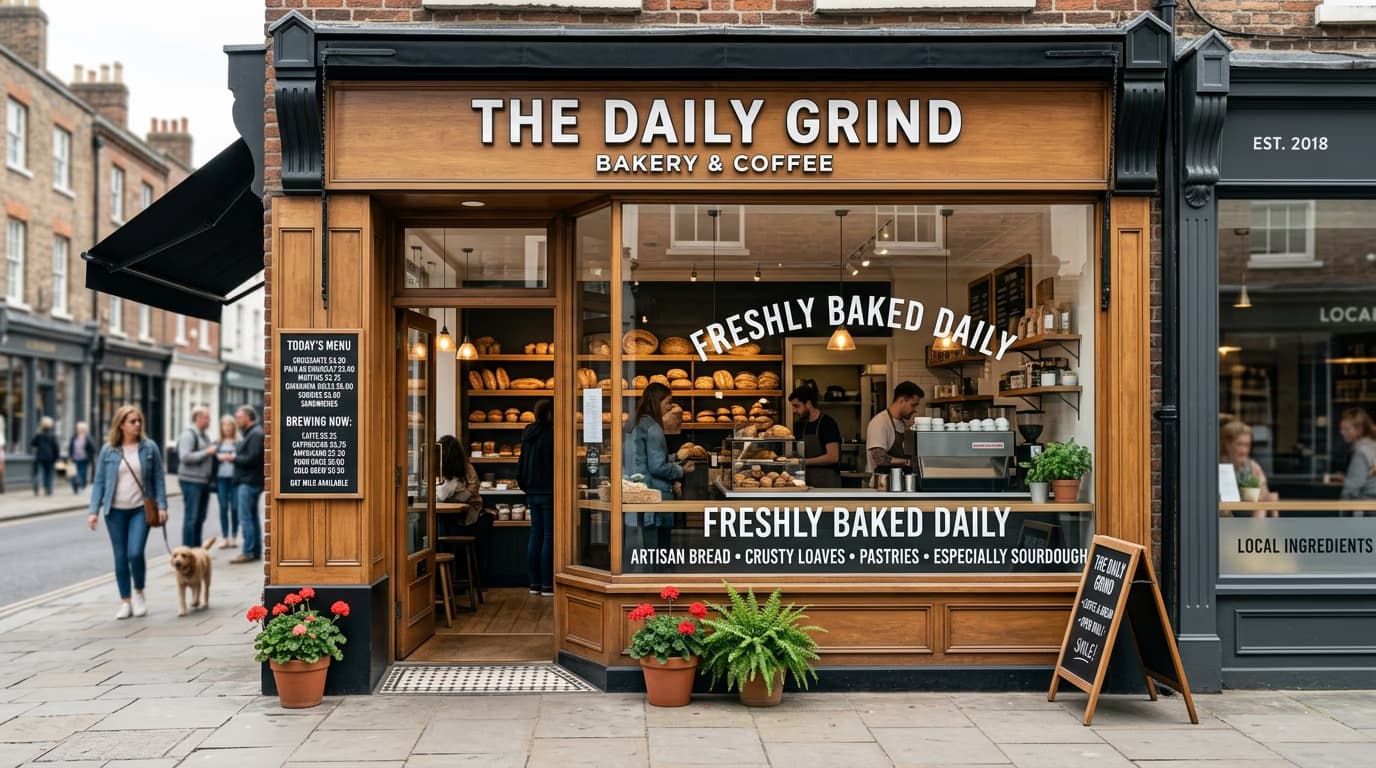
STEP 3: Generate and evaluate text quality
Click "Generate" and create multiple variations. Check each result for legible, correctly-spelled text. Expect to regenerate several times — even Flux doesn't guarantee perfect text on first try.
STEP 4: Refine or add text manually
Review your generated text carefully: Not perfect? If text is close but misspelled, use Picsart's text tool to overlay correct text matching the generated style. For completely garbled text, regenerate with a simpler prompt or skip AI text entirely and add it manually.
- Check every letter for correct spelling and formation
- Verify text is fully readable at your intended output size
- Look for consistent font weight and spacing across all letters
Tips for best results
💡 Start with single words
One-word text ("SALE," "OPEN," "STOP") has the highest success rate. Once you get good results with single words, try two-word phrases. Avoid full sentences in AI generation — add those manually instead.
💡 Use text as scene elements, not primary focus
AI handles background text better than hero text. Generate a coffee shop with a sign, then replace the sign text manually if needed. The AI creates realistic sign placement and style, you ensure correct spelling.
💡 Regenerate with the same prompt multiple times
Text generation is inconsistent. The same prompt might produce garbled text three times, then perfect text on the fourth generation. Don't change your prompt immediately — try 4-5 generations first.
💡 Know when to skip AI text entirely
For critical text (brand names, headlines, important messages), generate the image without text, then add it in Picsart's editor. This guarantees perfect spelling and gives you full typography control.
Frequently asked questions

Ready to add text?
Generate images with readable text or perfect your designs with manual text tools.
Create with text