How to generate your first AI image from text prompts
What you'll learn
What is AI image generation?
Common use cases
Generate your AI image step by step
STEP 1: Open the AI image generator
- On web: Go to picsart.com → AI Image Generator
- On mobile: Open Picsart → "+" → AI Image
STEP 2: Write your prompt and pick a model
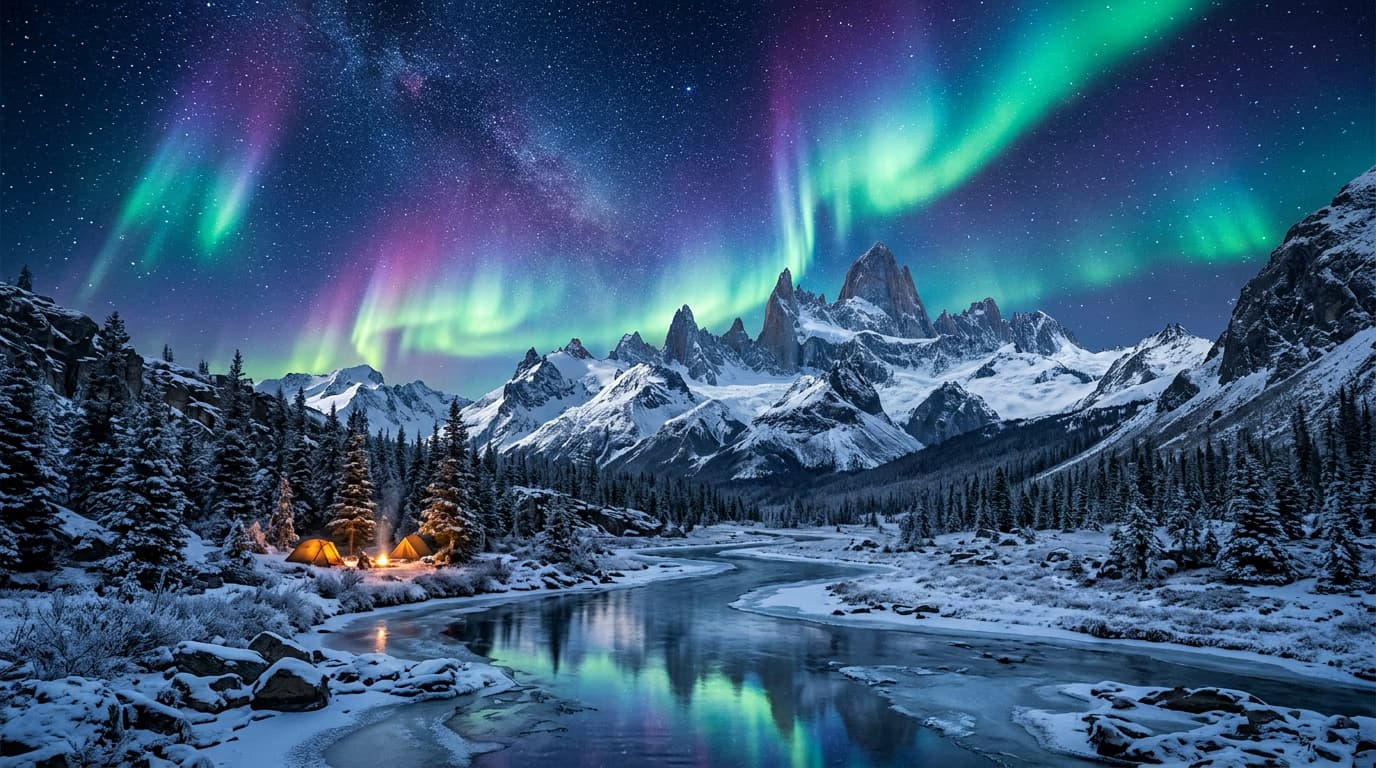
Type what you want to create in the text box. Be specific about subject, style, and mood:
- Flux: Best for photorealistic images and detailed scenes
- SDXL: Great for artistic styles and creative interpretations
- Anime: Perfect for manga and anime-style characters
- Fantasy: Ideal for surreal and imaginative concepts
STEP 3: Generate your image
Click "Generate" and wait 10-15 seconds. The AI will create four variations based on your prompt. Browse the results and pick your favorite.
STEP 4: Download and use your image
Review your generated image and make sure it matches your vision: Not perfect? Adjust your prompt and generate again, or try a different model for varied results.
- Check that all elements from your prompt appear correctly
- Look for any distorted features or odd artifacts
- Verify the style matches what you requested
Tips for best results
💡 Be specific with details
Instead of "a cat," try "orange tabby cat sitting on a windowsill at sunset." More details give the AI clearer direction and better results.
💡 Include style keywords
Add terms like "oil painting," "digital art," "photorealistic," or "vintage photograph" to guide the artistic direction.
💡 Start simple, then add
Generate with a basic prompt first. If you like the direction, regenerate with added details. This helps you learn what works without overwhelming the AI.
💡 Try different models for the same prompt
Each AI model interprets prompts differently. Run the same description through Flux and SDXL to see which style you prefer.
Frequently asked questions
