logo

How to import and use the gen-ai-use skill in Claude Code
SKILLS4 minIntermediate

Load the complete gen-ai skill to access 130+ AI models for image, video, and audio generation directly in your agent.

How to import and use the gen-ai-use skill in Claude Code

What you'll learn

  • How to download and import the gen-ai-use skill into your AI agent environment
  • Which AI models are included and how to select the right one for your task
  • How to trigger your first generation using natural language prompts
  • Where to find your generated outputs and how to iterate on results

What is the gen-ai-use skill?

The gen-ai-use skill is a complete agent capability package that connects Claude Code, Cursor, Windsurf, and other AI agents to 130+ frontier models across image, video, and audio generation. Think of it as giving your coding assistant a creative studio — instead of just writing code, it can now generate visuals, animations, and soundtracks using the same tools that power Picsart's production stack.

Common use cases

  • Product design: Generate hero images and marketing visuals for landing pages
  • Content creation: Build complete blog post illustrations in batch
  • Video production: Create and extend video clips with AI soundtracks
  • Prototyping: Mock up app interfaces with AI-generated assets
  • Social media: Automate campaign asset generation across formats
  • Documentation: Create tutorial screenshots and demo videos programmatically

Import your gen-ai-use skill step by step

STEP 1: Download the skill package

  • On web: Go to picsart.com/cli/#skills-starter → Click "Download" under gen-ai-use
  • On mobile: Open the link on desktop — skills are designed for development environments
Download skill

STEP 2: Import into your agent

Extract the skill folder and add it to your agent's workspace:

  • Claude Code: Unzip to ~/.claude/skills/ and reload workspace
  • Cursor: Add to your project's .cursor/skills/ directory
  • Windsurf: Place in your active project root under /skills/
  • Generic MCP: Point your config to the extracted mcp-server.json
STEP 3: Trigger your first generation

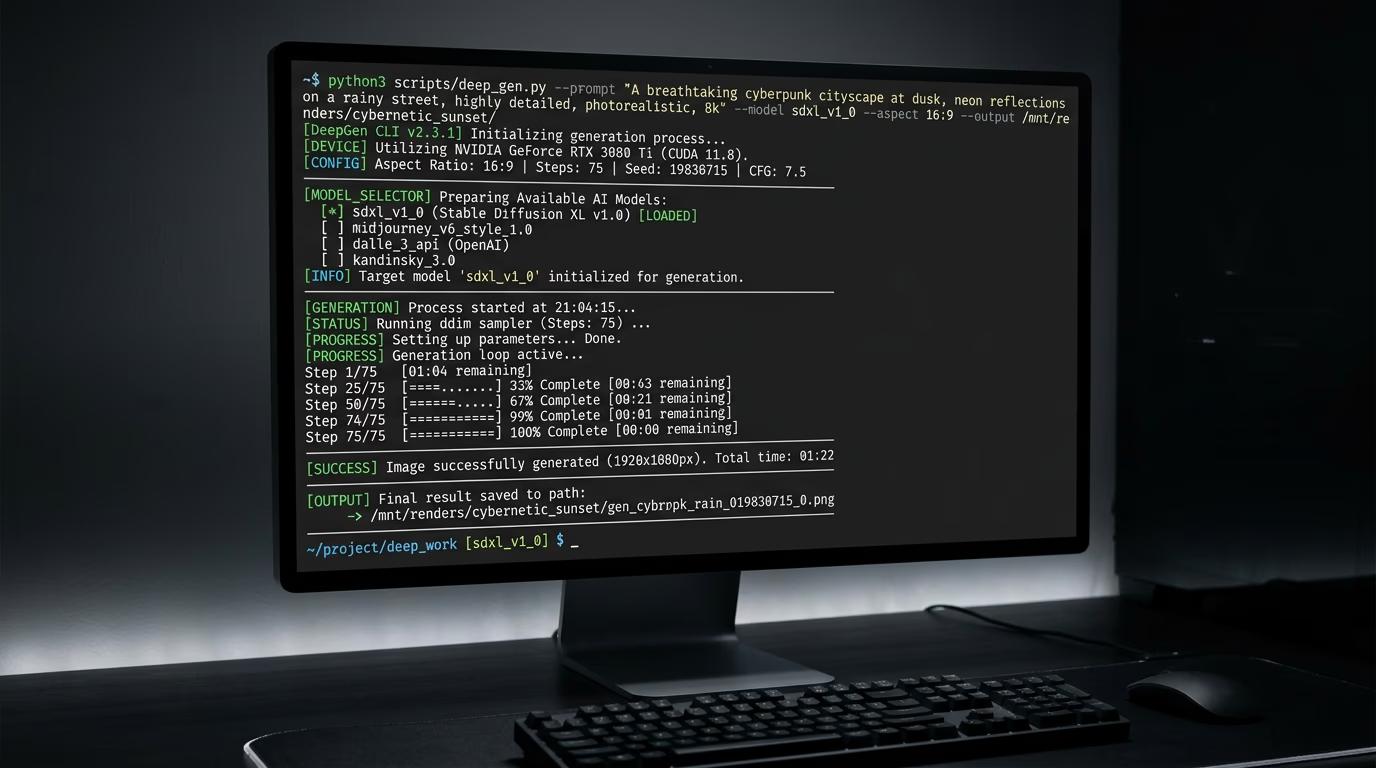
Ask your agent in plain English to create something. Example: "Generate a 1024×1024 editorial product shot using Recraft V4." The agent will read the skill, pick the right command, and execute it. Your file saves automatically to your project folder.

STEP 4: Review and iterate

Check your output file and confirm it matches your prompt: Not what you wanted? Refine your prompt with more details about style, composition, or mood, and generate again.

  • Verify the file saved to the correct directory
  • Check resolution and aspect ratio match your request
  • Look for the model and credit cost in your terminal output
Get the skill

Tips for best results

💡 Start with model selection guidance

The skill includes 130+ models. Ask your agent "Which model should I use for [your goal]?" before generating. It will recommend Flux for photorealism, Recraft for illustrations, Nano Banana for speed, etc.

💡 Use the skill's batch mode for variants

Instead of one-off requests, ask for "5 variations of [prompt]" to compare outputs. The skill handles concurrency and saves each variant with a numbered filename.

💡 Check your credit balance first

Run a balance check before large batches to avoid mid-job failures. The skill can estimate costs before executing and will warn you if insufficient credits remain.

💡 Chain operations in a single request

You can ask for multi-step workflows like "Generate a hero image, then create a 16:9 video from it, then add a soundtrack." The skill orchestrates the full pipeline automatically.

Frequently asked questions

The gen-ai-use skill is the all-in-one package — it includes every command, every model, and every workflow from image, video, audio, batch, and editing skills combined. Use it if you want full creative control without thinking about which skill to import. The specialized skills (gen-ai-images, gen-ai-video, etc.) are subsets with focused toolsets for specific media types.

No. The skill includes the CLI binary and auth flow. When you import the skill, your agent gets access to the full CLI stack automatically. You authenticate once via browser, and credentials stay local to your machine.

The skill is built on the Model Context Protocol (MCP), so it works natively with Claude Code, Cursor, and Windsurf. For ChatGPT or other agents, you'll need to manually invoke the CLI commands listed in the skill documentation — the skill won't auto-register as tools in those environments.

Ask your agent directly: "What's the best model for [use case]?" The skill includes model comparison data. Generally: Flux 2 Pro for photorealism, Recraft V4 for vector-style illustrations, Nano Banana for speed, Imagen for composition control, and Sora or Kling for video.

Ready to give your agent creative superpowers?

Download the gen-ai-use skill and start generating production-quality visuals from your terminal.

Get the skill