How to organize projects and find files with Work Space AI
Keep your Picsart Drive tidy and find creative files instantly with AI-powered organization. Cover artwork is an AI-generated illustration for the fictional FOLDDRIFT campaign.
- Category: AI AGENTS
- Reading time: 4 min
- Difficulty: Intermediate
What you'll learn
- Navigate projects and search for files using natural language
- Organize folders and triage your creative inbox automatically
- Review and remove duplicate files to save space
- Set up monthly digests and project summaries
Organize your workspace step by step
STEP 1: Connect Work Space to your Drive
- On web: Go to picsart.com/ai-agent/?agentId=work-space → Grant Drive access
- On mobile: Open Picsart → Chat with Work Space agent → Connect to Drive
STEP 2: Search and navigate projects
Ask Work Space to find files or navigate to specific projects:
- Visual search: "Find the photo with a red coffee cup" or "Show me all portraits from last month"
- Project navigation: "Open my holiday campaign project" or "Show recent edits"
- File operations: "Move this file to the Client Work folder" or "Delete duplicates in this folder"
- Folder management: "Create a new folder for summer content" or "Rename this project to Q4 Campaign"
STEP 3: Organize and clean up
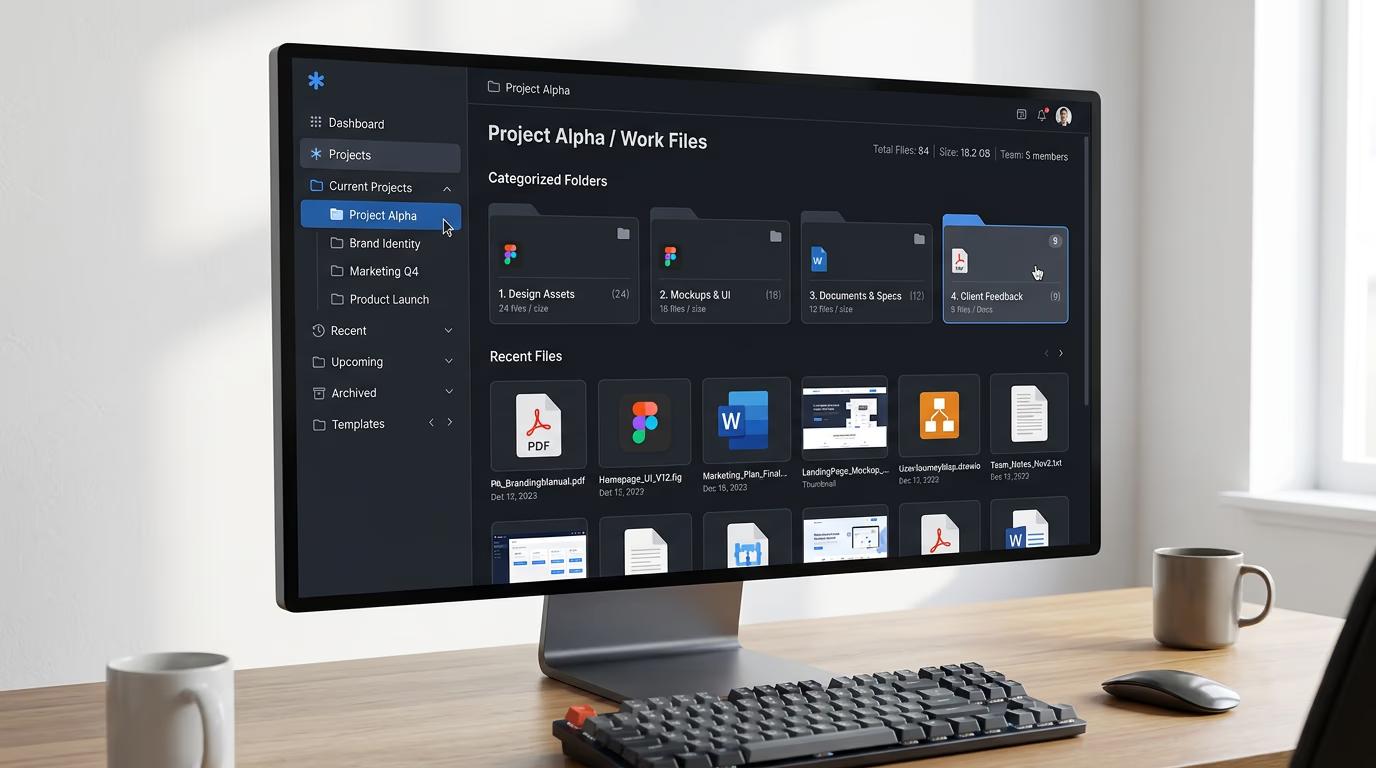
Work Space analyzes your Drive structure and suggests improvements. Review the suggestions — duplicate files, misplaced assets, old projects taking up space — and approve actions one by one. Work Space always asks for confirmation before deleting or moving files, so you stay in control of your organization.
STEP 4: Set up ongoing management
Configure how Work Space helps you stay organized: Need something adjusted? Tell Work Space to change digest frequency, focus on specific folders, or stop suggesting certain types of cleanup actions.
- Monthly digest: Get a summary of projects created, files added, and storage used
- Inbox triage: Automatically sort new uploads into relevant project folders
- Duplicate alerts: Get notified when you upload or create files similar to existing ones
Tips for best results
Use descriptive project and folder names
Work Space's AI understands context better when your folders have clear names. Instead of "Project 1" or "Untitled," use names like "Instagram Summer Campaign" or "Client Logos 2024." This helps the search understand intent when you ask for files.
Let Work Space suggest folder structure
If your Drive feels chaotic, ask Work Space to propose a folder structure based on your content types and workflow. It analyzes what you create most often and suggests an organization system that fits how you actually work.
Review duplicates before deleting
Work Space flags files that look similar, but you should check before deleting. Sometimes "duplicates" are iterations or versions you need to keep. Work Space will show you the files side by side so you can decide.
Use natural language for search
Don't worry about exact filenames. Describe what you remember — "the portrait with the blue jacket" or "video from the beach shoot last week." Work Space understands visual descriptions and context, not just file metadata.
Frequently asked questions
- Work Space uses AI to analyze the contents of your images and videos, not just filenames. When you describe what you're looking for — "the sunset photo" or "portrait with a red background" — the AI searches by visual characteristics, colors, objects, and scenes. It also considers context like when you created the file, which project it's in, and related files you've worked on recently.
