logo

How to remove backgrounds from photos with AI

BACKGROUNDS3 minBeginner

Get clean cutouts in one click with automatic edge detection for people, products, and objects.

How to remove backgrounds from photos with AI

What you'll learn

  • Remove backgrounds from any photo type in seconds
  • Get clean edge detection around hair, fur, and complex shapes
  • Save transparent PNG files ready for compositing
  • Export cutouts for product photos, designs, and collages

What is AI background removal?

AI background removal is automatic subject isolation that separates your main subject from everything behind it. Also called background erasing or BG removal, it identifies edges and creates transparent cutouts. Think of it like a digital green screen that works on any photo without needing special lighting.

Common use cases

  • Product photography: Isolate items for clean white backgrounds on marketplace listings
  • Portrait editing: Remove distracting backgrounds from headshots and profile pictures
  • Collage making: Extract subjects to combine multiple photos on new backgrounds
  • Logo design: Create transparent versions of photos for overlay effects
  • Print materials: Prepare cutouts for flyers, posters, and business cards
  • Social media: Create attention-grabbing posts with isolated subjects on custom backgrounds

Remove your background step by step

STEP 1: Upload your photo

  • On web: Go to picsart.com/background-remover → Upload your image
  • On mobile: Open Picsart → "+" → Select photo → Tools → Remove BG
Open background remover

STEP 2: Let AI remove the background

The AI automatically detects your subject and removes the background in seconds.

  • Preview the cutout with transparent checkerboard pattern showing removed areas
  • Check edge quality around hair, fur, or fine details
  • Use manual erase or restore tools if you need to fix small areas
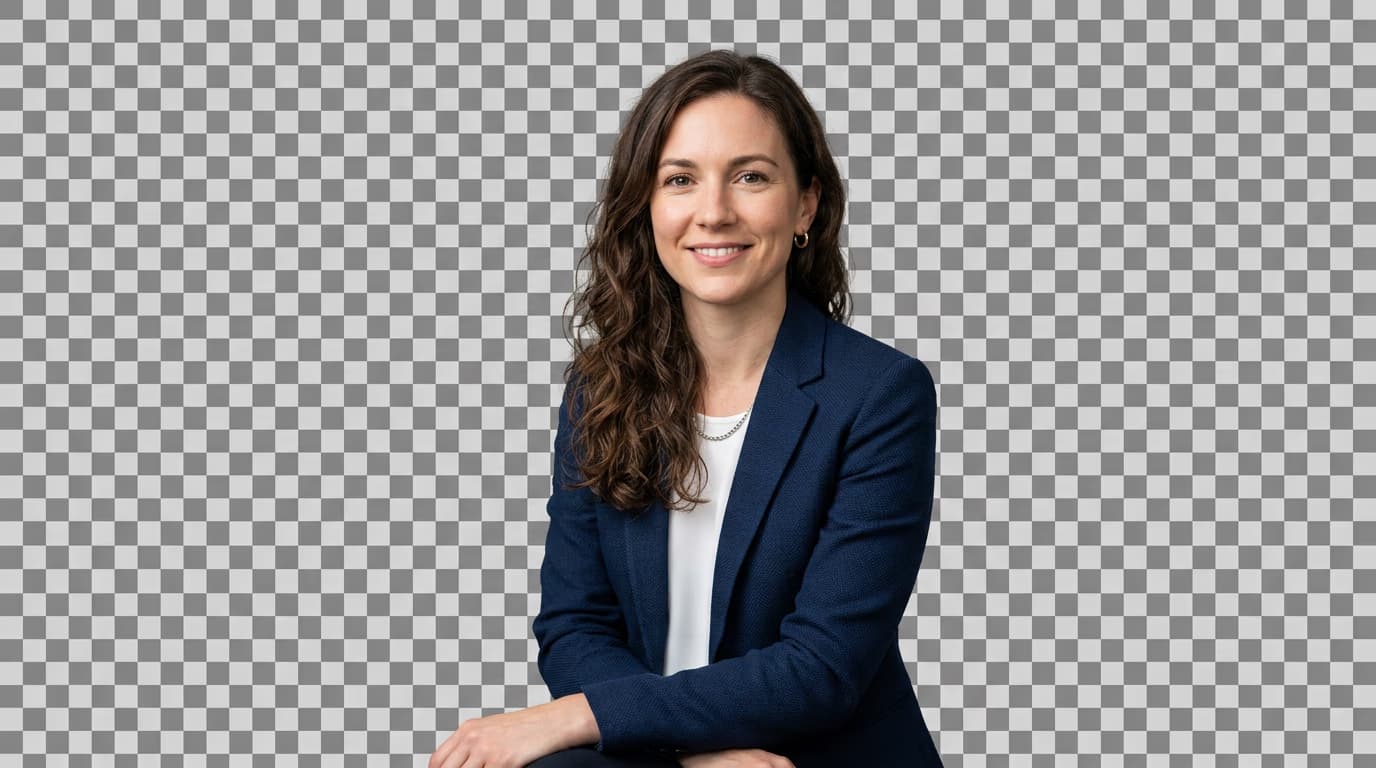
STEP 3: Download your cutout

Save as PNG to keep the transparent background, or add a new background color before exporting.

Tips for best results

💡 Use high contrast photos

Photos where your subject stands out from the background work best. Strong color or brightness differences help the AI detect edges more accurately.

💡 Check edge quality at 100% zoom

Zoom in on hair, fur, or transparent objects to verify clean edges. Small fixes with manual tools take seconds and make a big difference.

💡 Save as PNG for transparency

Always export transparent cutouts as PNG files. JPG format doesn't support transparency and will add a white background automatically.

💡 Batch process multiple images

Remove backgrounds from up to 50 photos at once with batch processing. Perfect for product catalogs or photo shoots with consistent lighting.

Frequently asked questions

Yes, you can remove backgrounds for free with a Picsart account. Free users get daily removals with standard quality. Gold subscribers get unlimited removals plus batch processing for up to 50 images at once.

Absolutely. The AI works great for product photography, especially items with clear edges like clothing, electronics, or packaged goods. Upload your product photo and the background disappears instantly, leaving a clean transparent cutout perfect for marketplace listings.

Use the manual erase tool to clean up problem areas. Zoom in to 100% or 200%, then brush along rough edges with a small brush size. You can also use the restore tool to bring back parts the AI removed by mistake. Most photos need only 30 seconds of touch-up work.

Always save as PNG format to preserve transparency. PNG files support alpha channels that display the checkerboard pattern in editors and show as transparent when placed on other backgrounds. JPG format doesn't support transparency and will fill removed areas with white.

Ready to remove backgrounds?

Get clean cutouts in seconds with AI-powered background removal.

Start removing backgrounds