logo

How to replace backgrounds with AI-generated scenes
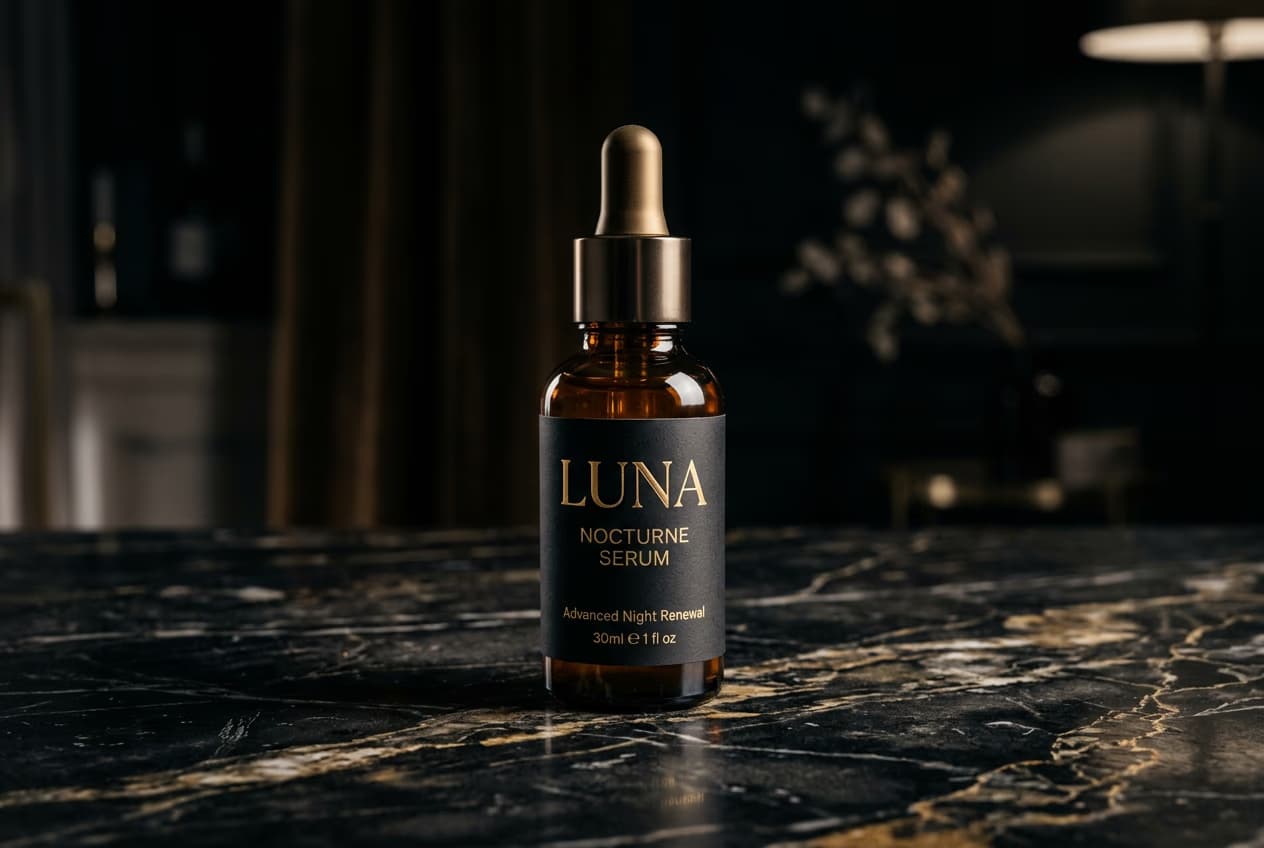
BACKGROUNDS4 minIntermediate

Swap original backgrounds for generated scenes that match lighting and perspective automatically.

How to replace backgrounds with AI-generated scenes

What you'll learn

  • Replace backgrounds with AI-generated scenes in seconds
  • Get automatic lighting and shadow matching for natural results
  • Create professional product and portrait backdrops without a studio
  • Generate multiple background variations from one photo

What is AI background replacement?

AI background replacement removes your original background and generates a new scene behind your subject. The AI matches lighting direction, shadows, and perspective so everything looks like it was shot together. Think of it as having an instant photography studio that can create any backdrop you describe.

Common use cases

  • E-commerce: Place products on professional studio backgrounds without a photoshoot
  • Social media: Create eye-catching profile pictures with custom scenes
  • Marketing: Generate multiple background variations for A/B testing
  • Real estate: Show furniture in styled room settings
  • Food photography: Place dishes on elegant surfaces with proper lighting
  • Portrait editing: Put people in locations they've never visited

Replace your background step by step

STEP 1: Upload your photo

  • On web: Go to picsart.com/ai-background → Upload your image
  • On mobile: Open Picsart → "+" → Select photo → AI Background
Open AI background

STEP 2: Choose or describe your background

Select a style or describe what you want:

  • Quick suggestions: Get instant backgrounds based on your subject type
  • Category presets: Choose from studio, nature, urban, gradient, or seasonal themes
  • Custom prompt: Describe any scene in plain language
  • Style options: Control whether backgrounds are realistic, artistic, or minimalist
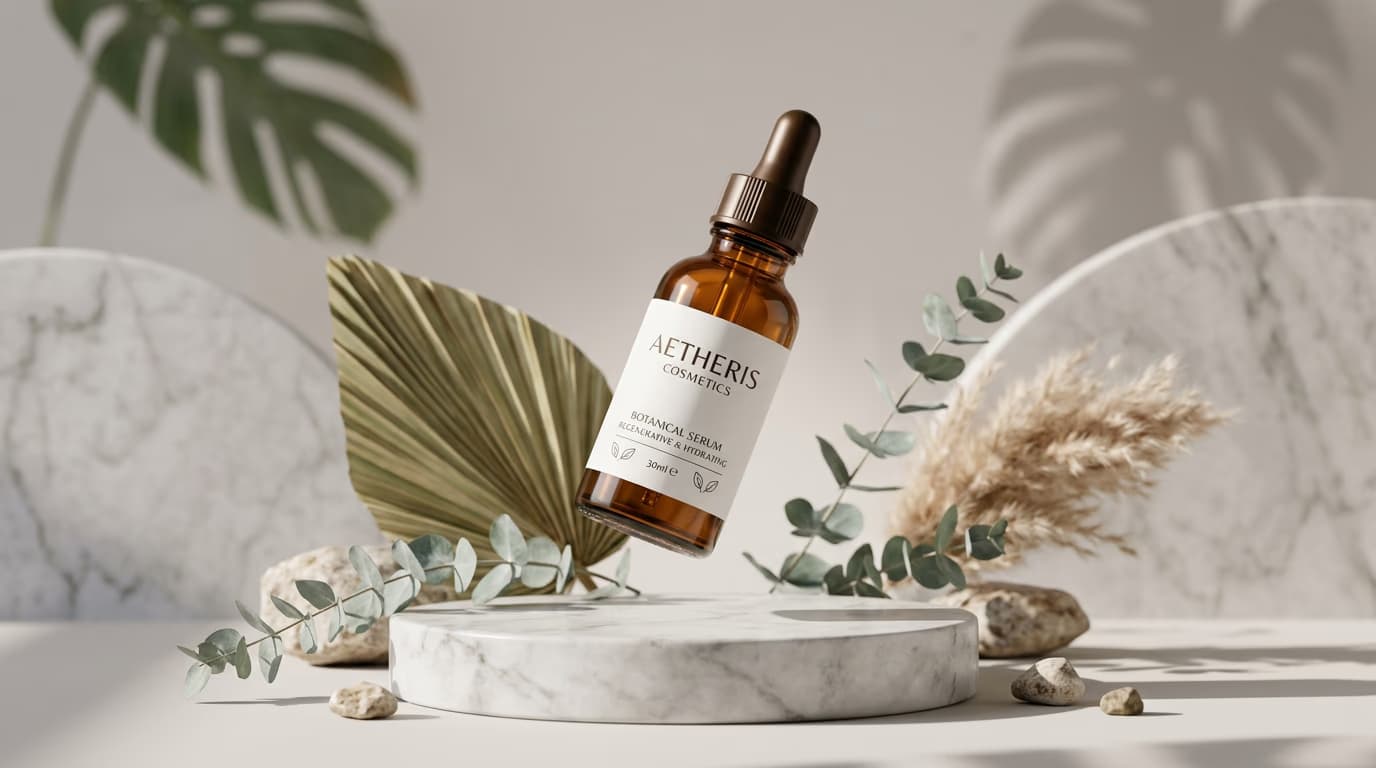
STEP 3: Generate your new background

Click Generate and wait 5-10 seconds. The AI removes your old background and creates a new scene that matches your subject's lighting and perspective.

STEP 4: Review and refine

Check that the new background looks natural: Not perfect? Generate again for a different result, adjust your prompt for more control, or try a different style option.

  • Verify lighting direction matches between subject and background
  • Check that shadows fall in consistent directions
  • Look for clean edges where your subject meets the new background
Replace my background

Tips for best results

💡 Be specific with prompts

Describe lighting, time of day, and atmosphere. "Marble countertop with morning sunlight from the left" works better than just "nice background."

💡 Match your subject's lighting

If your subject has strong directional light, describe the same in your background prompt. This helps the AI create consistent shadows and highlights.

💡 Use high-resolution source photos

Better input quality means better background generation. Photos with clean edges around your subject work best for natural-looking results.

💡 Generate multiple variations

The AI creates different results each time. Generate 3-4 backgrounds and pick the best one rather than settling for the first attempt.

Frequently asked questions

The AI first removes your original background using automatic subject detection. Then it generates a new scene based on your description or selected preset, matching the lighting angle and intensity from your subject. Finally, it composites everything together with proper shadows and edge blending.

Yes, AI backgrounds work great for product photos. You can place items on marble surfaces, wooden tables, outdoor settings, or abstract gradients without a physical studio. The AI matches lighting automatically, so products look like they were actually photographed in those environments.

Lighting mismatch is the most common issue. If your subject has strong light from the right but your background prompt describes morning light from the left, they'll conflict. Regenerate with a prompt that matches your subject's lighting direction. Also check that perspective makes sense—don't put ground-level subjects on aerial view backgrounds.

You get daily AI background generations with a free Picsart account. Gold subscribers get unlimited generations plus access to advanced style controls and higher resolution outputs.

Need a better background?

Generate professional scenes in seconds with AI background replacement.

Replace my background