How to replace image backgrounds with AI-generated scenes using Swap
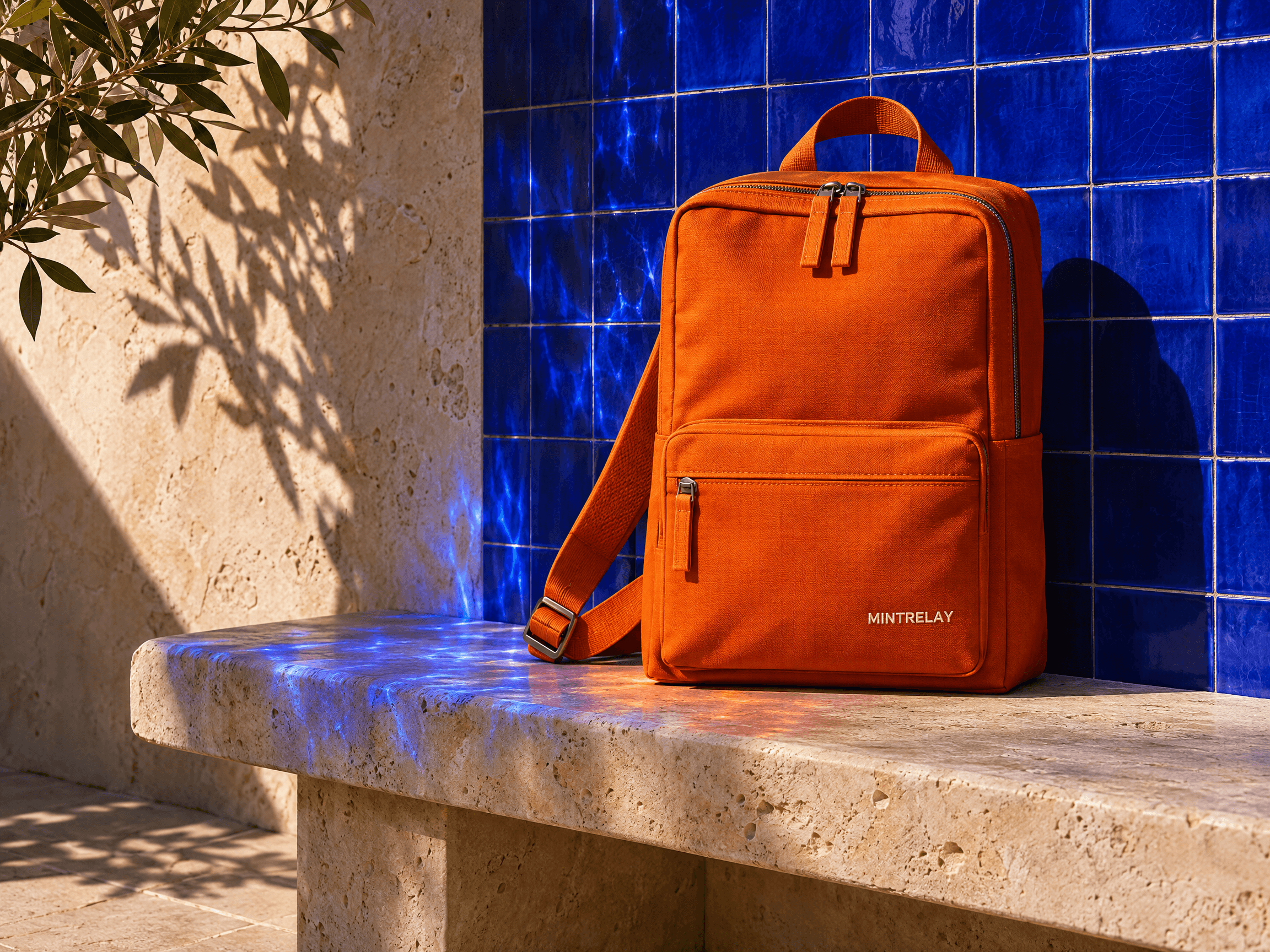
Transform your photos with custom AI backgrounds that match your vision perfectly. Cover artwork is an AI-generated illustration for the fictional MINTRELAY campaign.
- Category: AI AGENTS
- Reading time: 3 min
- Difficulty: Beginner
What you'll learn
- Upload and prepare images for background replacement
- Describe custom background scenes with text prompts
- Review AI-generated backgrounds and refine results
- Export images with perfectly matched lighting and perspective
Swap your background step by step
STEP 1: Upload your image
- On web: Go to picsart.com/ai-agent/?agentId=bg-swap → Upload your photo
- On mobile: Open Picsart → Chat with Swap agent → Attach your image
STEP 2: Describe your new background
Tell Swap what background scene you want to create:
- Location-based: "tropical beach at sunset" or "modern city street at night"
- Style-based: "minimalist white studio" or "vintage film photography backdrop"
- Mood-based: "dreamy pastel clouds" or "dramatic stormy sky"
- Detailed prompts: Include lighting, time of day, weather, and specific elements for more control

STEP 3: Generate and preview
Click "Generate" and wait a few seconds. Swap removes your original background, creates the new scene from your description, and blends your subject into it with matched lighting and shadows. Preview the result to see how the AI composed the scene.
STEP 4: Review and refine
Check that the background looks natural and matches your subject: Not perfect? Regenerate with a more detailed prompt, or adjust lighting and color manually after export.
- Subject edges look clean with no leftover background artifacts
- Lighting direction and intensity match between subject and background
- Colors and tones feel consistent — no obvious mismatch in warmth or saturation
Tips for best results
Use clean subject separation
Photos with clear separation between subject and background work best. If your subject has fine details like hair or fur, shoot against a contrasting backdrop to help the AI detect edges cleanly.
Match lighting in your prompt
If your subject was photographed in soft daylight, describe a background with similar lighting — "overcast garden" instead of "bright sunny beach." Matching lighting direction and intensity makes the final composite look more natural.
Be specific with scene details
Instead of "beach," try "sandy beach with palm trees, golden hour lighting, gentle waves." The more specific your prompt, the more control you have over the AI's creative choices.
Check shadows and reflections
After generating, look for shadows under your subject's feet and reflections if the new background includes reflective surfaces. The AI usually handles these automatically, but you can add them manually in post if needed.
Frequently asked questions
- Swap uses AI to separate your subject from the original background, similar to how background removal tools work. Once separated, it generates a new background scene based on your text description and composites your subject back in. The AI analyzes lighting, shadows, and perspective from your subject, then creates a background that matches those characteristics so the final image looks naturally photographed together.
