How to turn a sketch into a 3D design with Picsart Flow
Transform rough sketches into polished 3D-style visuals using AI-powered image generation.
- Category: IMAGE GENERATION
- Reading time: 4 min
- Difficulty: Intermediate
What you'll learn
- Upload and prepare sketch images for 3D conversion
- Configure AI settings to generate realistic 3D renderings
- Refine and export professional 3D-style visuals
Transform your sketch step by step
STEP 1: Upload your sketch
- On web: Go to Picsart Flow → Upload your sketch image
- On mobile: Open Picsart → Flow → Upload sketch photo
STEP 2: Configure 3D style settings
Choose your rendering style and material options:
- Material type: Select matte, glossy, metallic, or plastic finish
- Lighting: Choose studio, natural, dramatic, or soft lighting
- Background: Pick solid color, gradient, or environmental backdrop
- Detail level: Adjust from simple geometric to highly detailed rendering
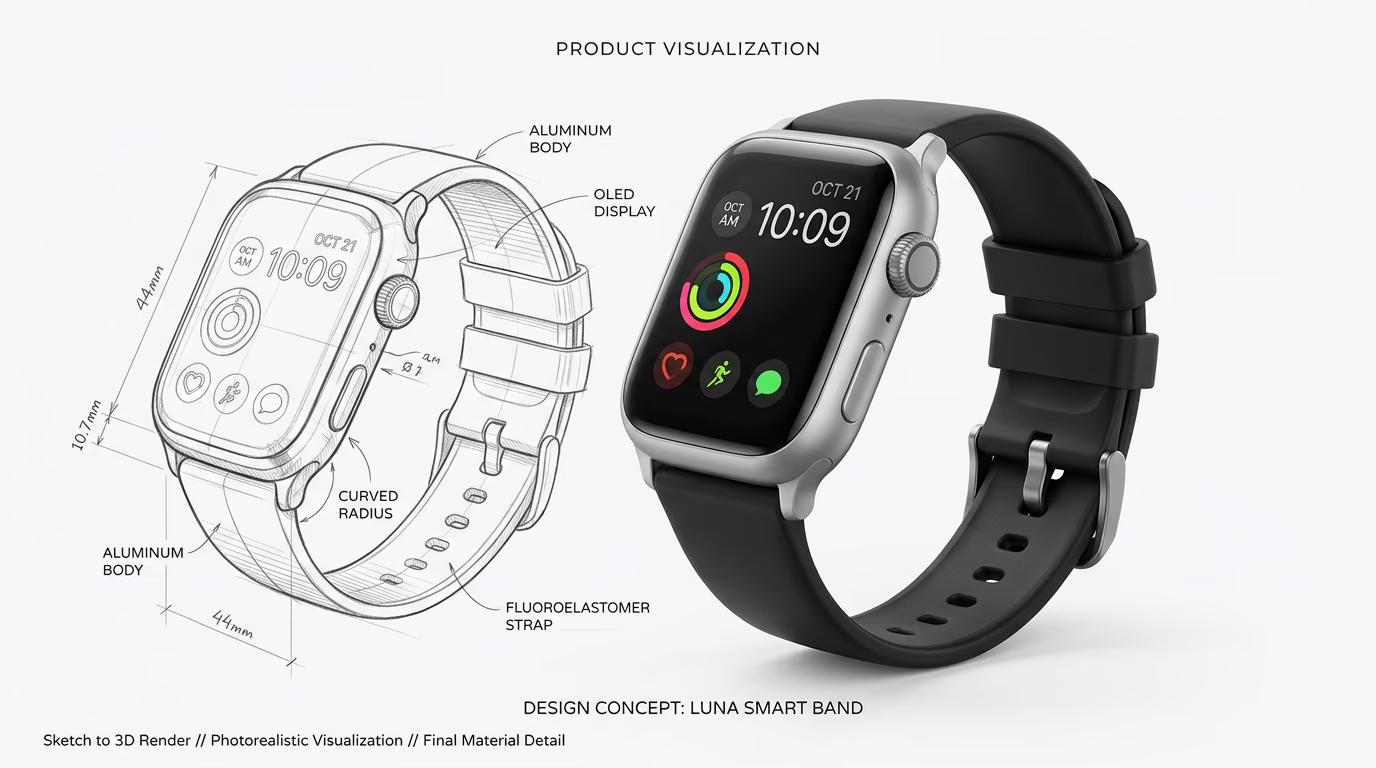
STEP 3: Generate 3D rendering
Click "Generate" and wait 10-20 seconds. The AI analyzes your sketch's perspective, shapes, and proportions, then creates a photorealistic 3D version with proper lighting and materials.
STEP 4: Review and export
Check that your 3D design matches your vision: Not perfect? Adjust settings and generate again, or try a different material or lighting option.
- Verify proportions and perspective match your original sketch
- Check that materials and lighting create the desired effect
- Confirm all details from the sketch are visible in 3D form
Tips for best results
Use clear line work
Sketches with bold, defined lines and clear edges produce better 3D results. Avoid messy or overly detailed sketches where shapes aren't clearly separated.
Show perspective in your sketch
Include basic perspective lines or multiple views of your object. The AI uses these cues to understand the 3D structure you're trying to create.
Start with simple objects
Master basic shapes like cubes, cylinders, and spheres before moving to complex designs. Simple objects with clear geometry convert more reliably.
Experiment with material settings
The same sketch can look completely different with metallic versus matte materials. Generate multiple versions to find the perfect style for your project.
Frequently asked questions
- Clear line drawings with defined edges and basic perspective work best. Product sketches, technical drawings, and simple object illustrations convert most reliably. The AI needs to identify distinct shapes and understand spatial relationships, so avoid heavily shaded or textured sketches where outlines aren't clear. Simple geometric objects like furniture, electronics, or packaging designs produce excellent results.
