How to turn PDFs into social carousels with Picsart Flow
WORKFLOWS5 minAdvanced

Convert multi-page PDFs into animated Instagram or LinkedIn carousels automatically with motion graphics.

How to turn PDFs into social carousels with Picsart Flow

What you'll learn

  • Build workflows that split PDFs and redesign each page for social media
  • Apply motion graphics and animation effects to static PDF content
  • Maintain consistent branding across every carousel slide automatically
  • Export square or vertical video carousels optimized for Instagram and LinkedIn

What is PDF-to-carousel conversion?

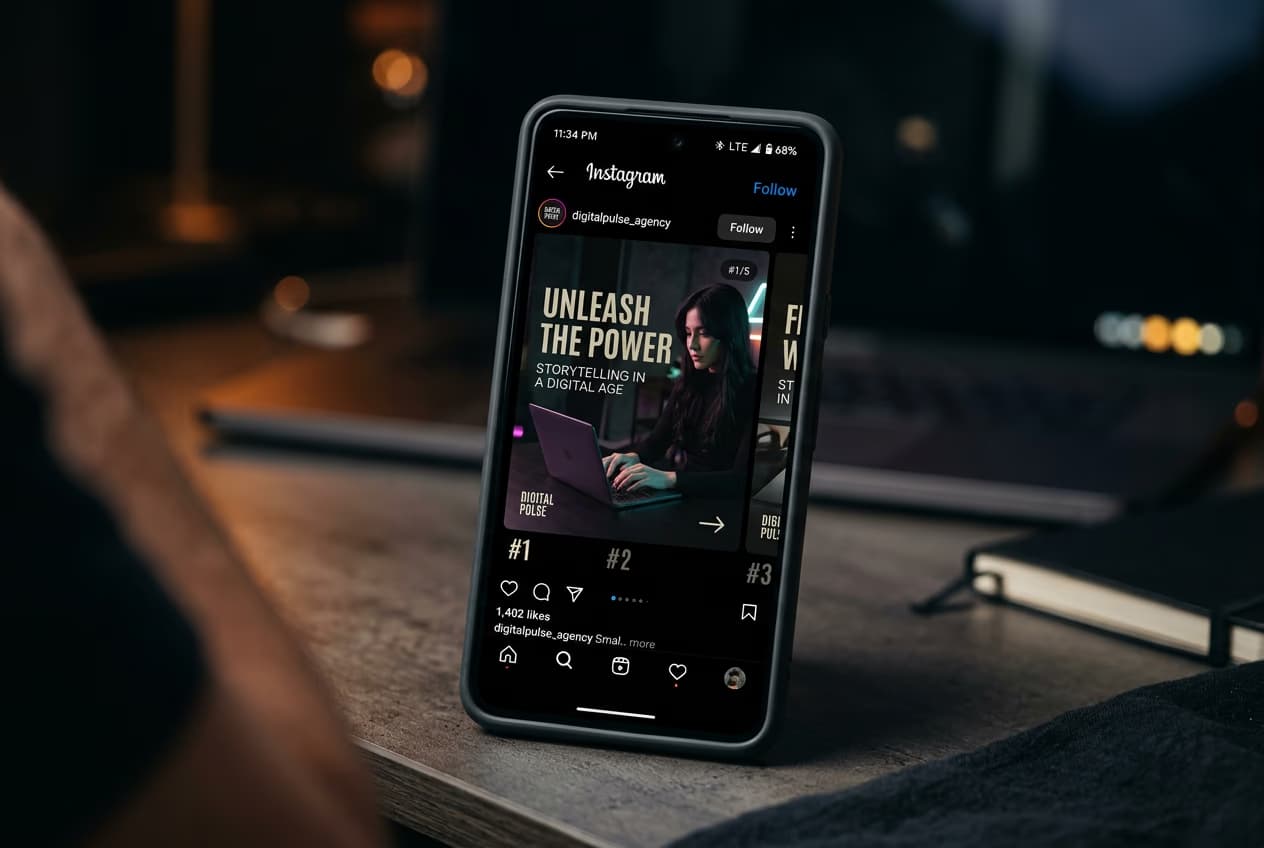
PDF-to-carousel conversion means taking a multi-page document—like a report, guide, or presentation—and transforming each page into a square or vertical social media slide with consistent styling, motion graphics, and platform-specific formatting. Automated workflows handle page splitting, layout redesign, and video export so you don't manually recreate every slide. Think of it as a content adapter that reformats long-form material for swipeable social posts.

Common use cases

  • Educational content: Turn study guides or tutorials into swipeable Instagram carousels
  • Marketing reports: Convert case studies or whitepapers into LinkedIn slide decks
  • Thought leadership: Redesign blog posts or essays as multi-slide Twitter threads
  • Portfolio projects: Share project breakdowns or design processes as TikTok carousels
  • Event recaps: Turn conference slides into animated social summaries
  • Product launches: Adapt one-pagers or spec sheets into scrollable Instagram Stories

Convert your PDF to carousel step by step

STEP 1: Upload PDF to Flow template

  • On web: Go to picsart.com/flow/templates → Search "PDF to carousel" → Upload your document
  • On mobile: Open Picsart → Flow tab → Templates → Social media → PDF carousel → Upload file
Open carousel template

STEP 2: Configure carousel style and animation

Choose how Flow will redesign each PDF page:

  • Layout style: Minimal text-only, visual-heavy with icons, or balanced mixed format
  • Color palette: Apply brand colors or choose from preset social media color schemes
  • Typography: Set heading and body fonts, text size, and alignment
  • Animation type: Fade transitions, slide-in effects, or zoom animations between slides
  • Platform format: Square (1:1) for Instagram feed, vertical (9:16) for Stories/Reels

STEP 3: Generate carousel slides

Flow splits your PDF into individual pages, applies your chosen design system to each one, and adds motion graphics. Review every slide to verify text is accurate and readable. If the PDF contained statistics or claims, check them against the original source to make sure nothing was misinterpreted during conversion.

STEP 4: Review carousel and export

Scroll through the full carousel to check formatting and accuracy: Not perfect? Adjust colors, fonts, or animation speed in the workflow settings, then regenerate the entire carousel with updated styling.

  • Verify text is large enough to read on mobile screens without zooming
  • Check that slide order matches your original PDF page sequence
  • Confirm all statistics, quotes, or sourced material stayed accurate during conversion
Create my carousel

Tips for best results

💡 Only convert PDFs you own or have licensed

Never upload copyrighted reports, published whitepapers, or documents you don't have permission to repurpose. Use your own content or materials with clear usage rights that allow derivative work.

💡 Simplify text for mobile readability

Social carousels show on small screens. Cut long paragraphs into single sentences or bullet points. Remove jargon and technical terms unless your audience expects them.

💡 Add attribution to every carousel

If your PDF contained quotes, statistics, or ideas from other sources, include a credits slide at the end. State where the original material came from and who created it.

💡 Test animation speed before posting

Export a preview and watch it on your phone. If text disappears before you finish reading, slow down the animation timing in Flow's settings. Viewers should have time to absorb each slide without rushing.

💡 Keep carousels under 10 slides

Most users won't swipe through more than 8-10 slides. If your PDF has 20 pages, split it into multiple carousels or condense content by combining related points onto single slides.

Social media carousel specifications

  • Instagram feed: 1:1 square ratio (1080x1080px) — up to 10 slides per carousel
  • Instagram Stories: 9:16 vertical ratio (1080x1920px) — export as video or separate images
  • LinkedIn: 1.91:1 landscape (1200x628px) or 1:1 square — up to 20 slides per document post
  • TikTok carousel: 9:16 vertical ratio (1080x1920px) — up to 35 images with 1-10 second display time
  • Twitter/X: 16:9 landscape (1200x675px) or 1:1 square — up to 4 images per tweet
  • Facebook: 1:1 square (1080x1080px) — up to 10 images per carousel ad or post

Frequently asked questions

Yes, the free tier lets you use PDF-to-carousel templates with a monthly limit on total conversions. You can process shorter PDFs (under 10 pages) and export up to a set number of carousel videos per month. Paid plans remove these limits and add higher export resolutions.

Processing time depends on page count and animation complexity. A 5-page PDF with simple fade transitions converts in about 30 seconds. A 15-page document with motion graphics and custom layouts may take 2-3 minutes. Flow shows a progress bar while your carousel generates.

Yes, after Flow creates your carousel, you can click into any slide to adjust text, colors, or layout manually. Changes you make to one slide won't automatically apply to others—you'll need to update each one individually or regenerate the entire carousel with new workflow settings.

Flow preserves images from your original PDF and repositions them to fit the carousel layout. Complex graphics may be simplified or cropped to maintain readability on mobile screens. If image quality drops noticeably, try exporting your PDF at a higher resolution before uploading to Flow.

Ready to repurpose?

Turn your PDFs into swipeable social carousels with Flow's automation.

Start converting now