How to turn product photos into campaign moodboards with AI
Turn product images into quick campaign moodboards for pitches, visual direction, and content planning.
- Category: WORKFLOWS
- Reading time: 4 min
- Difficulty: Intermediate
What you'll learn
- Transform a packshot into a clean studio product image with soft lighting
- Generate a 2x2 moodboard grid with editorial textures and surfaces
- Create Instagram Stories and Pinterest-ready product collages
- Match moodboard textures to your product's color palette
Create your product moodboard step by step
STEP 1: Upload your product photo
- On web: Go to the template page → Click "Use this template" → Upload your packshot
- On mobile: Open Picsart Flow → Find Product Moodboard 2x2 Grid → Upload image
STEP 2: Generate moodboard and studio shot
Click "Run" and the workflow will create:
- Clean studio product shot: Soft diffused lighting on a light grey or off-white background
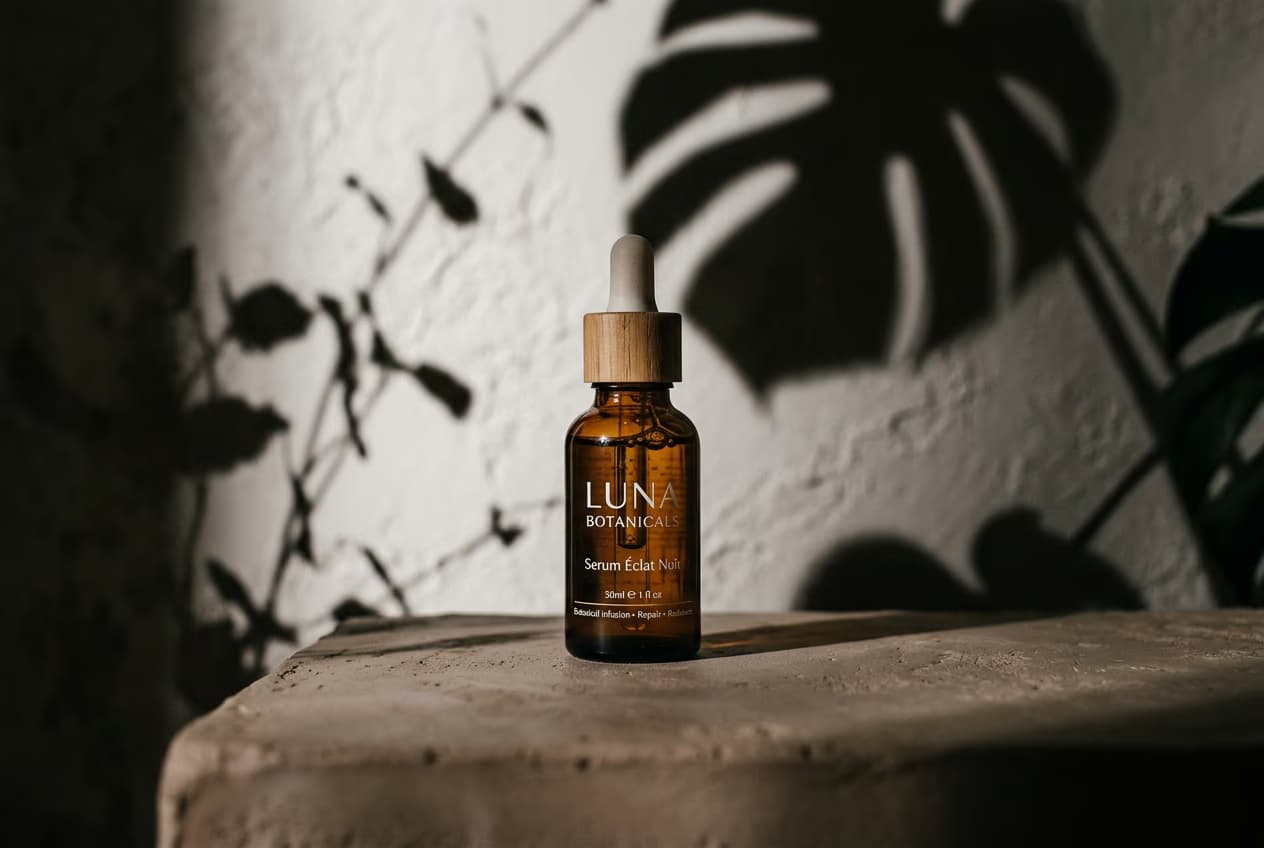
- 2x2 moodboard grid: Product centered with editorial textures like water ripples, fabric, reflections, and botanical shadows that harmonize with your product colors

STEP 3: Review generated assets
Run the template and review whether the board feels visually coherent and useful for the direction you want to present.
STEP 4: Download and post
Check the quality of both outputs: Not matching your style? Try a different product photo with clearer labels or adjust lighting in your original, then run again.
- Verify product shape, proportions, and label details look accurate
- Check that moodboard textures feel cohesive and editorial
- Make sure the color palette matches your brand aesthetic
Tips for best results
Start with a sharp, well-lit packshot
Use a clear product photo where the label is fully visible and materials are easy to see. Blurry or dark images may produce inaccurate studio shots or lose product details in the moodboard.
Keep your product centered in the original
The AI places your product front and center in the 2x2 grid. If it's off to one side in your original, crop it to the center before uploading for a cleaner result.
Use products with distinct colors
The workflow pulls textures and tones that harmonize with your product. Products with clear color palettes (warm tones, cool tones, bright colors) will get more cohesive moodboards.
Test different product angles
Front-facing packshots work best. Angled or side views may not integrate cleanly into the grid layout.
Frequently asked questions
- AI product moodboard generation transforms a simple packshot into two assets: a clean studio product image with soft diffused lighting, and a 2x2 grid collage featuring your product surrounded by editorial textures like water ripples, fabric, and botanical shadows. The textures match your product's color palette for a cohesive aesthetic.
