Resize one asset for every social format with AI workflows

WORKFLOWS4 minIntermediate

Transform a single design into platform-specific versions automatically using AI agents.

Loading tutorial video

What you'll learn

  • Set up automated workflows that resize content for multiple platforms
  • Configure AI agents to maintain brand consistency across formats
  • Export finished assets ready for immediate publishing
  • Scale your content creation without manual resizing work

What are AI agents?

AI agents are automated workflows that understand your brand guidelines and handle repetitive creative tasks. Also called creative automation or intelligent workflows, they resize, reformat, and adapt your content while you focus on strategy. Think of them as your creative assistant who never sleeps and never forgets your brand rules.

Common use cases

  • Social media marketing: Convert one product photo into Instagram stories, feed posts, Facebook ads, and LinkedIn banners
  • E-commerce: Resize product images for Amazon, Shopify, Etsy, and marketplace requirements
  • Paid advertising: Create display ad variations in dozens of sizes from a single campaign asset
  • Content calendars: Prepare weekly social content in all required formats from one design template
  • Brand campaigns: Deploy campaign visuals across every channel without manual reformatting
  • Team collaboration: Let designers create once while agents handle distribution formats

Automate your resizing step by step

STEP 1: Upload your master asset

  • On web: Go to picsart.com/ai-agents → Upload your design or photo
  • On mobile: Access is currently web-only for agent configuration
Start using agents

STEP 2: Select target platforms

Choose which social formats you need:

  • Instagram: Stories (9:16), feed posts (1:1 or 4:5), reels (9:16)
  • Facebook: Posts (1:1), cover photos (16:9), ads (multiple sizes)
  • LinkedIn: Posts (1:1), banners (4:1), document covers (16:9)
  • Twitter/X: Posts (16:9 or 2:1), headers (3:1)
  • Custom sizes: Add specific pixel dimensions or aspect ratios
  • Brand presets: Save your most-used format combinations
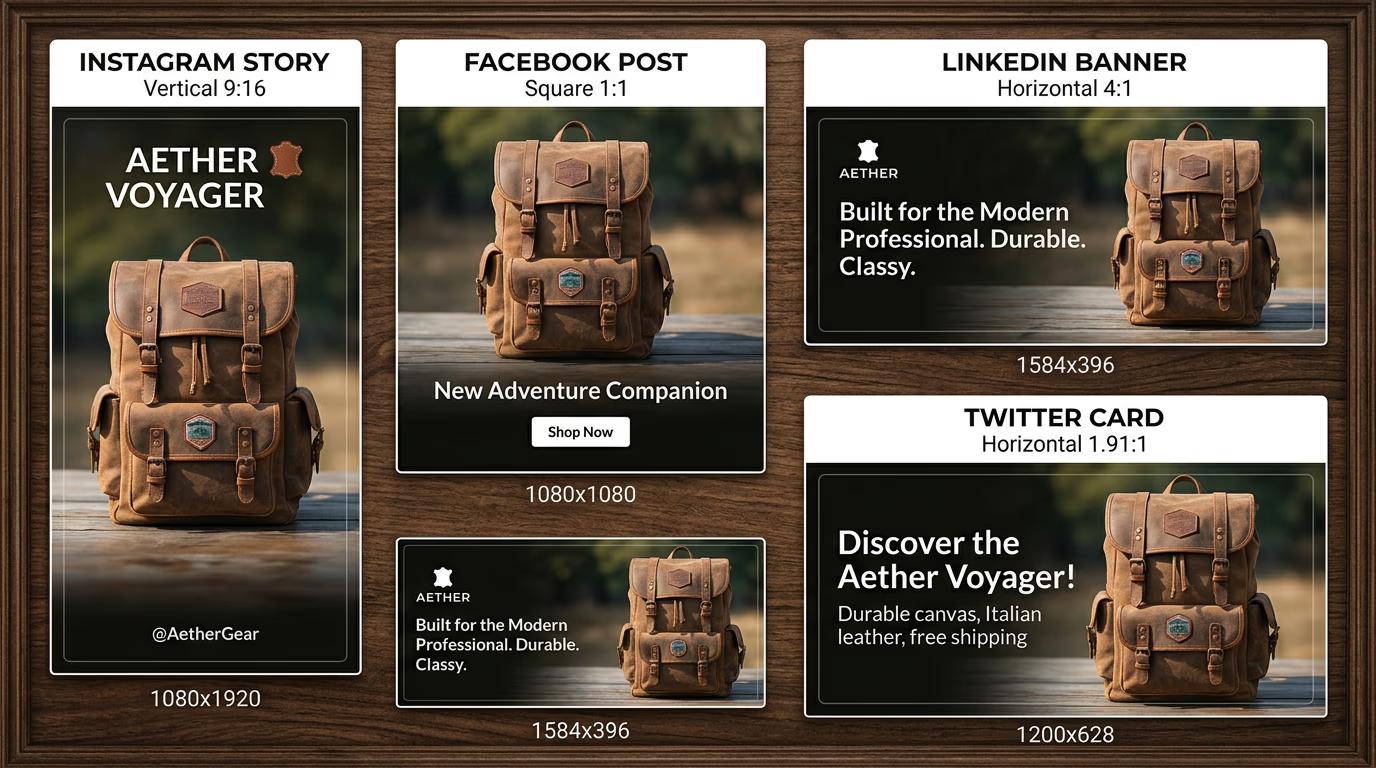
STEP 3: Generate all versions

Click "Generate" and the AI agent will create every format. It intelligently reframes your content, adjusts composition for each aspect ratio, and maintains visual hierarchy. This typically takes 10-30 seconds depending on how many formats you selected.

STEP 4: Review and export

Check that each format looks balanced: Not perfect? Adjust the workflow settings and regenerate, or manually edit individual formats before export.

  • Verify important elements aren't cropped in any version
  • Check that text remains readable across all sizes
  • Confirm brand colors and logos display correctly
Resize my content

Tips for best results

💡 Start with square or landscape originals

Assets that are 1:1 or 16:9 give the AI more flexibility when creating vertical formats. Portrait originals work but may require more manual review for horizontal outputs.

💡 Keep key elements centered

Place logos, faces, and important text near the center of your original. This ensures they stay visible when the AI crops to different aspect ratios.

💡 Save workflow templates

Once you configure your platform mix, save it as a preset. Next time you can generate all formats with one click instead of reselecting everything.

💡 Test before bulk processing

Run one asset through your workflow first. Verify the results, adjust settings if needed, then process your entire content library with confidence.

Platform size quick reference

  • Instagram Story: 1080 x 1920 px (9:16)
  • Instagram Feed: 1080 x 1080 px (1:1) or 1080 x 1350 px (4:5)
  • Facebook Post: 1200 x 1200 px (1:1)
  • Facebook Cover: 820 x 462 px (16:9)
  • LinkedIn Post: 1200 x 1200 px (1:1)
  • LinkedIn Banner: 1584 x 396 px (4:1)
  • Twitter Post: 1200 x 675 px (16:9)
  • Twitter Header: 1500 x 500 px (3:1)

Frequently asked questions

The AI analyzes your image to identify important elements like faces, logos, text, and focal points. It then reframes each format to keep those elements visible and properly positioned. For product photos, it prioritizes the product. For portraits, it keeps faces centered. You can guide this by marking specific areas as priority zones in the workflow settings.

Agent workflows are currently available on web only. You need a desktop or tablet browser to configure and run multi-format workflows. Once you generate your assets, you can download them and access them from mobile for uploading to social platforms.

AI agents are available on Picsart Plus and Business plans. Free accounts can manually resize images one at a time using standard editing tools, but automated batch workflows require a paid subscription. Plus plans include up to 50 agent runs per month.

Mark your logo as a protected area in the workflow settings before generating. The AI will ensure it stays fully visible in all outputs. If it still crops incorrectly, try positioning your logo closer to the center of the original asset or manually adjust problem formats after generation.

Ready to automate your content?

Stop resizing manually and let AI agents handle every format while you focus on creative strategy.

Start creating workflows