logo

Understand AI credit costs and model pricing on Picsart

IMAGE MODELS5 minIntermediate

Learn how credit costs vary across models and maximize value for your creative work.

Understand AI credit costs and model pricing on Picsart

What you'll learn

  • How the credit system works across different AI models
  • Which models offer the best value for specific use cases
  • How to estimate project costs before generating
  • Strategies to stretch your credit balance further

What are AI credits?

Credits are Picsart's currency for AI generation. Each AI model costs a different number of credits based on its computational power and quality. More advanced models use more credits per image. Think of credits like arcade tokens — each game costs different amounts based on how elaborate it is.

Common use cases

  • Client budgets: Estimate total costs before starting projects
  • Model selection: Choose cheaper models for drafts, expensive ones for finals
  • Batch work: Calculate credit needs for bulk image generation
  • Plan upgrades: Decide between Pro and Ultra based on monthly usage
  • Speed vs cost: Balance faster models with credit efficiency
  • Quality tiers: Know when premium models justify higher costs

Understand model pricing step by step

STEP 1: Check your credit balance

  • On web: Go to picsart.com/pricing → View plan details → See credit allocation
  • On mobile: Open Picsart → Profile → Subscription → Credits remaining
View pricing

STEP 2: Compare model costs

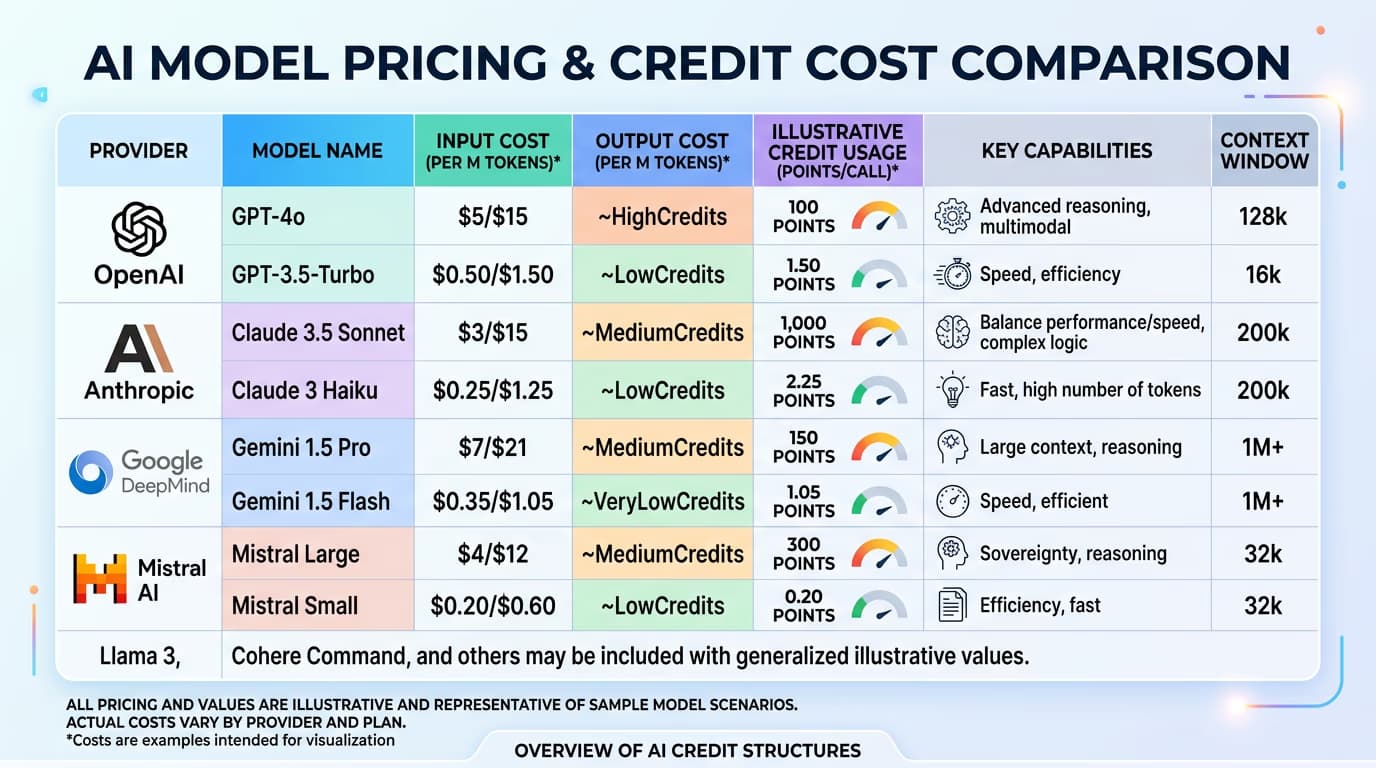
Different models use different credit amounts per generation:

  • Budget tier (1-2 credits): Nano Banana 2, Flux 2 Flex, basic models for quick drafts
  • Standard tier (3-5 credits): Flux 2 Pro, Imagen 4.0, Ideogram 3.0 for most projects
  • Premium tier (8-12 credits): Imagen 4 Ultra, Flux 2 Max for final deliverables
  • Specialty tier (varies): Video models and advanced features cost more based on length and quality
STEP 3: Calculate project needs

Estimate total credits before you start. Multiply images needed by model cost. Add 20% buffer for revisions. Example: 50 product shots at 5 credits each = 250 credits, plus 50 buffer = 300 total credits needed.

STEP 4: Choose the right plan

Match your plan to usage patterns: Running out too fast? Upgrade to the next tier or switch to more efficient models for non-critical work.

  • Free trial: Limited credits to test features and learn the platform
  • Pro (1,000+ credits/month): Good for regular creators and small business work
  • Ultra (5,000+ credits/month): Built for agencies and high-volume production
See plans

Tips for best results

💡 Use cheaper models for iteration

Test prompts and compositions with budget-tier models first. Only use premium models once you know exactly what you want. This saves 60-70% on credits during the creative process.

💡 Batch similar generations together

Generate multiple variations in one session instead of separate attempts. Most models let you create 2-4 images per prompt at a slight discount compared to individual generations.

💡 Learn each model's strengths

Don't always default to the most expensive model. Recraft V4 costs less than Flux 2 Max but produces better vector graphics. Match model to task, not just price to quality.

💡 Monitor credit usage trends

Check your credit history monthly. If you consistently run out before the renewal, upgrade. If you have credits left over, you might be on a higher plan than needed.

Credit cost reference

  • AI Image (budget): 1-2 credits per image — Nano Banana 2, Flux 2 Flex, DALL-E 3
  • AI Image (standard): 3-5 credits per image — Flux 2 Pro, Imagen 4.0, Ideogram 3.0 Flash, Recraft V4
  • AI Image (premium): 8-12 credits per image — Imagen 4 Ultra, Flux 2 Max, GPT Image 1.5
  • AI Video (short): 15-25 credits for 3-5 second clips — Kling, Motion Studio, basic video models
  • AI Video (advanced): 50-125 credits for longer or higher quality — Veo 3, Runway Gen 4, Sora when available
  • AI Editing: 2-10 credits depending on tool — Background removal (2), Quality Boost (5), AI Expand (3-5)
  • Batch operations: Credits multiply by number of items, sometimes with small bulk discount

Frequently asked questions

Monthly credits reset each billing cycle and don't roll over. If you have 1,000 credits on Pro and use 600, the remaining 400 disappear at renewal. Plan your usage to maximize each month's allocation, or upgrade to Ultra if you consistently have unused credits.

Not currently. Credit amounts are tied to subscription tiers. If you need more credits, upgrade to Pro or Ultra. Alternatively, use more efficient models to stretch your current allocation further.

Model cost reflects computational power required. Imagen 4 Ultra uses massive neural networks and takes longer to generate, so it costs more. Budget models like Nano Banana use smaller, faster networks. You're paying for quality, detail, and prompt accuracy.

The model selector shows credit cost per generation next to each model name. Before clicking generate, check the number displayed. Multiply by how many images you're requesting to see total cost.

Ready to create?

Choose the plan that fits your creative workflow and start generating.

View plans