Remove backgrounds and upscale images in GIMP

Use Picsart Creative APIs from GIMP to isolate a subject or upscale an image layer. Keep editing the result with the tools and layers in your GIMP project.
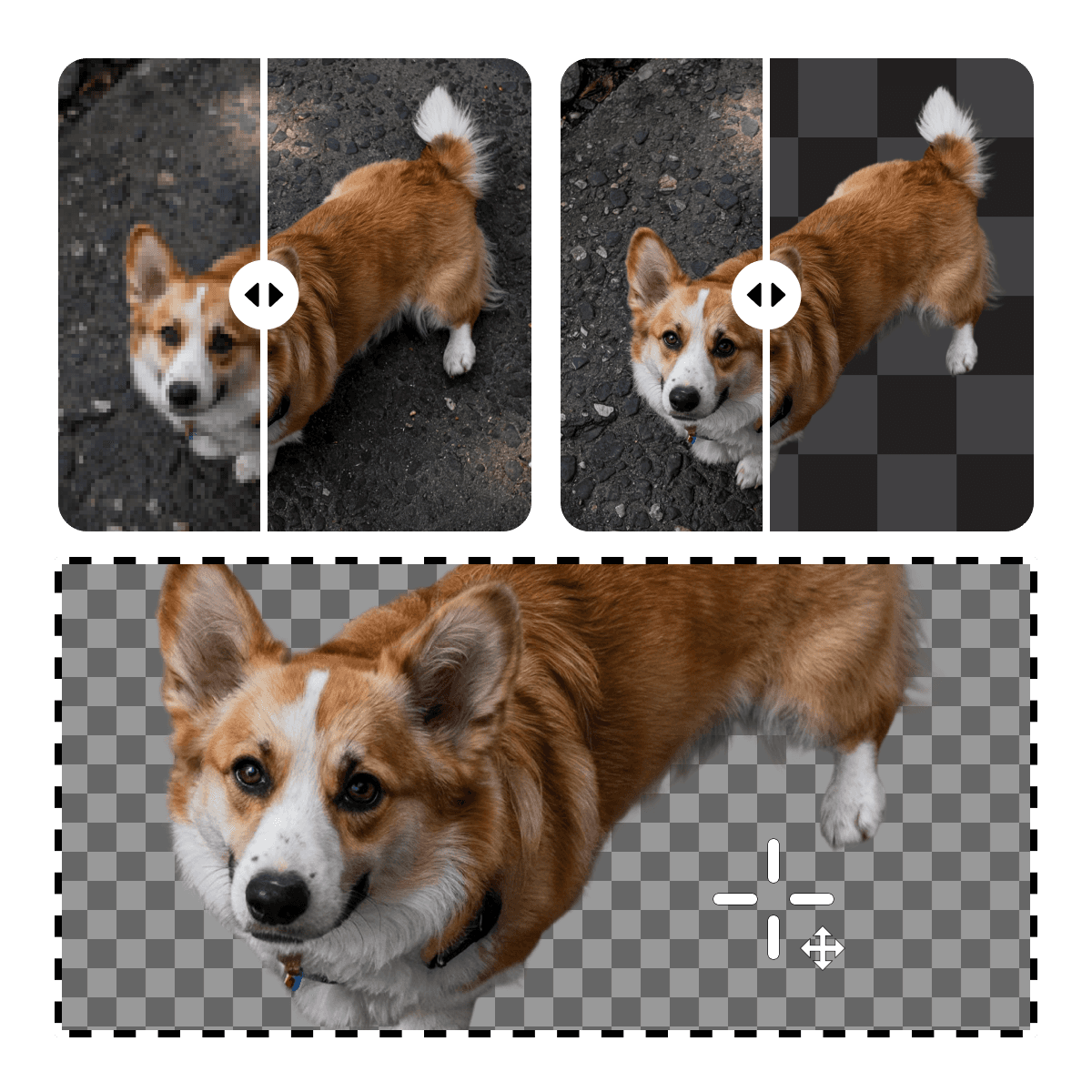
Picsart GIMP plugin illustration

Prepare cutouts and layers in GIMP

  • Make a reusable cutout

    Isolate a subject before composing it with new backgrounds and layers in GIMP.

  • Enlarge an image

    Use the upscale action on a selected image layer and check the output at its intended size.

  • Track API usage

    Use the plugin balance action to review your API credits before processing more images.

How to use Picsart in GIMP

  • 1. Check your installation

    Open the official setup guide and check the GIMP and Python requirements for your environment before downloading the plugin.

  • 2. Install and connect

    Place the plugin files in the documented GIMP plug-ins folder. Use Set API Key in the Picsart plugin menu to connect your Creative APIs account.

  • 3. Process an image layer

    Select your image and open Filters > Picsart Plugin. Choose Remove Background or Upscale Image, then inspect the processed result.

Questions about Picsart for GIMP

  • No. The plugin uses Picsart Creative APIs and needs an internet connection and an API key.