Remove backgrounds and upscale images in Sketch

Bring Picsart background removal and upscaling into your Sketch workflow. Prepare product photos and visual assets, then continue working with them in your design file.
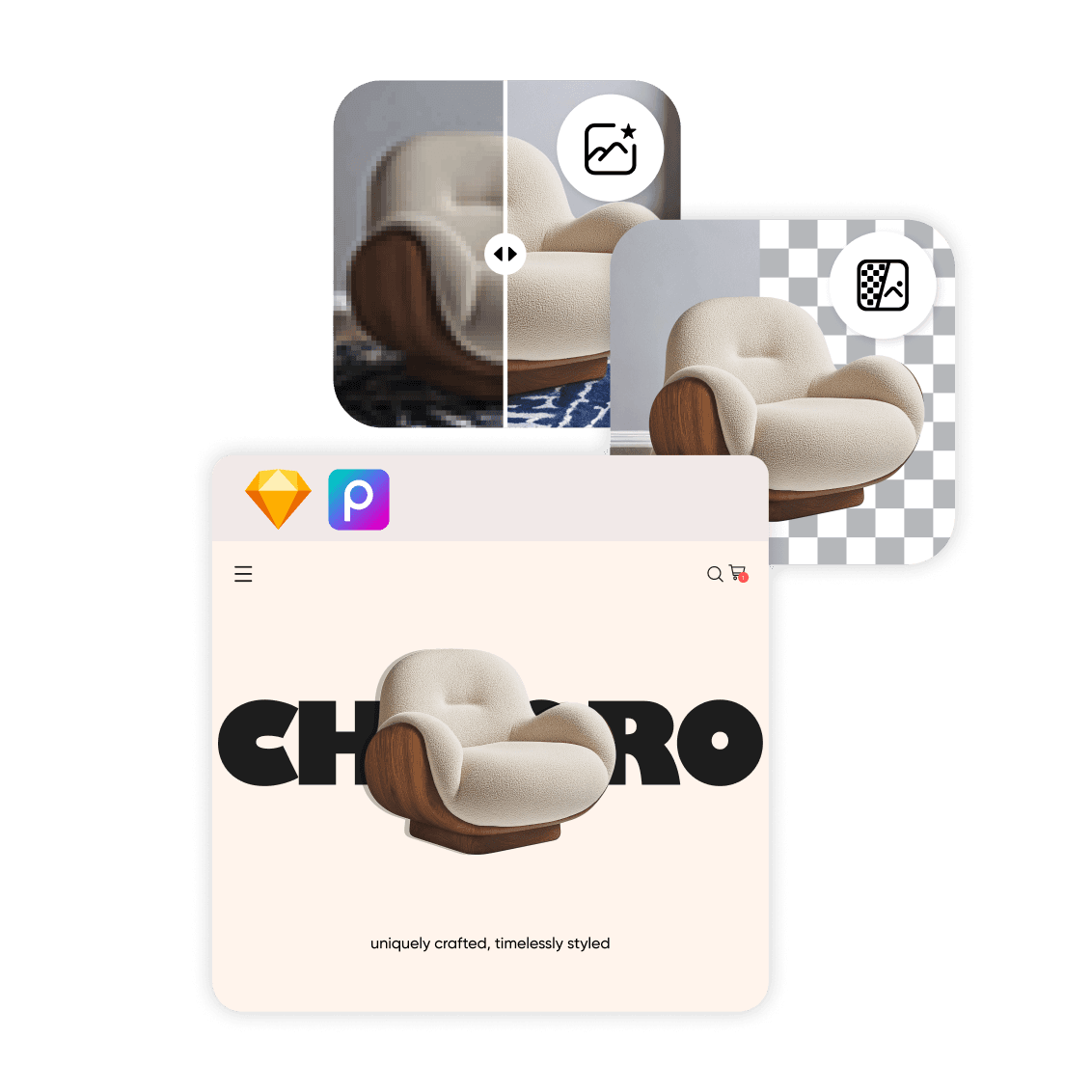
Picsart Sketch plugin illustration

Prepare images for your Sketch layouts

  • Prepare product cutouts

    Remove distracting backgrounds before placing product photos into storefront or campaign layouts.

  • Work with smaller images

    Upscale a source image before using it in a mockup or presentation.

  • Keep your layout in view

    Review the edited asset alongside the typography and other elements in your Sketch design.

How to use Picsart in Sketch

  • 1. Install the plugin

    Follow the official Sketch setup guide to download the plugin and place it in the Sketch plug-ins folder. Restart Sketch when instructed.

  • 2. Add your API key

    Get a Picsart Creative APIs key from your developer account and enter it in the plugin. Check your available API balance.

  • 3. Select an image to edit

    Use the Picsart plugin actions to remove a background or upscale your selected image, then inspect the result in your layout.

Questions about Picsart for Sketch

  • No. This page covers the Picsart plugin for the Sketch design application. SketchAI is a separate Picsart product.