Create vertical reels end-to-end with Motion Studio skill
What you'll learn
What is the Motion Studio skill?
Common use cases
Create your reel step by step
STEP 1: Download and import the skill
- On web: Go to picsart.com/cli/#skills-marketer-motion-studio → Download skill → Unzip to your skills folder
- On AI agent: Point your Claude Code, Codex, or Cursor MCP server to the downloaded skill directory
STEP 2: Configure your reel parameters
Set up your reel structure and character reference:
- Reel structure: Specify hook (first 3 seconds), value proposition (middle), and CTA (final frame)
- Character reference: Upload a portrait photo for character-consistent generation across frames
- Voiceover style: Choose voice gender, tone (friendly, professional, energetic), and pacing
- Brand elements: Add logo placement, color palette, and text overlay preferences
STEP 3: Generate your reel
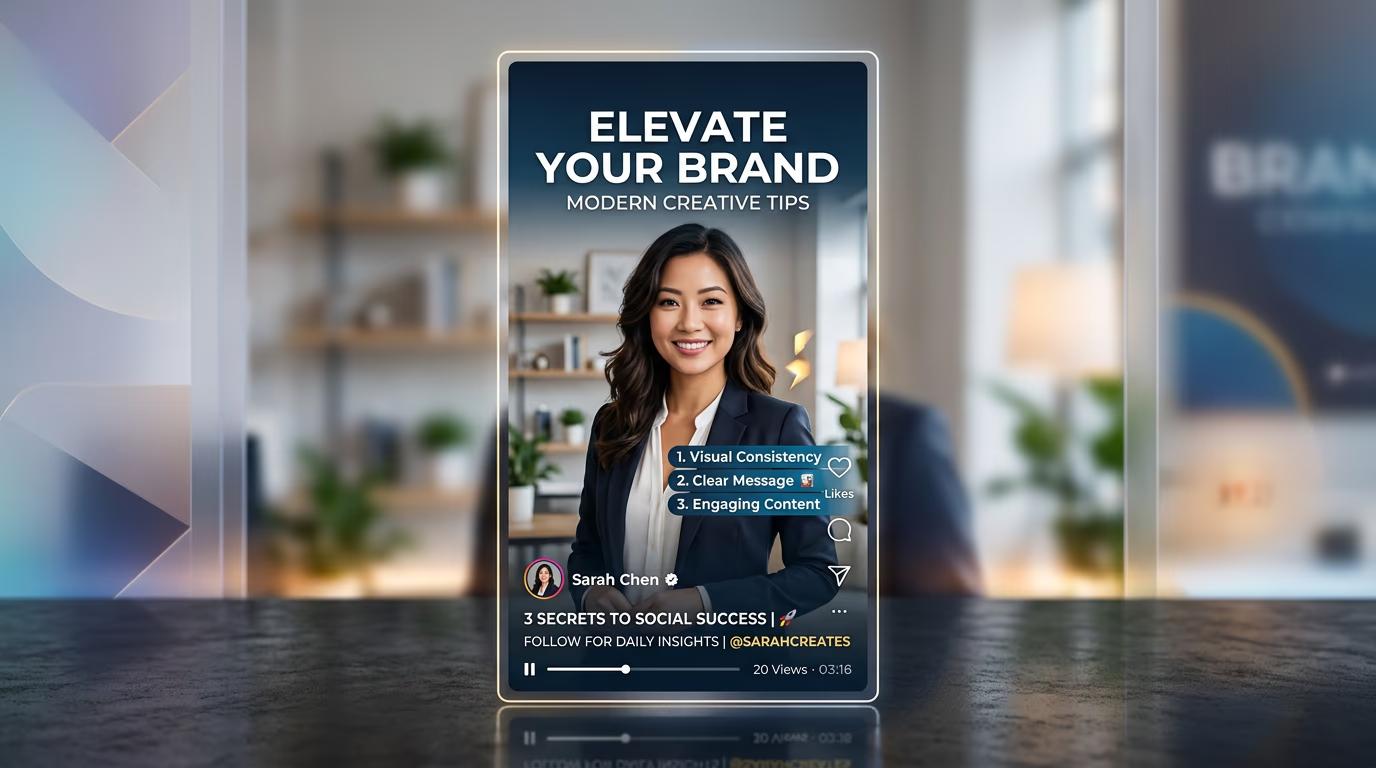
Run the skill and let it build your complete reel. The AI will write the script with a strong hook, generate character-consistent visuals using your reference portrait, add voiceover narration, and assemble everything into a vertical video format. This takes 30-60 seconds depending on length.
STEP 4: Review and export
Check that your reel meets quality standards: Not perfect? Regenerate with adjusted parameters, or manually edit specific frames in the output folder.
- Verify character consistency across all frames
- Check voiceover sync with visual transitions
- Confirm CTA appears clearly in final 2 seconds
Tips for best results
💡 Use high-quality reference portraits
Upload a clear, well-lit headshot with neutral background. The AI uses this to maintain character consistency across every frame, so photo quality directly affects output quality.
💡 Front-load your hook
Specify your most attention-grabbing element in the first 3 seconds. Viewers decide to keep watching in that window, so make it count with a question, surprising stat, or bold visual.
💡 Keep CTAs simple and visible
One clear action per reel works better than multiple asks. Place your CTA text in the bottom third of the frame where it won't get cut off by platform UI elements.
💡 Test voiceover pacing
If your script feels rushed, regenerate with slower pacing settings. Viewers need time to read on-screen text while listening to narration, so balance is key.
Frequently asked questions

Ready to create?
Download the Motion Studio skill and start generating vertical reels in seconds.
Get the skill