logo

Generate blog visuals with Blog to Visuals skill
SKILLS3 minBeginner

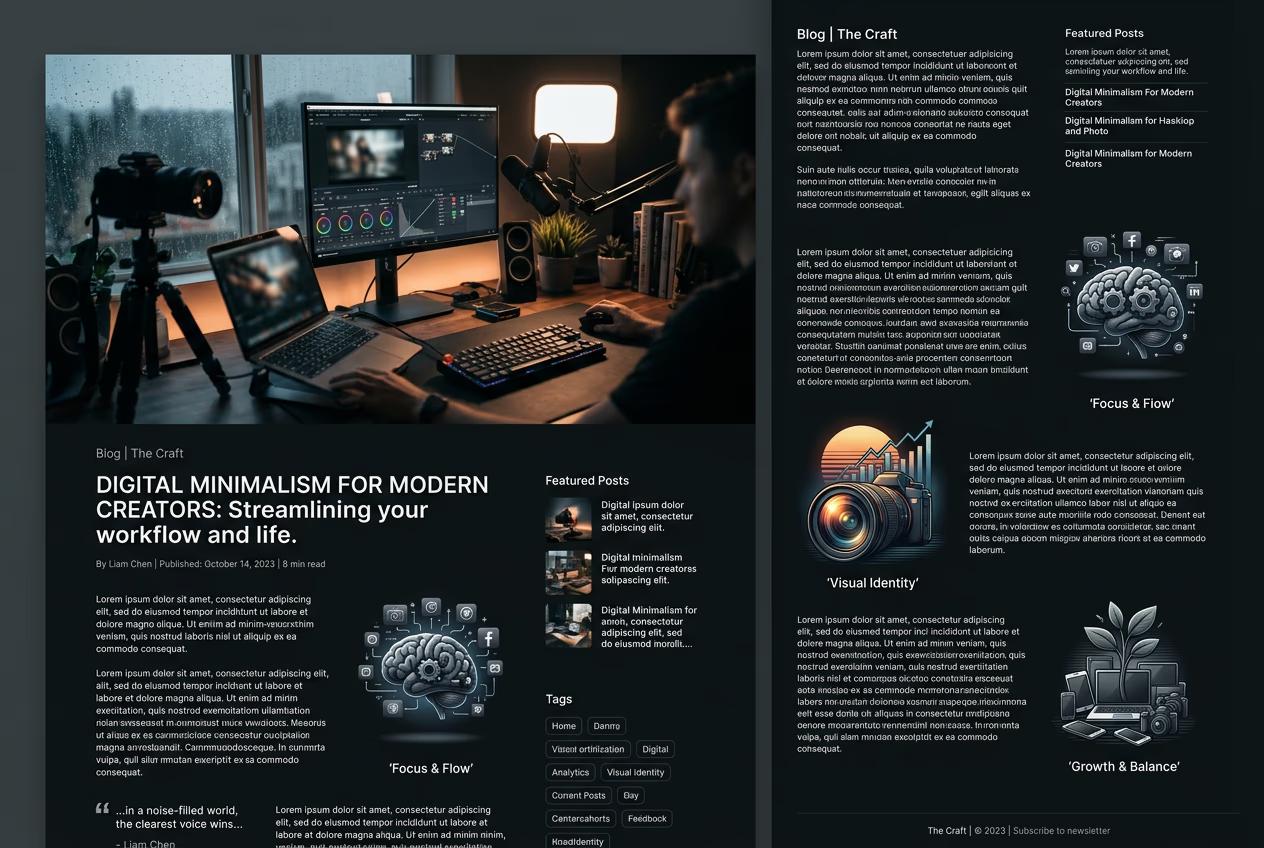
Turn post content into complete visual set — hero image, three inline illustrations, and OG image in one command.

Generate blog visuals with Blog to Visuals skill

What you'll learn

  • Import and configure the Blog to Visuals skill in your AI agent
  • Generate matching hero, inline illustrations, and OG image from blog content
  • Maintain visual consistency across all blog assets
  • Export production-ready images sized for web publishing

What is the Blog to Visuals skill?

Blog to Visuals is a Picsart agent skill that generates a complete visual set for blog posts from your content. It creates a hero image, three inline illustrations that match your section topics, and an OG image for social sharing — all in matching visual styles. Like having a design team that reads your post and creates perfectly coordinated visuals in seconds.

Common use cases

  • Content marketing: Visual sets for blog posts, guides, and tutorials
  • Editorial teams: Illustrations for news articles and feature stories
  • Documentation sites: Visual aids for technical guides and help articles
  • Marketing blogs: Branded visuals for thought leadership and industry posts
  • Agency content: Client blog assets with consistent visual branding
  • Newsletter publishers: Matching visuals for email and web versions

Create your blog visuals step by step

STEP 1: Download and import the skill

  • On web: Go to picsart.com/cli/#skills-marketer-blog-to-visuals → Download skill → Unzip to your skills folder
  • On AI agent: Point your Claude Code, Codex, or Cursor MCP server to the downloaded skill directory
Download Blog to Visuals

STEP 2: Configure your blog content

Provide your post content and visual preferences:

  • Blog content: Paste your post text or provide a URL — the skill extracts key topics automatically
  • Visual style: Choose illustration style (photography, flat design, 3D renders, editorial illustration)
  • Brand elements: Specify color palette, fonts, and logo placement for branded visuals
  • Section mapping: Define which sections need inline illustrations (auto-detected by default)
STEP 3: Generate your visual set

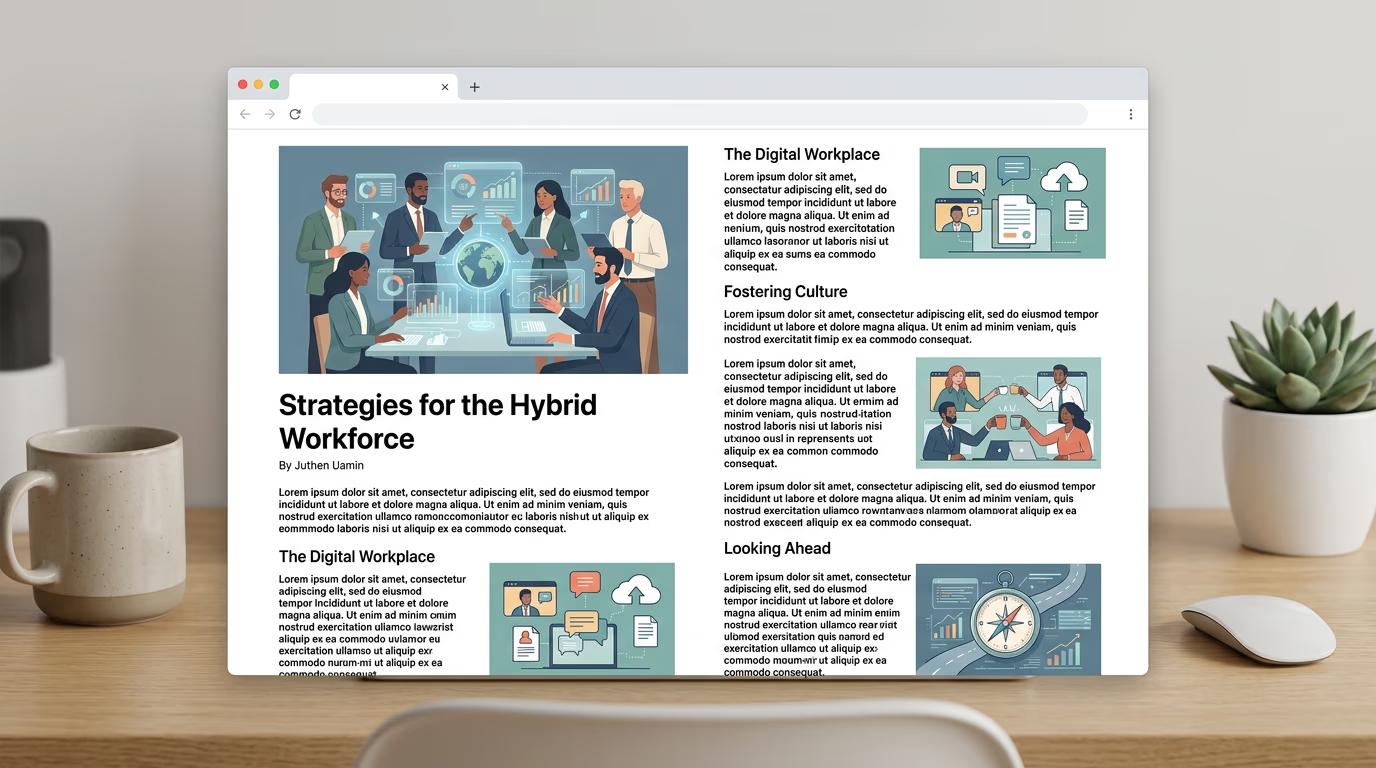
Run the skill and let it create your complete asset bundle. The AI will analyze your content to extract key themes, generate a hero image that represents the main topic, create three inline illustrations matching section content, produce an OG image optimized for social sharing, and ensure all visuals use consistent style and colors. This takes 20-40 seconds.

STEP 4: Review and export

Check that your visuals match your content: Not perfect? Regenerate specific images, or adjust the visual style and run again for a fresh set.

  • Verify hero image represents your main topic clearly
  • Check that inline illustrations match their corresponding sections
  • Confirm OG image includes readable text at thumbnail size
Create blog visuals

Tips for best results

💡 Use clear section headings

The skill extracts topics from your H2 headings to generate inline illustrations. Clear, descriptive headings ("How to set up authentication" instead of "Getting started") produce more relevant visuals.

💡 Define your brand color palette upfront

Provide 2-3 brand colors when configuring the skill. This ensures all visuals — hero, inline illustrations, and OG image — use consistent colors that match your site's design.

💡 Keep OG image text short

Social platforms show OG images at small sizes. Limit text to your post title (6-8 words max) so it stays readable on Twitter, LinkedIn, and Facebook previews.

Image size specifications

  • Hero image: 1200×630px — appears at top of blog post, works for most CMS platforms
  • Inline illustrations: 800×600px — embedded between sections, sized to fit content width
  • OG image: 1200×630px — appears in social shares on Facebook, LinkedIn, Twitter
  • Twitter card (optional): 1200×600px — optimized Twitter-specific preview if needed

Frequently asked questions

Blog to Visuals is a Picsart agent skill that generates complete visual sets for blog posts. It analyzes your content and creates a hero image, three inline illustrations matching your section topics, and an OG image for social sharing — all in matching visual styles. You import it into your AI agent and provide your blog content.

Yes. Provide the post URL or paste the content, and the skill will generate visuals. This works great for refreshing old posts with updated imagery or adding visuals to text-only archives.

It analyzes your H2 headings and selects the three most substantial sections based on word count and topic distinctiveness. You can also manually specify which sections to illustrate when configuring the skill.

The skill itself is free to download. Running it consumes Picsart generation credits — typical run (hero + 3 inline + OG image) uses 8-12 credits. Use --dry-run to estimate costs before generating.

Need blog visuals?

Download the Blog to Visuals skill and generate complete visual sets for your posts.

Get the skill