Generate multi-channel campaign kits with Campaign Kit skill
What you'll learn
What is the Campaign Kit skill?
Common use cases
Build your campaign kit step by step
STEP 1: Download and import the skill
- On web: Go to picsart.com/cli/#skills-marketer-campaign-kit → Download skill → Unzip to your skills folder
- On AI agent: Point your Claude Code, Codex, or Cursor MCP server to the downloaded skill directory
STEP 2: Configure your campaign brief
Define your campaign parameters and asset requirements:
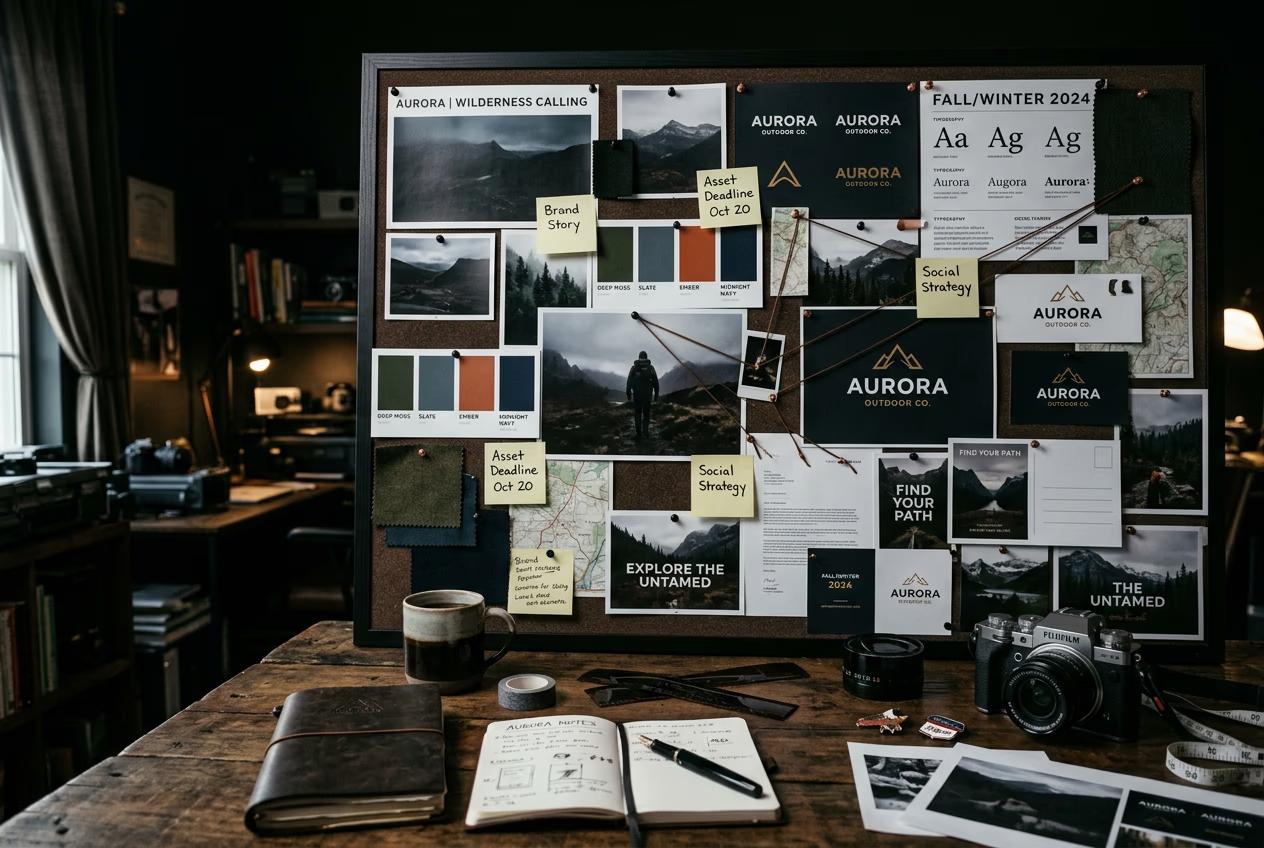
- Campaign brief: Specify key message, target audience, brand guidelines, and creative direction
- Asset types: Select which formats to generate — hero (1920x1080), social (1080x1080, 1080x1920), display (300x250, 728x90), email header (600x200)
- Visual style: Choose photography style, color palette, typography, and layout approach
- Brand elements: Upload logo, define safe zones, and set brand color requirements
STEP 3: Generate your campaign assets
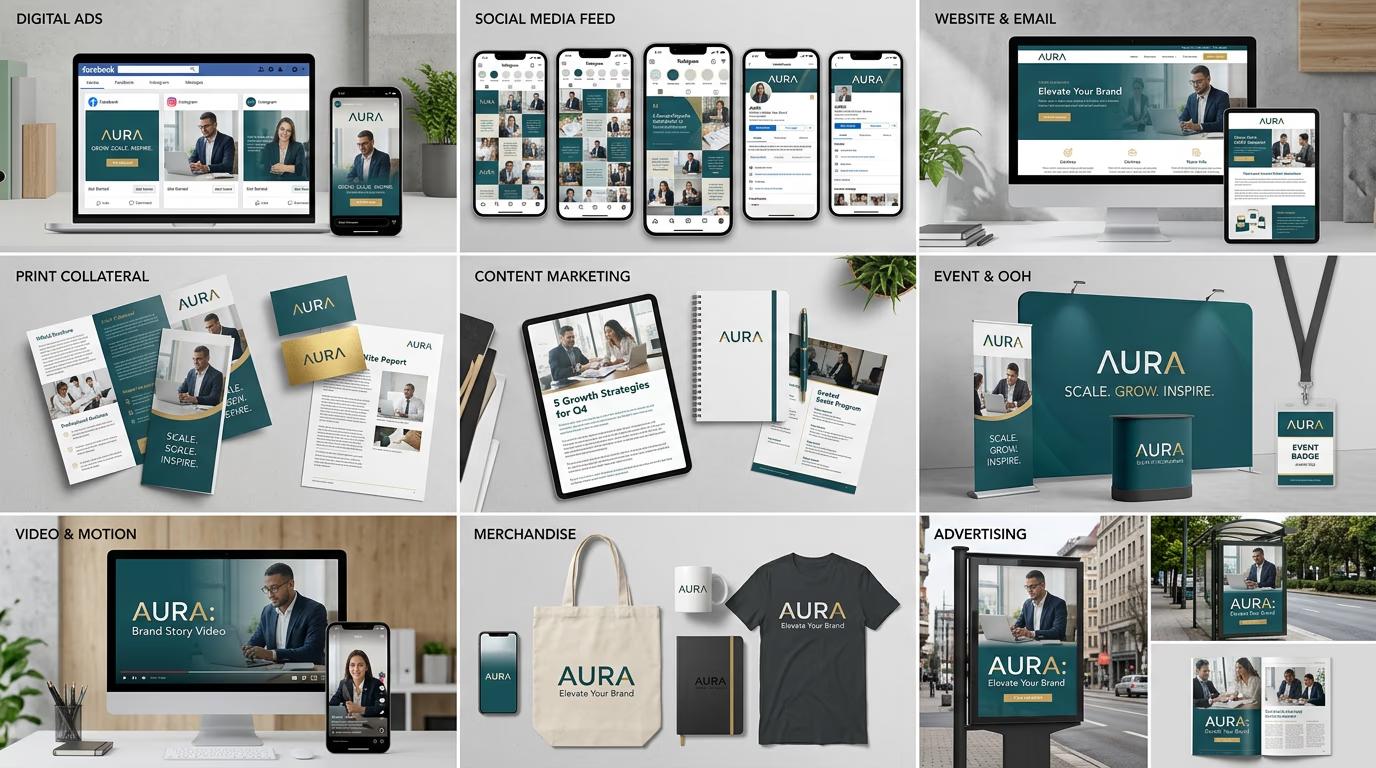
Run the skill and let it create your complete asset bundle. The AI will generate visuals that match your brief, size each asset correctly for its platform, maintain visual consistency across all formats, and organize files into channel-specific folders. This takes 45-90 seconds depending on asset count.
STEP 4: Review and export
Check that your campaign maintains consistency: Not perfect? Regenerate specific asset types, or adjust the campaign brief and run again for a fresh take.
- Verify visual consistency across all asset formats
- Check that text is readable at small sizes (display ads, mobile)
- Confirm brand elements appear correctly on every asset
Tips for best results
💡 Write a detailed campaign brief
The more specific your brief, the better your output. Include target audience, emotional tone, key differentiators, and must-have visual elements. Vague briefs produce generic assets.
💡 Define safe zones for text placement
Specify where copy should appear on each asset type. Social ads need different text placement than email headers. Clear safe zones prevent text from getting cropped or overlapping important visuals.
💡 Start with fewer asset types
Generate hero and one social format first to validate the visual direction. Once you approve the style, add display ads and email headers. This saves credits if you need to iterate on creative direction.
💡 Use brand color hex codes
Provide exact hex values instead of color names. "#FF5733" is more precise than "orange," ensuring your brand colors appear consistently across every generated asset.
Frequently asked questions

Need a full campaign?
Download the Campaign Kit skill and generate matching assets across every channel.
Get the skill