How to authenticate the Picsart CLI with your account
What you'll learn
What is CLI authentication?
Common use cases
Authenticate your CLI step by step
STEP 1: Run the login command
- On any platform: Open your terminal and run gen-ai login
- In CI/CD: Use gen-ai login --api-key YOUR_KEY instead of browser login
STEP 2: Authorize in your browser
A browser tab opens automatically. Choose how to sign in:
- Continue with existing session: If you're already logged into Picsart, click Allow
- Sign in with email: Enter your Picsart account email and password
- Sign in with Google: Use your Google account if you created your Picsart profile that way
- Create new account: If you don't have one, sign up directly from the auth page
STEP 3: Confirm authentication
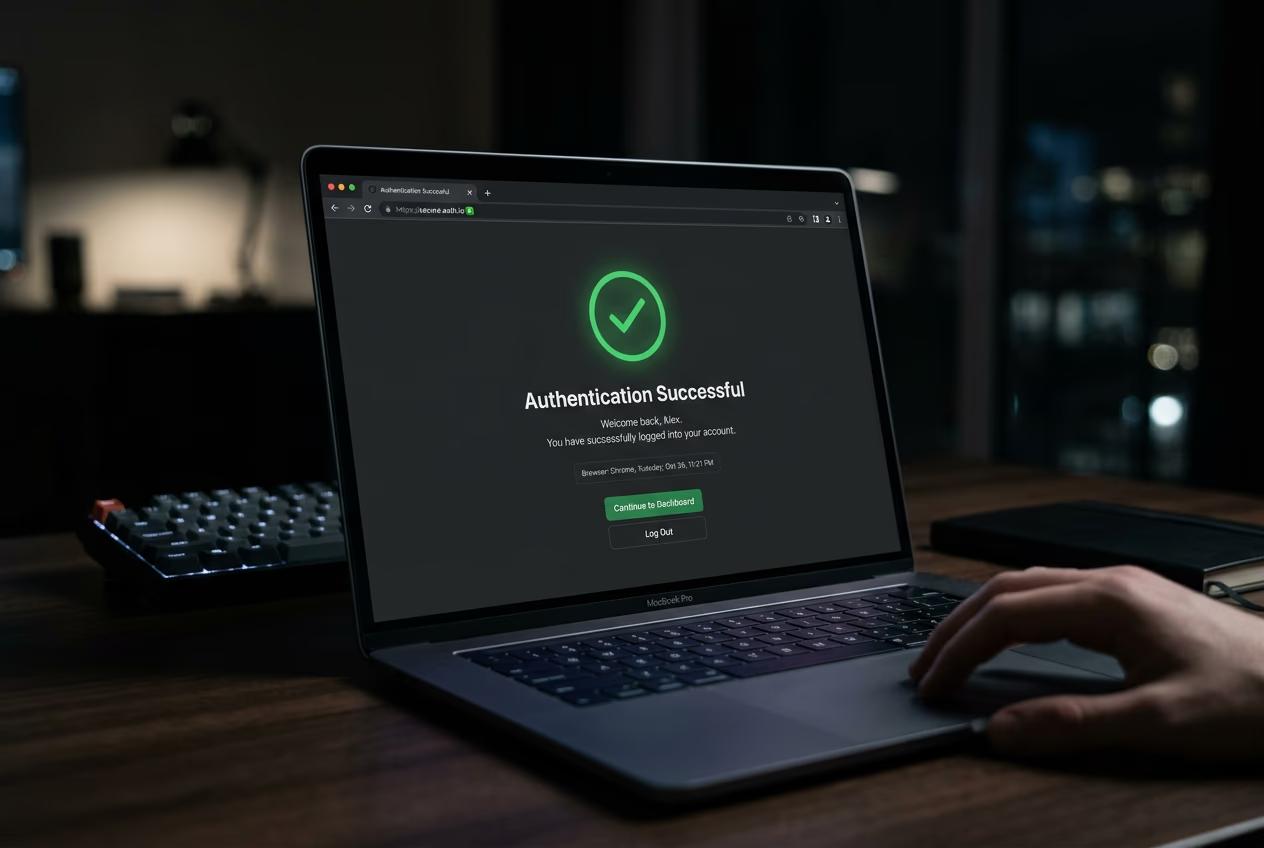
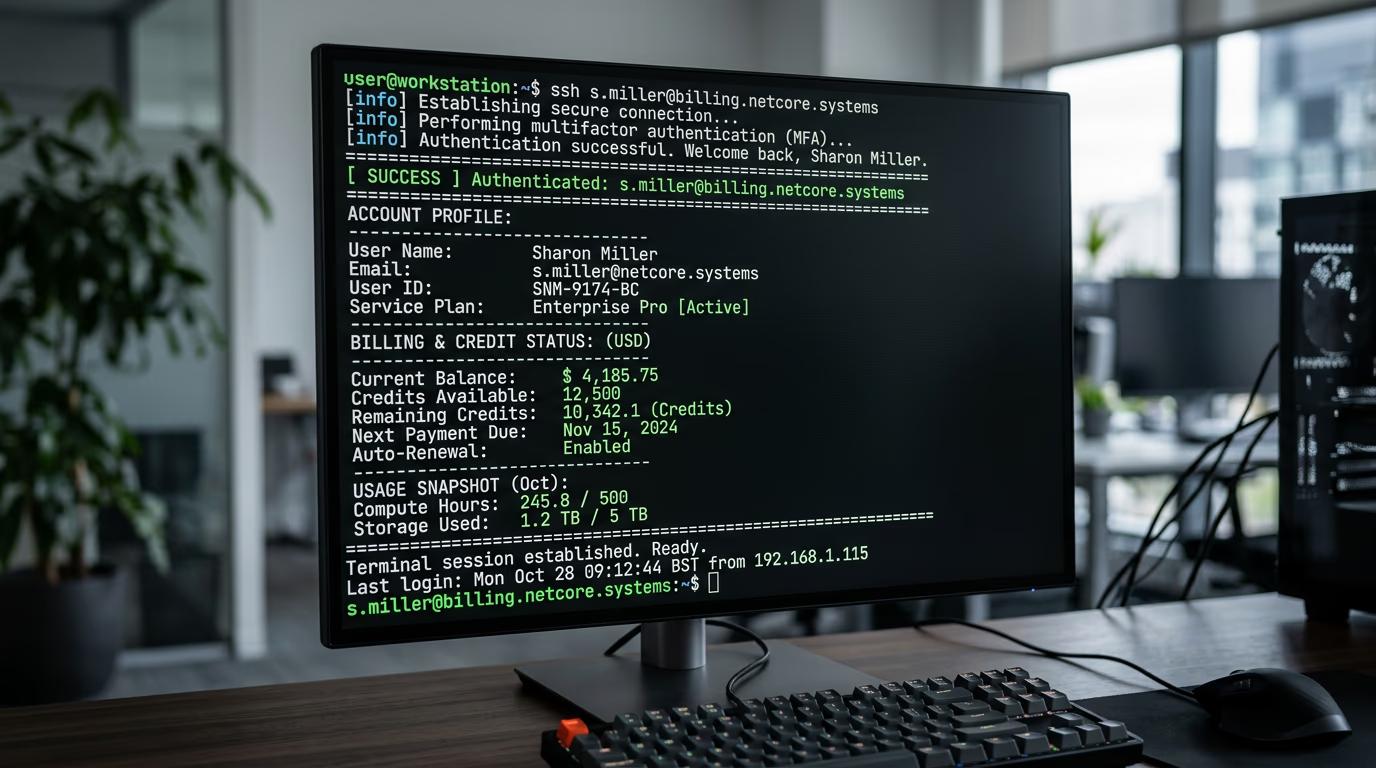
After clicking Allow, your browser shows a success message and your terminal displays your account email and current credit balance. You can close the browser tab — the CLI is now authenticated and ready to use.
STEP 4: Verify your credentials work
Check that authentication succeeded: Not working? Run gen-ai logout and try logging in again. If you're in CI/CD and browser login won't work, use an API key instead.
- Run gen-ai whoami to see your authenticated account email
- Run gen-ai credits to check your remaining balance
- If both commands show your info, you're authenticated and ready to generate
Tips for best results
💡 Use API keys for CI/CD and automation
Browser-based login won't work in GitHub Actions, cron jobs, or headless servers. Generate an API key from your Picsart account settings, then authenticate with gen-ai login --api-key YOUR_KEY.
💡 Your token stays on your machine
The CLI stores your auth token in a local config file, not on Picsart servers. It never expires unless you run gen-ai logout or revoke access from your account settings. Each device needs its own login.
💡 Check credits before starting a big batch job
Run gen-ai credits to see your balance, then use gen-ai pricing to estimate costs. If you're running a batch of 100 generations, verify you have enough credits first — partial batches don't refund.
Frequently asked questions

Authenticated and ready?
You're signed in. Now generate your first AI image and see the CLI in action.
Start generating