logo

How to create white-label client handoff packages with Picsart CLI

SKILLS4 minIntermediate

Export clean, client-ready asset zips with agency markers removed and custom specs applied.

How to create white-label client handoff packages with Picsart CLI

What you'll learn

  • How to configure white-label export settings for client delivery
  • How to strip agency markers and metadata from assets
  • How to package files according to client specifications
  • How to automate handoff exports for multiple clients

What is client handoff packaging?

Client handoff packaging is the process of preparing final assets for delivery by removing internal markers, applying client-specific formatting, and organizing files to match delivery requirements. Instead of manually cleaning up each file and folder, you define handoff rules once and export clean packages with a single command. Think of it like gift-wrapping — same contents, presented exactly how the recipient wants it.

Common use cases

  • Agency deliverables: Package final assets with client branding, no agency watermarks
  • White-label services: Deliver work under client's brand instead of your own
  • Project handoffs: Export organized asset libraries for client's internal teams
  • Multi-format delivery: Generate same asset set in different specs for various platforms
  • Compliance packaging: Remove EXIF data, metadata, or sensitive info before delivery
  • Archive creation: Package project assets for long-term client storage

Package client handoffs step by step

STEP 1: Access the handoff skill

  • On web: Visit picsart.com/cli → Install CLI → Download client handoff skill from skills library
  • On mobile: Not applicable — handoff packaging requires terminal access for batch export operations
Download handoff skill

STEP 2: Configure handoff settings

Define export rules for your client:

  • Strip metadata: Remove EXIF data, creator info, and internal file markers
  • Apply naming conventions: Rename files to match client's spec (e.g., ClientName_Asset_001.png)
  • Set folder structure: Organize exports by type, format, or platform
  • Choose formats: Convert to specific file types, resolutions, or color profiles
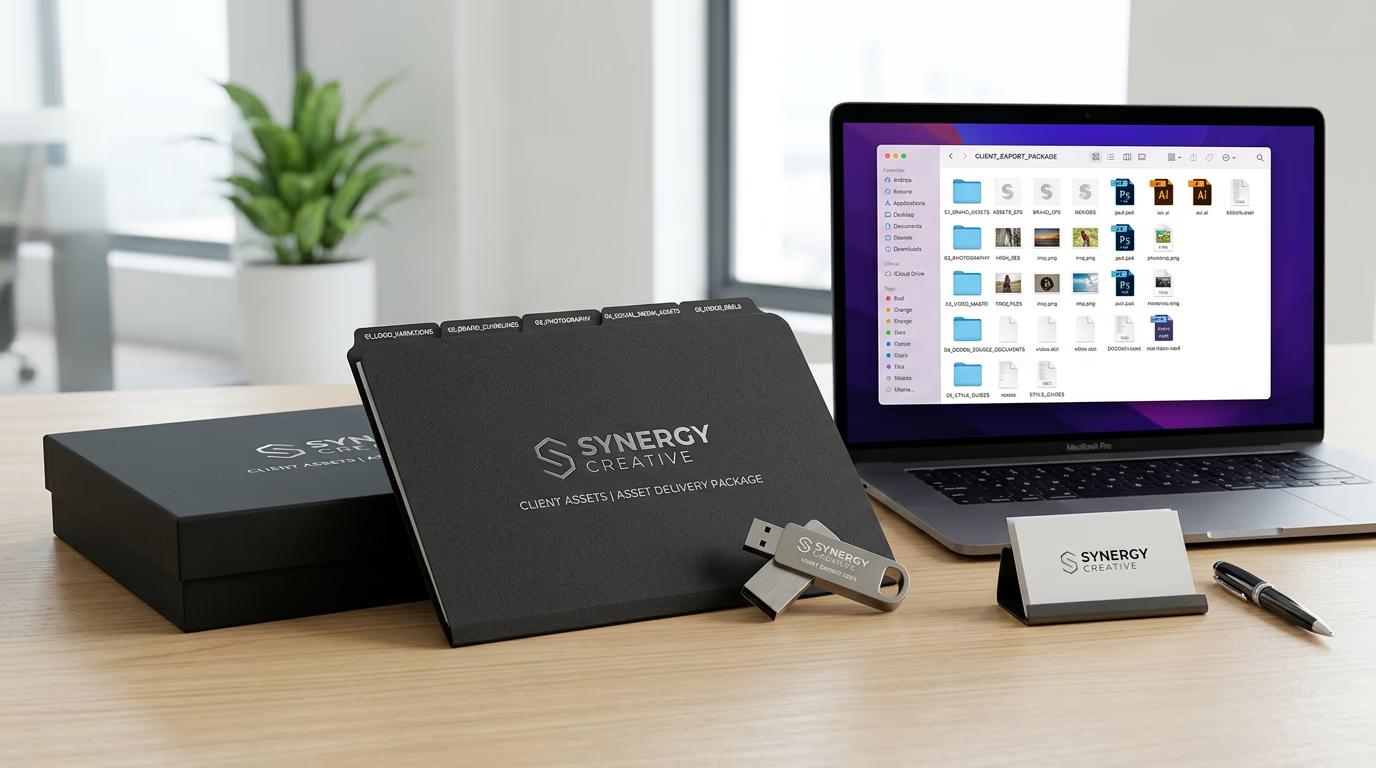
STEP 3: Run export package

Execute the handoff skill on your asset folder. The CLI processes all files, applies your rules, strips agency markers, and creates a clean zip file ready for delivery. Large projects process in parallel for faster exports.

STEP 4: Verify and deliver

Check the export package before sending: Not perfect? Adjust the handoff config and re-export. The skill preserves your original files, so you can regenerate packages without data loss.

  • Open the zip and confirm no agency branding or internal notes remain
  • Verify file names, formats, and folder structure match client requirements
  • Check that all assets are included and nothing got skipped during export
Get handoff skill

Tips for best results

💡 Save handoff configs per client

Create a handoff.json file for each client with their specific export rules. Reference the config by name when running the skill, so you never have to remember individual preferences or risk sending files in the wrong format.

💡 Test exports with small batches first

Before exporting 500 assets, run the skill on 5-10 files and check the output. Make sure metadata is stripped, naming is correct, and folder structure matches the client's expectations.

💡 Include a delivery manifest

Add a README.txt or manifest.json to your export package listing what's included, file counts, and any usage notes. Clients appreciate the documentation and it reduces follow-up questions.

💡 Automate recurring deliverables

If you send weekly or monthly asset packages to the same client, set up a scheduled job with the handoff skill. The CLI can watch a folder, detect new files, and auto-export packages on a timer.

Frequently asked questions

White-label export removes your agency branding, metadata, and internal markers from assets before packaging them for client delivery. The handoff skill strips EXIF data, renames files, reorganizes folders, and creates clean zip packages that look like they came directly from the client's team, not yours.

Yes. The handoff skill lets you define naming templates per client. Use variables like {client-name}, {asset-type}, {date}, and {counter} to build file names that match each client's internal systems. Store these templates in per-client config files and apply them automatically during export.

Yes. The handoff skill strips EXIF data, GPS coordinates, camera info, creator names, and software markers from images and videos. You can configure which metadata fields to keep (like color profiles) and which to remove (like edit history) based on client requirements or compliance needs.

Create a handoff config that generates separate folders for each platform (Instagram, web, print, etc.) with platform-specific resolutions and formats. The skill processes your source files once and outputs multiple versions organized by destination, all in one export package.

Ready for clean handoffs?

Package client-ready assets with zero agency markers using Picsart CLI skills.

Start packaging now