How to generate AI audio and voiceovers with the Picsart CLI
SKILLS5 minBeginner

Create voiceovers, music, and sound effects using ElevenLabs and MiniMax from your terminal.

How to generate AI audio and voiceovers with the Picsart CLI

What you'll learn

  • Generate natural-sounding voiceovers from text scripts
  • Pick voice characters and adjust tone or emotion
  • Create background music and sound effects for videos
  • Run multi-language audio generation in one command

What is CLI audio generation?

CLI audio generation creates AI voiceovers, music, and sound effects directly from your terminal. The Picsart gen-ai CLI supports ElevenLabs voices (text-to-speech and speech-to-speech) and MiniMax music generation. You type your script or describe the sound you need, and the CLI outputs an MP3 or WAV file. Think of it as hiring a voice actor or composer, but the AI delivers the file in 5-10 seconds instead of days.

Common use cases

  • Podcast intros: Generate consistent voiceovers for episode openings
  • Video narration: Turn scripts into voiceovers for explainer videos or tutorials
  • Social media: Add voiceovers to Reels, TikToks, or YouTube Shorts
  • Background music: Create royalty-free soundtracks for video projects
  • Multilingual content: Generate the same script in multiple languages for global campaigns
  • Prototyping: Mock up audio for client reviews before hiring talent

Generate AI audio step by step

STEP 1: Open the CLI

  • On web: Go to picsart.com/cli → Install if you haven't already
  • On mobile: Not applicable — audio generation runs in terminal only
Get the CLI

STEP 2: Choose voice or music mode

Pick your audio type and voice character:

  • Voiceover: Use --type voice and paste your script text
  • Music: Use --type music and describe the style (upbeat, cinematic, lo-fi, etc.)
  • Voice character: Add --voice followed by the character name (warm, confident, energetic, etc.)
  • Language: Use --language for multi-language runs (English, Spanish, French, etc.)
STEP 3: Generate the audio

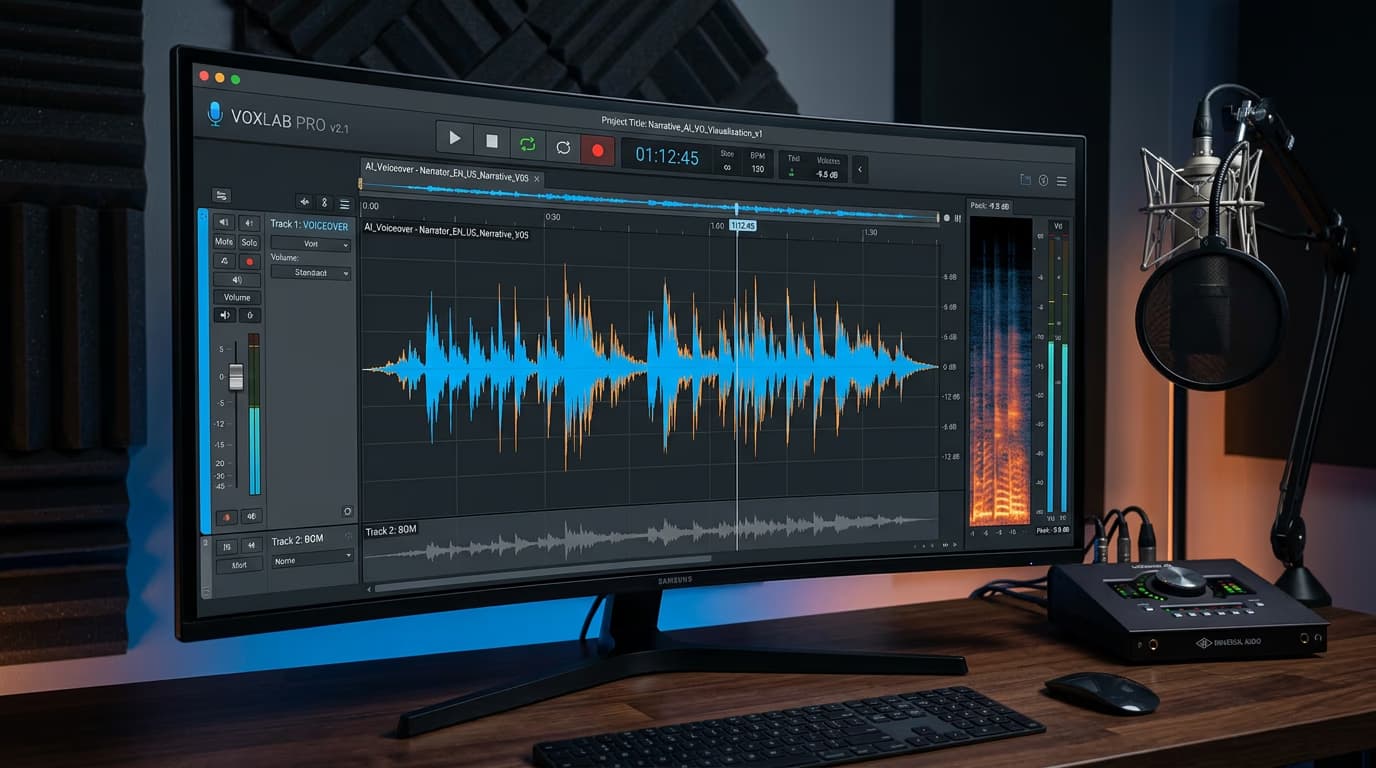
Run gen-ai generate with your script or music description. The CLI processes the text and outputs an MP3 file to your current directory. Most voiceovers finish in under 10 seconds.

STEP 4: Review and export

Play the audio file to check quality: Not perfect? Adjust the voice character, tweak your script for better pacing, or regenerate with a different emotional tone.

  • Listen for natural pacing and pronunciation accuracy
  • Check that tone matches your intended emotion or brand voice
  • Verify audio length fits your video or podcast duration
Start generating audio

Tips for best results

💡 Pick the right voice character

ElevenLabs offers dozens of voice options — warm, confident, energetic, calm, authoritative. Match the voice to your content type: use "confident" for product demos, "warm" for tutorials, "energetic" for social media ads. Run gen-ai voices to see the full list.

💡 Use punctuation to control pacing

Add commas, periods, and ellipses to your script to control pauses and rhythm. Short sentences sound punchy. Longer sentences with commas add natural breathing room. Ellipses create dramatic pauses. The AI reads punctuation, not just words.

💡 Generate music that matches video length

Describe the duration in your prompt: "15-second upbeat electronic track" or "30-second cinematic orchestral loop." The AI adjusts composition length to match. For video soundtracks, generate the music first, then trim or loop as needed.

Frequently asked questions

Use the --voice flag to pick a character that matches your content tone. ElevenLabs voices are trained on real human speech, so they handle natural pacing, emotion, and pronunciation. Run gen-ai voices to hear samples of each character. For professional content, try "confident" or "authoritative." For friendly tutorials, use "warm" or "conversational."

Yes. Add --language followed by the language code (es for Spanish, fr for French, de for German, etc.). The same voice characters work across languages, so you can keep brand consistency in multilingual campaigns. The CLI supports 20+ languages via ElevenLabs.

Use --type music and describe the style and mood: "upbeat electronic track," "cinematic orchestral background," or "lo-fi hip-hop loop." Specify duration in your prompt if needed. The AI generates royalty-free music that you can attach to video projects without licensing concerns.

The CLI itself is free. Audio generation consumes credits from your Picsart account. Free accounts get starter credits. Voiceovers cost 1-2 credits per 15-second clip, music costs slightly more depending on length. Run gen-ai estimate to check cost before generating.

Ready to create audio?

Install the CLI and start generating voiceovers and music in seconds.

Get started