logo

How to generate matching visuals from text with AI
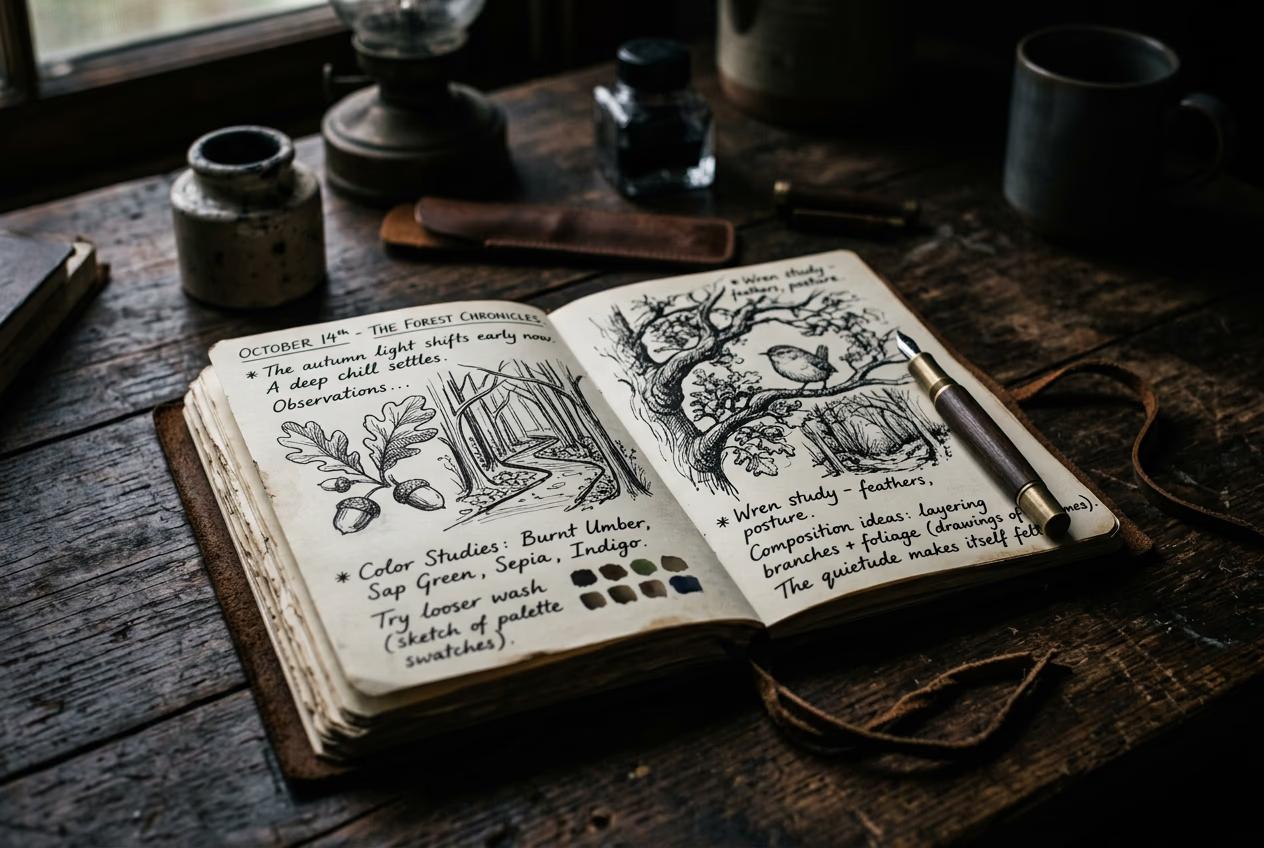
SKILLS3 minBeginner

Paste text, get matching images. Fastest path from draft to publish-ready post with inline visuals.

How to generate matching visuals from text with AI

What you'll learn

  • How to use the content-visual pair skill to generate matching images from text
  • How to write text that produces relevant, high-quality visuals
  • How to adjust image style to match your content format
  • How to export text-visual pairs for blogs, newsletters, and social posts

What is the content-visual pair skill?

The content-visual pair skill reads a paragraph of text and generates a matching image that visually represents what you wrote. You paste your draft copy, the AI analyzes the topic and tone, and creates an inline visual that fits your content. Instead of searching stock photos or commissioning custom illustrations, you write first and the visual appears automatically. Think of it like autocomplete for images—you provide the words, the skill supplies the picture.

Common use cases

  • Blog posts: Generate hero images or inline illustrations from article paragraphs
  • Social media: Turn captions into matching visuals for Instagram, LinkedIn, or Twitter posts
  • Email newsletters: Add relevant images to each section without leaving your writing flow
  • Presentation slides: Convert bullet points or talking points into supporting visuals
  • Documentation: Illustrate how-to guides or tutorials with concept diagrams from text descriptions
  • Marketing copy: Pair product descriptions with matching lifestyle or product imagery

Generate your visuals step by step

STEP 1: Download the skill

  • On web: Go to picsart.com/cli/#skills-prosumer-content-visual-pair → Click "Download"
  • On mobile: Not available—use desktop terminal or AI agent (Claude Code, Cursor, Windsurf)
Get visual pair skill

STEP 2: Choose your visual style

Select how you want your images to look:

  • Photography: Realistic photos that match your text topic (lifestyle, product, editorial)
  • Illustration: Flat design, line art, or hand-drawn style for a softer, more creative look
  • Abstract/conceptual: Metaphorical visuals that represent ideas rather than literal objects
  • Diagram: Charts, icons, or visual explanations for how-to or educational content
STEP 3: Paste your text

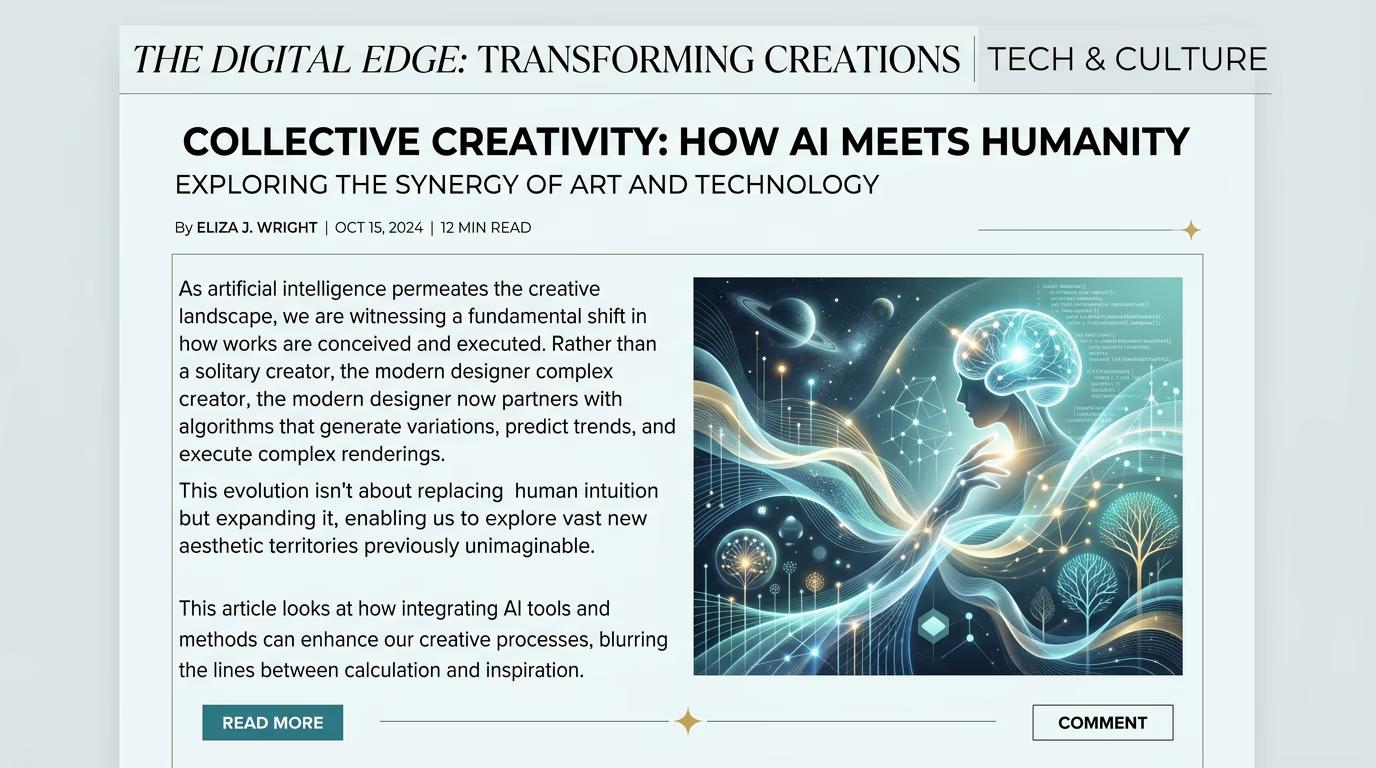
Copy the paragraph you want a visual for and paste it into the skill. The AI reads your text, identifies the main topic and tone, then generates a matching image. This takes 10-20 seconds. You can pipe text from your clipboard or a file.

STEP 4: Review and export

Check that the visual matches your text and works in your layout: Not perfect? Adjust your text to be more specific, change the visual style, or regenerate for a different interpretation.

  • Verify the image represents your main idea, not a random detail from your text
  • Check that visual style matches your brand or content format
  • Confirm dimensions work for where you're publishing (blog header, social post, email)
Generate visuals

Tips for best results

💡 Lead with your main idea

Put the key concept in the first sentence of your paragraph. The AI prioritizes early sentences when choosing what to illustrate. If you bury the main point, you might get a visual based on a tangential detail.

💡 Be concrete, not abstract

Text like "innovative solutions for modern challenges" is too vague to illustrate. Instead write "project management software with drag-and-drop timelines." Specific nouns and verbs produce better visuals than abstract business language.

💡 Match visual style to content tone

Serious topics (finance, healthcare, legal) work better with photography or clean diagrams. Creative or lifestyle content works with illustration or abstract styles. Mismatched styles make your content look inconsistent.

💡 Test one paragraph before batch generating

Run the skill on a single paragraph first to check that the visual style and interpretation match what you want. Once you're happy, batch process all your sections at once to save time.

Frequently asked questions

The content-visual pair skill is an AI workflow that reads your text and generates a matching image. You paste a paragraph, the AI identifies the main topic and tone, then creates a visual that represents what you wrote. It replaces manual stock photo searching or custom illustration commissioning for blog posts, social media, newsletters, and presentations.

Yes. Put the most important concept in the first sentence—the AI prioritizes early text when choosing what to illustrate. Use specific nouns and action verbs. If your paragraph covers multiple ideas, the skill will pick the most concrete, visual one. Rewrite vague sentences to be more specific if the output misses your point.

Choose a visual style that fits your content format: photography for professional or editorial content, illustration for creative or playful brands, diagrams for how-to or educational posts. You can also specify color palettes or aesthetic references when running the skill to keep outputs consistent with your brand guidelines.

The skill download is free, but generating visuals costs credits. Each image costs 2-4 credits depending on resolution and style. If you're generating visuals for a multi-section blog post or newsletter, you can batch process all paragraphs at once to save time.

Stop searching stock photos?

Write your content and get matching visuals automatically—no browsing required.

Generate visuals