logo

How to transform flat product photos into lifestyle scenes
SKILLS4 minIntermediate

Turn boring product shots into styled lifestyle images. Control lighting, surface, and setting without a photoshoot.

How to transform flat product photos into lifestyle scenes

What you'll learn

  • How to place products in realistic lifestyle scenes
  • How to control lighting and surface materials
  • How to maintain product accuracy while adding context
  • How to scale catalog styling without photoshoots

What is catalog styling?

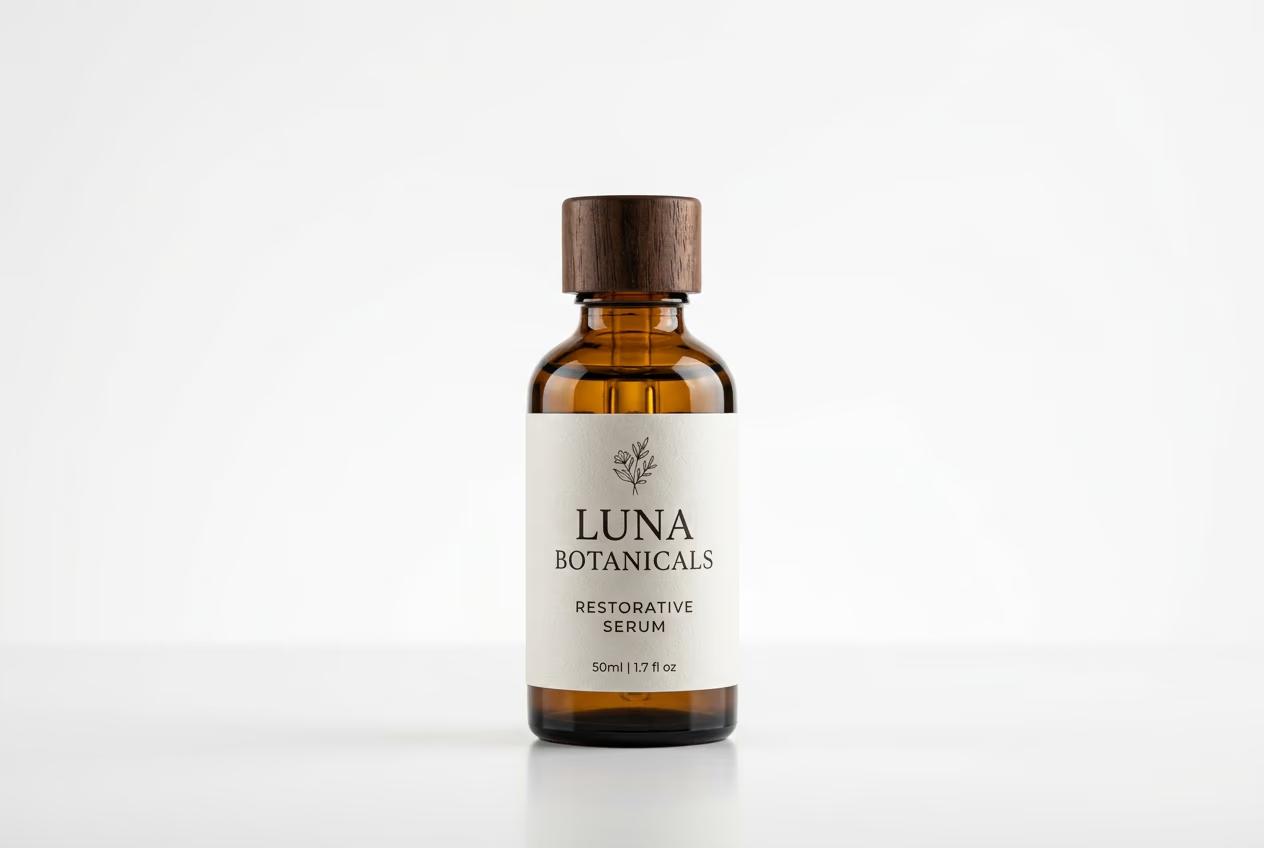
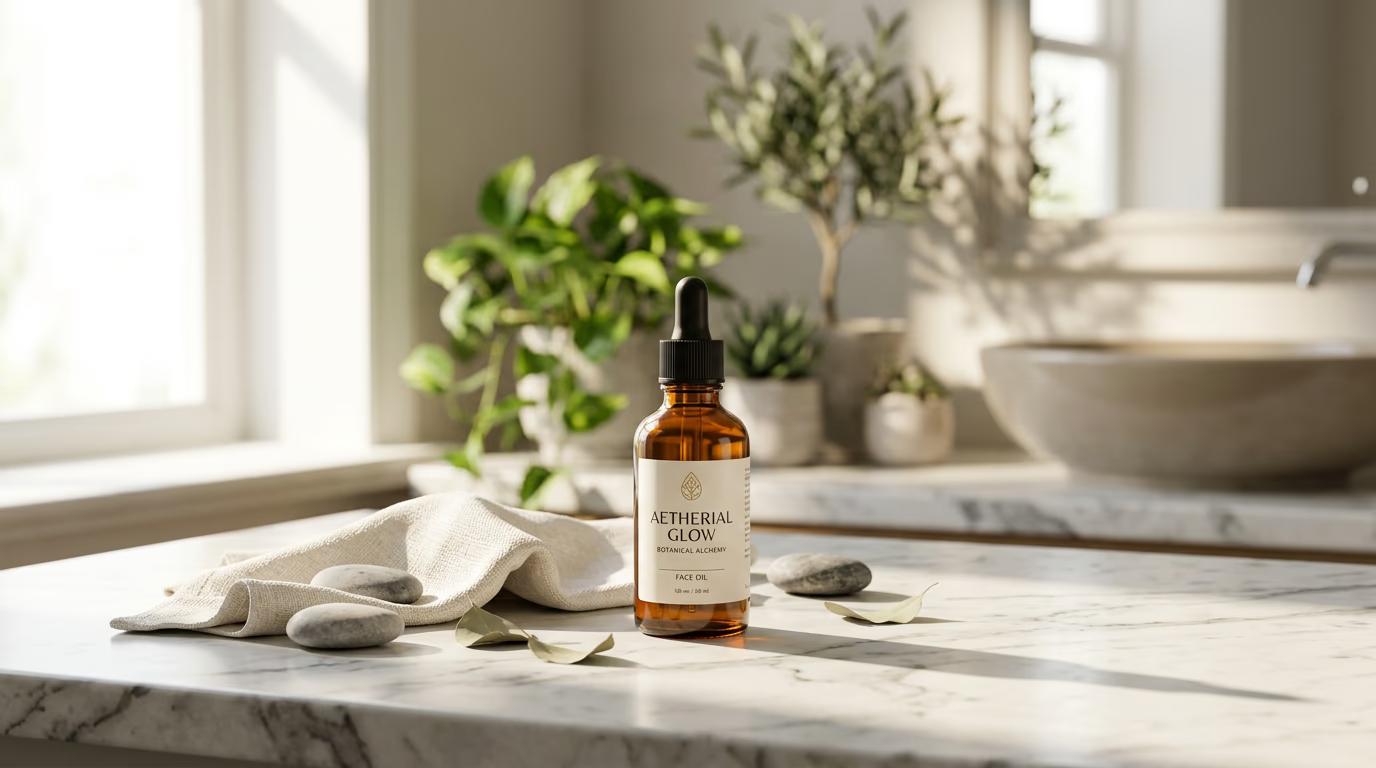
Catalog styling takes a flat product photo on white background and places it in a realistic lifestyle scene. You control the surface (marble counter, wood table, fabric), lighting (natural window light, studio soft box, golden hour), and setting (kitchen, bathroom, outdoor). The product stays accurate — no AI hallucinations of your bottle shape. The scene around it gets generated to match your style guide. It's like hiring a product stylist without the photoshoot budget.

Common use cases

  • E-commerce: Turn supplier white-background shots into lifestyle product pages
  • Catalog refresh: Update old product photos with modern styling without reshooting
  • A/B testing: Generate multiple scene variations to test conversion rates
  • Seasonal campaigns: Place same product in holiday, summer, or back-to-school scenes
  • Marketplace optimization: Create Amazon or Etsy lifestyle shots from basic SKU photos
  • Brand consistency: Apply same styling treatment across 500-SKU catalog in hours

Style your catalog photos step by step

STEP 1: Upload your product photo

  • On web: Go to picsart.com/cli → Upload a clean product shot on white or transparent background
  • On mobile: Open Picsart app → Select your product photo → Look for AI styling tools
Start styling

STEP 2: Choose scene and lighting

Describe the lifestyle scene you want:

  • Surface type: Marble counter, wood table, fabric, concrete, glass
  • Lighting: Natural window light, studio soft box, golden hour, dramatic side light
  • Setting: Kitchen, bathroom, bedroom, office, outdoor patio, minimalist studio
  • Props: Minimal (product focus) or styled (plants, books, complementary objects)
STEP 3: Generate styled scene

Click "Generate scene" and wait 10-15 seconds. The AI preserves your product exactly as photographed and builds a realistic lifestyle scene around it. Lighting, shadows, and reflections get added to match the scene.

STEP 4: Review and export

Check that the styled scene looks natural: Not right? Regenerate with adjusted scene description. Product looks wrong? Upload a cleaner source photo and try again.

  • Product stays accurate — no warping, color shifts, or shape changes
  • Lighting and shadows look realistic for the chosen scene
  • Scene matches your brand aesthetic and target customer lifestyle
Style your products

Tips for best results

💡 Start with clean product photos

Best results come from product shots on pure white or transparent background with even lighting. Poor source photos produce poor styled results. Clean source = clean output.

💡 Keep scene descriptions specific

Instead of "nice kitchen scene," write "white marble counter, soft morning light from left, minimalist modern kitchen." Specific descriptions produce more consistent, on-brand results.

💡 Batch process entire catalogs with consistent settings

Once you dial in lighting and surface settings, apply them to your whole catalog. This maintains visual consistency across all products. One SKU shouldn't look like golden hour while another looks like studio lighting.

💡 Test multiple scenes for A/B testing

Generate 3-4 different lifestyle scenes for your top products. Test them on product pages to see which converts better. Minimal vs. styled, bright vs. moody — let conversion data guide your catalog aesthetic.

Popular scene combinations

  • Luxury skincare: White marble, soft window light, minimal styling, clean shadows
  • Natural wellness: Wood surface, warm natural light, plants, organic textures
  • Modern tech: Black glass, studio light, minimalist, high contrast
  • Home goods: Styled countertop, natural light, complementary props, lived-in feel
  • Fashion accessories: Textured fabric, soft light, subtle styling, elegant composition

Frequently asked questions

Catalog styling transforms flat product photos on white background into lifestyle scenes. You upload a basic product shot. The AI places it in a realistic setting — marble counter, wood table, natural light — while keeping the product exactly as photographed. It's faster and cheaper than photoshoots, perfect for updating hundreds of catalog images.

No. The product stays exactly as photographed — same shape, color, size, details. The AI only generates the scene around it. If your product changes shape or color, your source photo has poor contrast or lighting. Use a cleaner product shot for better accuracy.

Yes. Generate lifestyle shots that meet marketplace requirements. Amazon allows AI-styled images as long as the product itself is accurately represented. Check platform policies first, but most allow scene generation around real product photos.

Save your scene description as a preset. Use the same lighting, surface, and prop settings for all products. Batch process your catalog with these locked settings. Every product gets the same visual treatment, creating a cohesive brand look.

Ready to style your catalog?

Turn flat product shots into lifestyle scenes without photoshoots. Perfect for e-commerce and marketplace listings.

Start styling