logo

Refresh your entire product catalog for any season with AI
SKILLS5 minAdvanced

Re-skin hundreds of products for holiday, spring, or back-to-school themes in one batch operation.

Refresh your entire product catalog for any season with AI

What you'll learn

  • How seasonal refresh skills work in Picsart
  • Setting up batch operations for catalog-wide updates
  • Choosing seasonal themes and maintaining brand consistency
  • Processing hundreds of products in a single workflow

What is seasonal refresh?

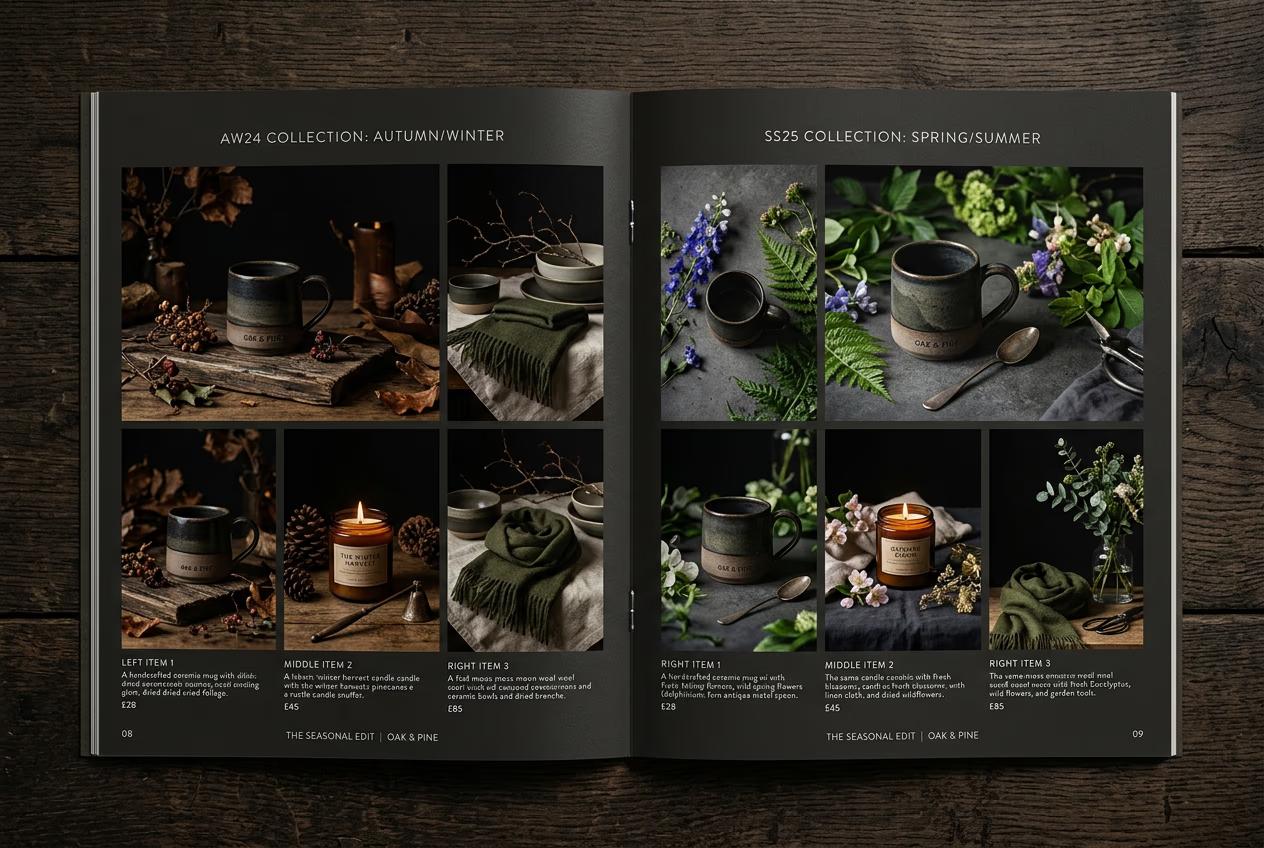
Seasonal refresh is a Picsart batch skill that transforms your entire product catalog to match seasonal themes — holiday decorations, spring flowers, summer beach vibes, back-to-school energy. Upload a folder of product photos, pick your season, and the skill re-skins every item with appropriate context, props, and atmosphere while keeping your products perfectly recognizable. Think of it like changing your store's seasonal display window, but for every product at once.

Common use cases

  • Holiday campaigns: Transform entire catalog for Black Friday, Christmas, Valentine's, Mother's Day in minutes
  • Seasonal collections: Update product imagery for spring launch, summer sale, fall refresh, winter collection
  • Back-to-school: Re-skin stationery, tech, apparel with academic context and energy
  • Regional holidays: Adapt catalog for Diwali, Lunar New Year, Ramadan, region-specific celebrations
  • Limited-time promotions: Create themed product imagery for flash sales or special events
  • Market testing: Generate seasonal variations to test which themes drive more engagement before full production

Refresh your catalog step by step

STEP 1: Access seasonal refresh skill

  • On web: Go to picsart.com/cli → Skills → E-commerce section → Select "Seasonal refresh"
  • On mobile: Not available — seasonal refresh requires batch processing capabilities only available via CLI or web interface
Open seasonal refresh

STEP 2: Configure seasonal theme and batch settings

Set up your seasonal transformation parameters:

  • Upload product folder (or select existing catalog directory)
  • Choose seasonal theme: Holiday (Christmas, Hanukkah, New Year), Spring (flowers, pastels, fresh), Summer (beach, bright, outdoors), Fall (leaves, warm tones, cozy), Back-to-school (notebooks, academic), Custom (define your own theme)
  • Set intensity level: Subtle (light seasonal touches), Moderate (clear theme, product still focus), Strong (full seasonal immersion)
  • Configure batch options: Concurrency (how many images process simultaneously), Resume on failure (auto-retry failed items), Output format (folder structure, naming convention)

STEP 3: Run batch seasonal transformation

Click "Refresh catalog" and the skill processes your entire product folder. Each product gets re-skinned with seasonal context — holiday decorations, spring flowers, summer props — while preserving product details and brand colors. Progress bar shows real-time completion. Processing time depends on catalog size (typically 100 products in 8-12 minutes).

STEP 4: Review batch results and export

Check a sample of outputs before deploying to production: Not perfect? Adjust intensity level or switch themes and re-run. The skill remembers which items completed successfully, so you only re-process what needs fixing.

  • Verify seasonal theme is consistent across all products (same mood, color palette, prop style)
  • Check that products remain clearly recognizable and accurately represented (no color shifts or detail loss)
  • Confirm brand identity is maintained despite seasonal decoration (your brand should still feel like your brand)
Refresh my catalog

Tips for best results

💡 Start with a small test batch

Before processing your entire catalog, run 10-20 representative products first. Check that the seasonal theme works across different product categories (apparel, accessories, tech, home goods). Adjust intensity and settings based on test results, then scale up to full catalog.

💡 Use subtle intensity for luxury brands

High-end products often look better with light seasonal touches rather than heavy theming. Set intensity to "Subtle" for luxury goods — think elegant snow accents instead of full Christmas explosion. Save "Strong" intensity for playful, youth-oriented, or value brands where bold seasonal energy matches brand voice.

💡 Create a seasonal style guide

Document your chosen theme settings, intensity level, and any custom parameters. Reuse these exact settings for future seasonal refreshes to maintain visual consistency year over year. Your customers will recognize your seasonal aesthetic and associate it with your brand.

💡 Time your refresh strategically

Run seasonal catalog updates 3-4 weeks before the actual season or holiday. This gives you time to review, fix any issues, and get imagery deployed to your site, emails, and ads before peak shopping begins. Don't wait until the week before Christmas to generate holiday catalog imagery.

Seasonal theme planning guide

  • Holiday (Nov-Dec): Christmas trees, ornaments, snow, warm lights, gift wrap, festive red and green
  • Winter (Jan-Feb): Snow scenes, cozy interiors, warm drinks, blankets, cool blue and white tones
  • Spring (Mar-May): Flowers, pastels, fresh greenery, outdoor light, renewal energy, soft pinks and yellows
  • Summer (Jun-Aug): Beach, bright sun, outdoor activities, vibrant colors, water elements, bold blues and oranges
  • Fall (Sep-Oct): Leaves, warm tones, cozy textures, pumpkins, earth colors, orange and brown palette
  • Back-to-school (Aug-Sep): Notebooks, pencils, academic energy, organized desk scenes, fresh start mood
  • Valentine's (Jan-Feb): Roses, hearts, romantic lighting, red and pink dominant, intimate settings
  • Mother's Day (Apr-May): Flowers, breakfast in bed, appreciation themes, soft feminine touches, pastels

Frequently asked questions

Seasonal refresh is a batch AI skill that transforms entire product catalogs to match seasonal themes in one operation. Instead of manually editing each product photo, you upload a folder of images, choose a season, and the AI applies consistent seasonal context (props, backgrounds, lighting, atmosphere) to every item while preserving product accuracy. It's the difference between spending weeks in Photoshop versus minutes in a batch workflow.

Seasonal refresh works with any batch size — from 5 products to 5,000. Small brands can refresh a 20-item collection just as easily as large retailers processing entire catalogs. The skill charges per image processed, so you only pay for what you use. Start small to test themes and settings, then scale up when you're confident in the output.

Use the intensity slider to control how strong the seasonal overlay is. Set to "Subtle" for minimal theming that preserves your brand aesthetic. Create a seasonal style guide documenting your preferred settings, and reuse those exact parameters each year. Review outputs to confirm your brand colors, product styling, and visual identity remain clear despite seasonal decoration. When in doubt, lighter theming is safer than heavy handed seasonal overload.

Seasonal refresh includes resume-on-failure logic. If processing stops or certain images fail, the skill remembers what completed successfully and only re-processes failed items when you run again. Review the output folder, identify problem images, adjust settings (usually reducing intensity or switching theme works), and re-run. You won't waste credits re-processing items that already look good.

Ready to update your catalog?

Transform hundreds of products for any season in minutes, not weeks.

Start seasonal refresh