Image to layers: separate an image into editable parts
Turn a flat image into editable layers with Picsart. Separate the visual elements, then move, resize, and rearrange the parts for your next design.
- Rearrange without rebuilding
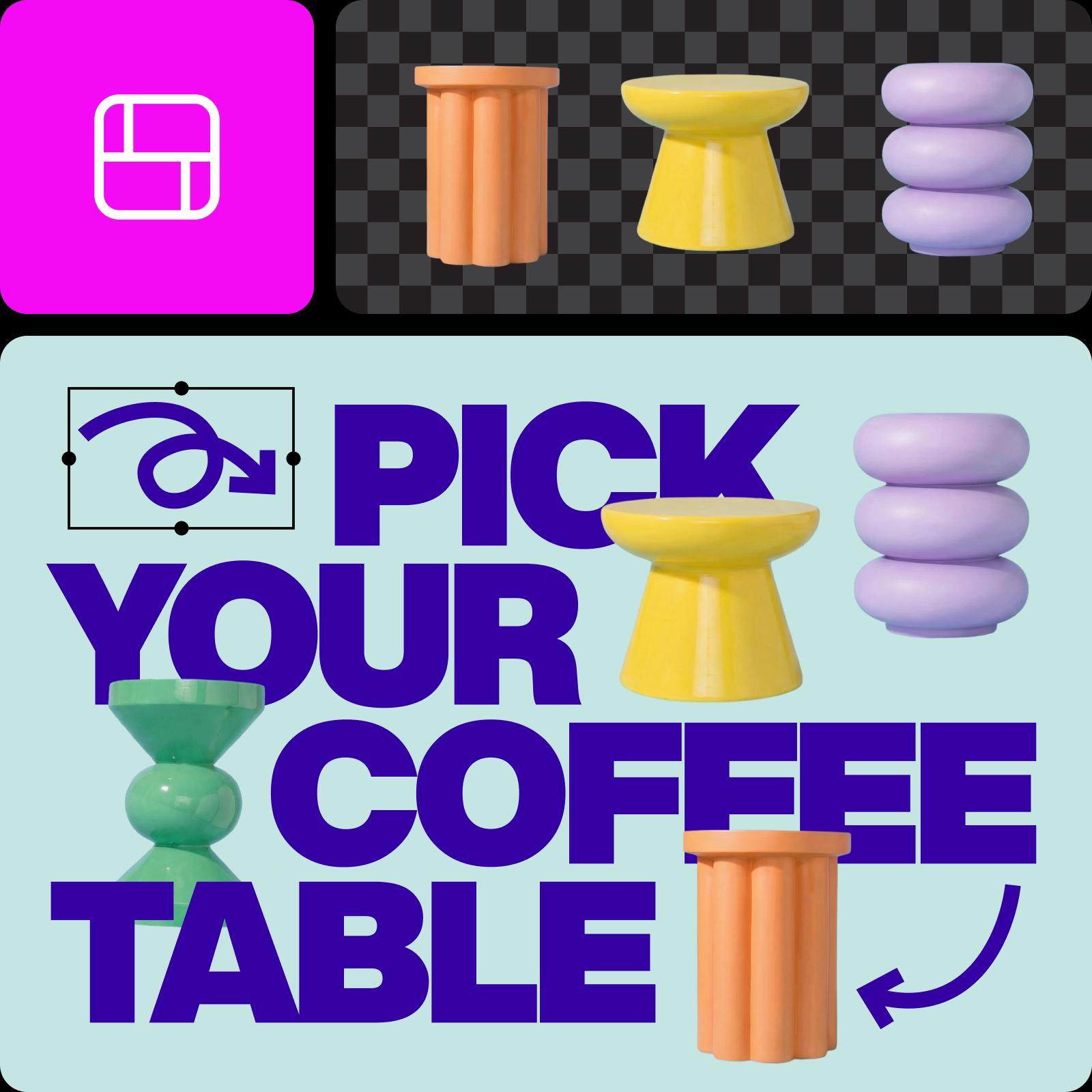
A flat image or a layered composition?
An image layer separator gives you a different way to work with the visible parts of a picture. Choose layers when the arrangement needs to change.
How to separate an image into layers
Open the sample, review the separated parts, and try a new arrangement. The visuals illustrate related editing possibilities in Picsart.
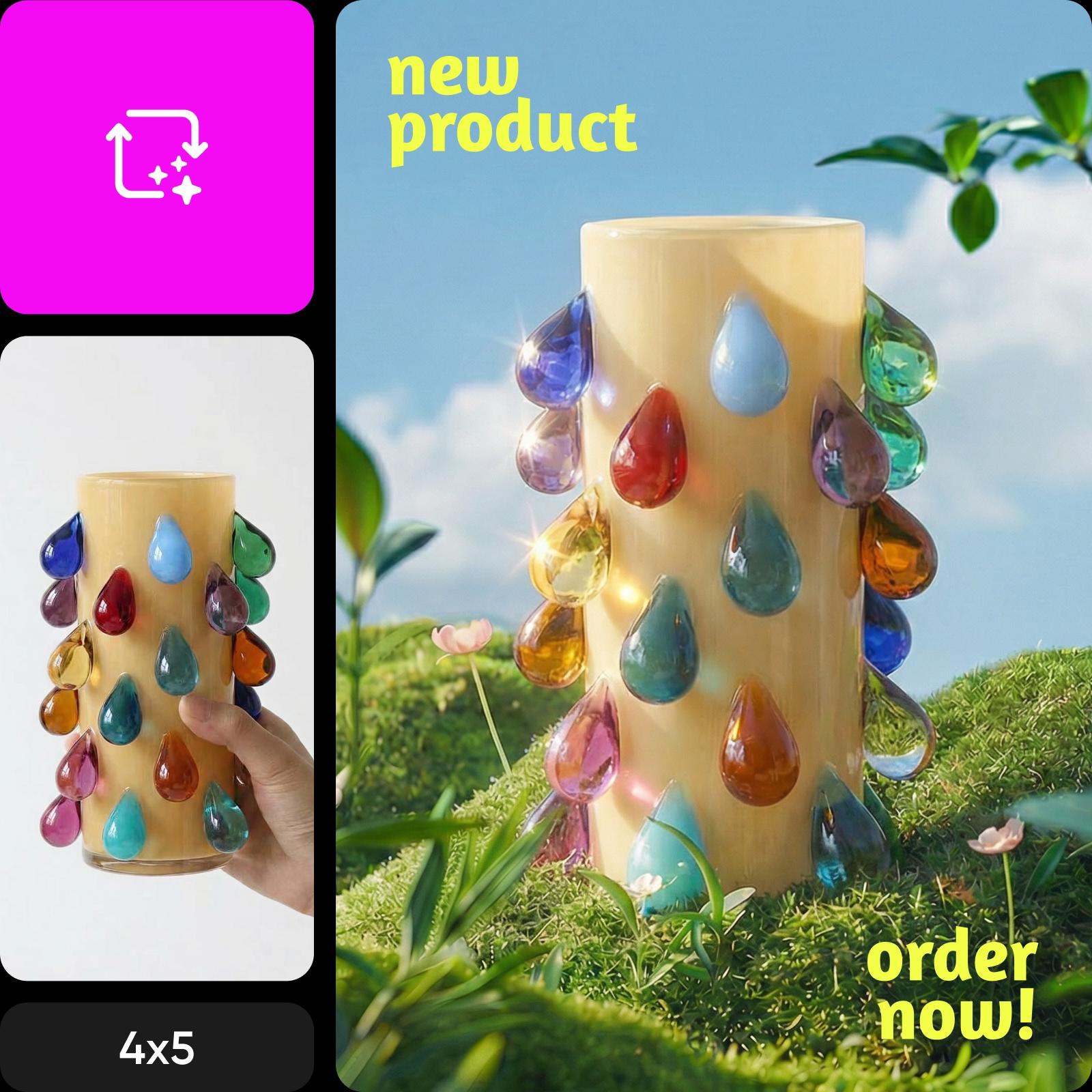
Choose the edit your image needs
Use image to layers when you want to rearrange the parts of a composition. If you only need a subject cutout, try the background remover. To erase a distraction, use object removal.
The editing example shows object selection and removal, a different task from separating an image into layers.

Plan your next layered edit
Explore a new arrangement, then check the source image and separated parts as you work.
Find the tool for your next edit
Layer separation is one part of the process. Use these tools when your next change is more specific.
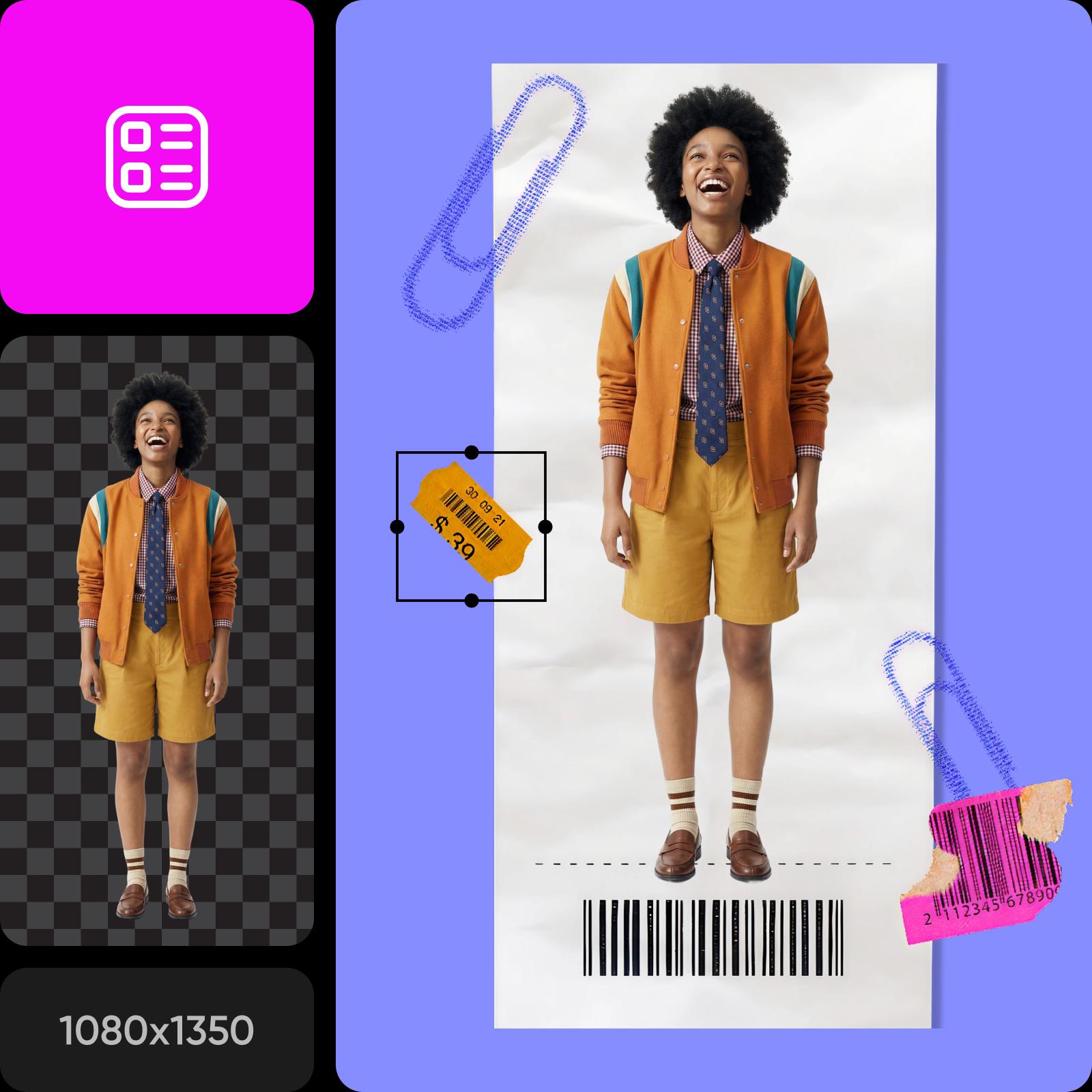
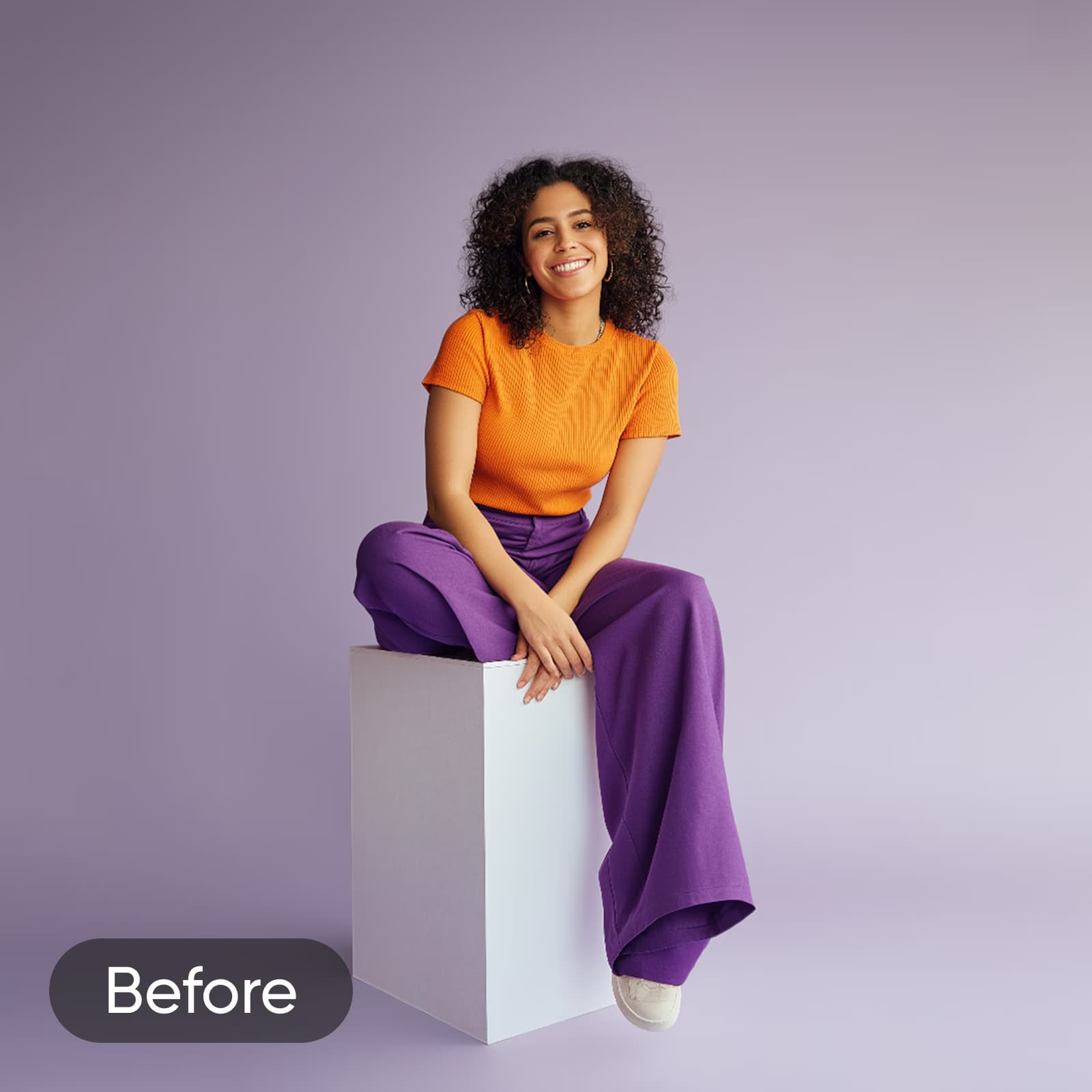

Image-to-layers questions
Image to layers separates a flat image into visual parts you can edit individually. Converting an image to layers lets you change their arrangement instead of moving the whole picture as one element.
Try a different arrangement
See what you can build from the parts of an image you already have. Open the sample and explore a new composition in Picsart.
Keep working on your image
Choose a tool for the next edit.