사진에 스티커 추가
Picsart 온라인 편집기로 사진에 스티커를 추가해 보세요. 디자인을 검색하고 이미지 위에 배치한 다음, 내보내기 전에 구도를 조정할 수 있습니다.

사진에 스티커를 추가하는 방법
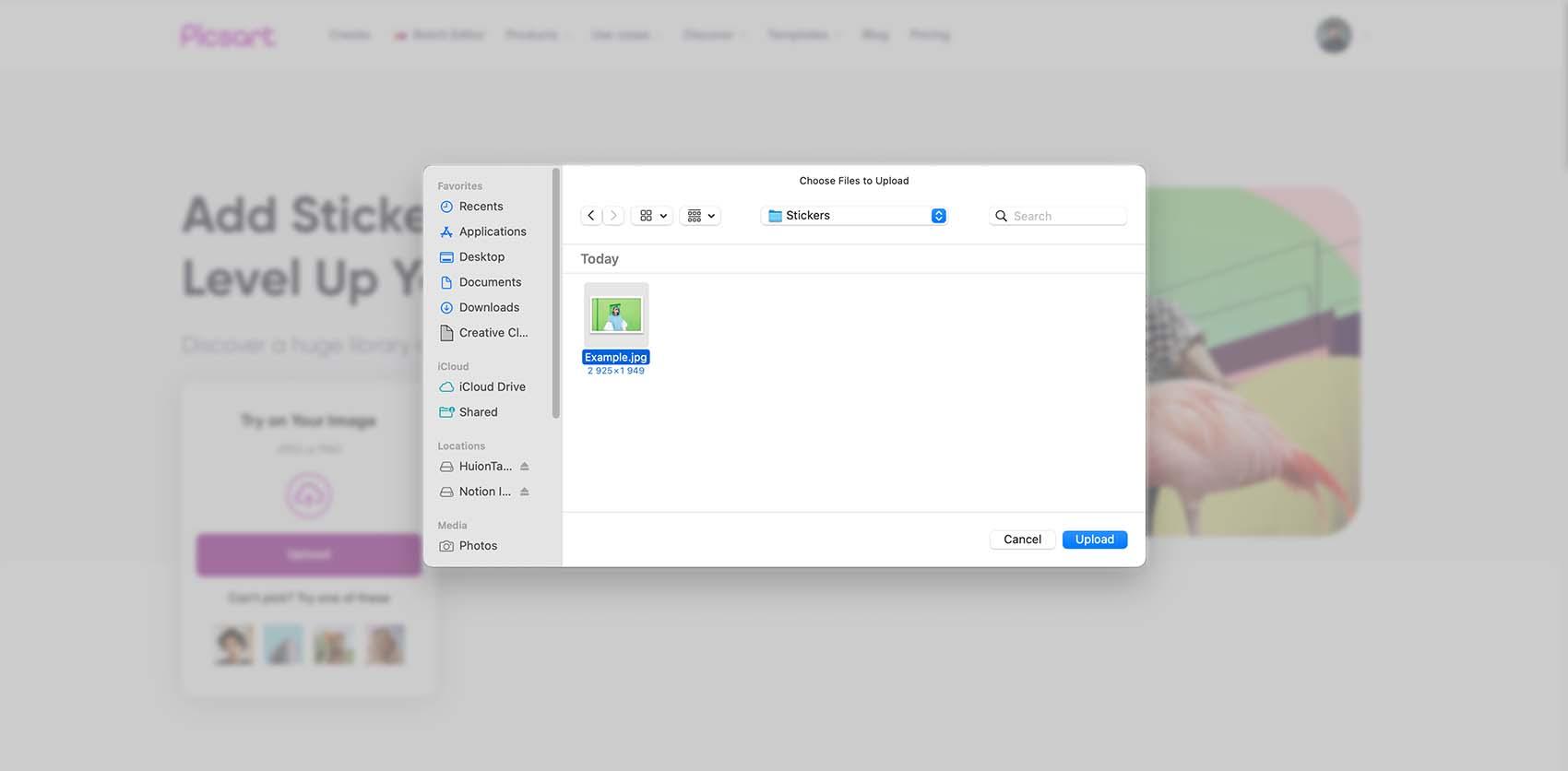
아이디어에 어울리는 사진 스티커 찾기
스티커 하나로 분위기를 더하거나 특별한 날을 기념하고, 평범한 사진을 콜라주로 바꿀 수 있습니다. 처음 보이는 디자인을 선택하기보다 사진에 더하고 싶은 디테일을 검색해 보세요. 인물 사진에는 작은 하트나 낙서를, 생일 사진에는 메시지를 넣을 공간을 남겨두는 장식 포인트를 더해 보세요.
무료 에셋을 선택하거나 Pro로 표시된 스티커를 둘러보세요. 편집 중에 마음이 바뀌어도 괜찮습니다. 사진에 스티커를 적용해 보고 사진이 여전히 나만의 느낌을 간직하도록 구도를 조정하세요.
- 필요한 세부정보 검색하기
- 사진에 어울리는 스티커 추가하기

사진에 스티커를 활용하는 세 가지 방법
프로젝트를 선택한 다음 내 사진에 맞게 스티커 스타일을 조정해 보세요. 다음 예시를 참고해 스티커마다 분명한 역할을 부여할 수 있습니다.


스티커를 사진의 일부처럼 자연스럽게 배치하기
스티커를 배치하기 전에 사진에 어떤 효과를 더할지 생각해 보세요. 피사체 옆의 작은 포인트는 시선을 이끌고, 큰 디자인은 콜라주의 중심이 될 수 있습니다. 사진의 선과 여백에 맞춰 스티커의 크기와 각도를 조정하세요.
디자인의 일부로 가리는 경우가 아니라면 얼굴과 제품, 중요한 디테일이 잘 보이도록 하세요. 이미지가 복잡해 보이면 디테일을 빼거나 크기를 줄여 보세요. 모든 빈 곳을 채우려고 스티커를 더하기보다 변경할 때마다 전체 구도를 다시 확인하세요.
- 크기와 위치 조절하기
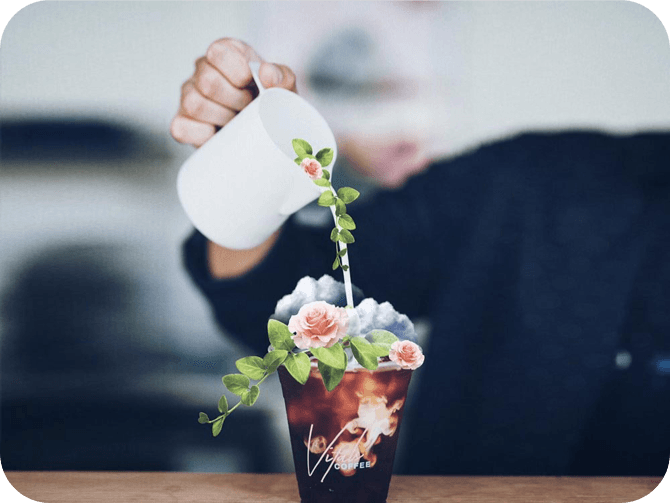
공유하기 전에 잘 어울리는지 확인하기
스티커 디자인을 세부 요소의 모음이 아닌 완성된 이미지로 살펴보세요. 간단히 확인하면 손볼 부분을 쉽게 찾을 수 있습니다.
- 배치: 모든 스티커가 피사체를 돋보이게 하나요, 아니면 시선을 분산시키는 스티커가 있나요?
- 레이어: 스티커가 겹쳐 있어도 중요한 모양을 알아볼 수 있고 텍스트를 읽을 수 있나요?
- 가장자리: 공유할 곳에 맞게 이미지를 자를 때 스티커가 잘리지 않나요?
- 작은 화면: 이미지를 썸네일 크기로 표시해도 디자인과 메시지가 잘 전달되나요?
더 깔끔한 결과를 원한다면 스티커를 추가하기 전에 크기나 위치를 조정하세요.
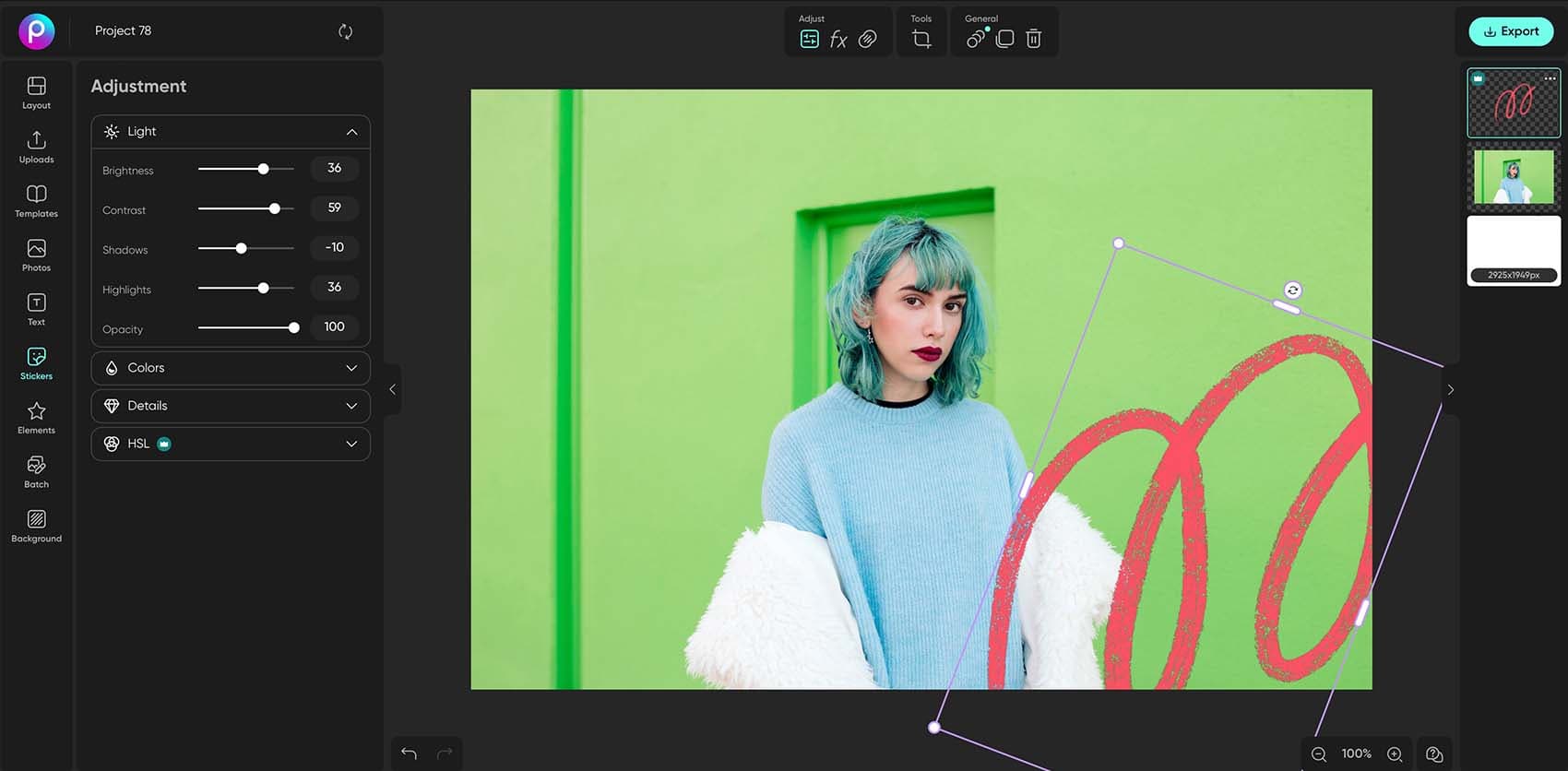
같은 작업 공간에서 편집 마무리하기
내 스티커 이미지를 사진에 추가하기
라이브러리에서 스티커를 고르는 대신 이미 가지고 있는 스티커를 사용할 수 있습니다. Uploads에서 이미지를 추가한 다음 사진 위에 배치하고 크기를 조정하세요. 배경이 투명한 스티커 이미지를 사용하면 주변 사진이 그대로 보여 오려낸 이미지나 로고, 장식 요소를 추가할 때 유용합니다.
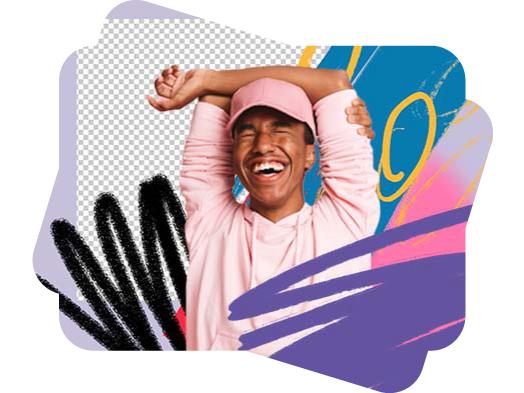
이미지에 배경이 남아 있다면 먼저 Sticker Maker를 사용해 배경을 제거하세요. 배치할 준비가 되면 사진 편집기로 돌아오면 됩니다. 이 페이지에서는 스티커를 사진에 적용하는 방법을 안내하며, 새 스티커 만들기는 별도의 단계입니다.
사진에 스티커 추가하기: 자주 묻는 질문
- Picsart 편집기에 사진을 업로드하고 Stickers를 선택한 다음 라이브러리에서 디자인을 고르세요. 스티커의 조절 핸들로 크기와 각도를 바꾸고 원하는 위치로 드래그하세요. 사진이 준비되면 Export를 선택하세요.
Picsart 소개 매체






완성도 높은 크리에이터 콘텐츠를 위해 사진 편집하기
Pro
Most popularAI tools for everyday creative work.
Ultra
Most powerfulHeavy AI usage for creators & teams.