몇 초 만에 PNG 색상 변경
PNG 색상 변경 도구로 사진에 순식간에 새로운 느낌을 더해 보세요. 몇 번의 클릭만으로 PNG 색상을 바꾸고, 눈에 띄는 색상으로 마음에 드는 사진을 새롭게 꾸밀 수 있습니다.

PNG 배경 색상을 즉시 변경하세요
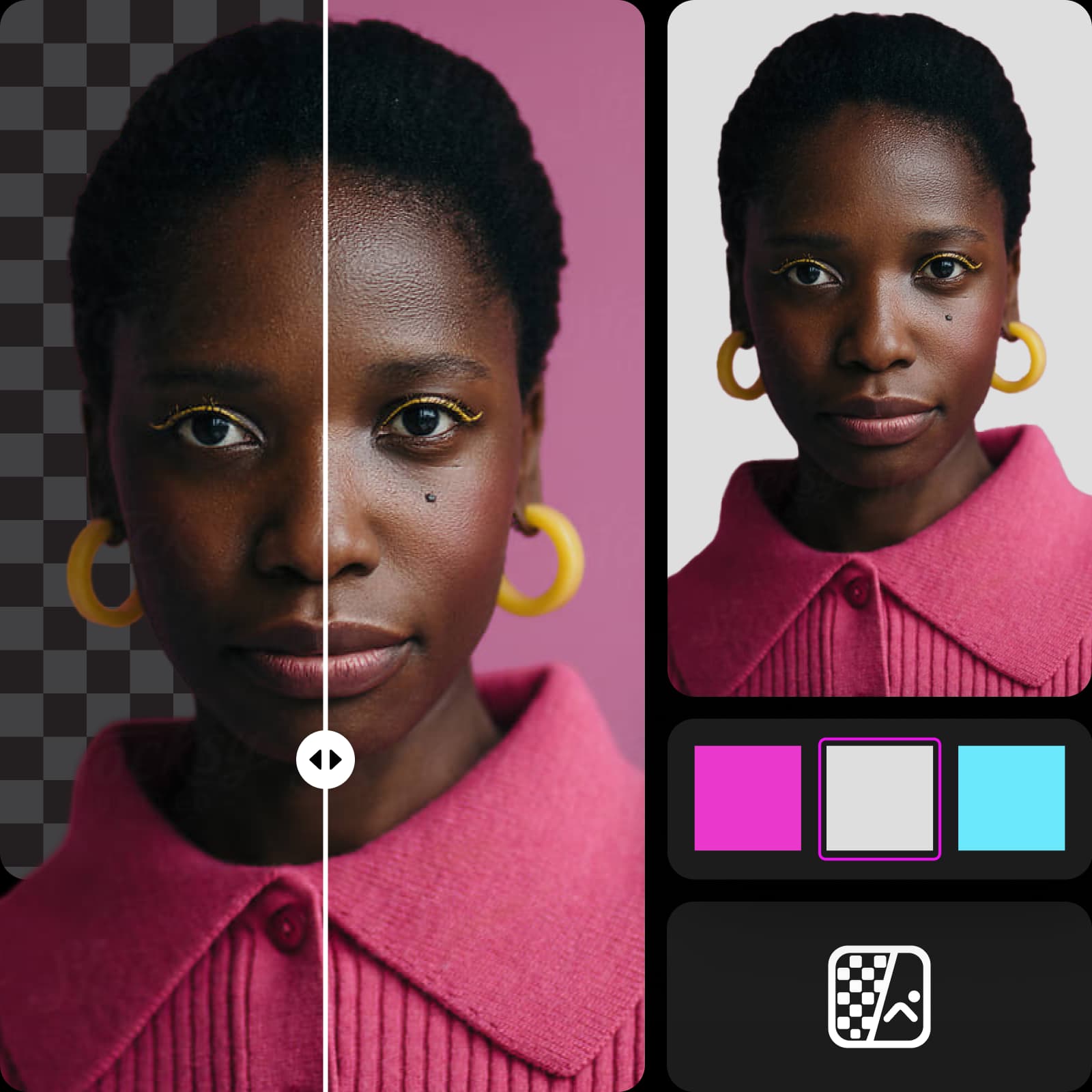
사진에 생생한 새 느낌을 더하고 싶으신가요? Picsart Background Changer를 사용하면 PNG 배경 색상을 몇 초 만에 바꿀 수 있습니다. 사진의 기존 배경이 무엇이든 AI가 자동으로 배경을 제거해 이미지를 투명하게 만들어 줍니다. 그런 다음 다양한 색조와 톤을 적용해 증명사진, 여권 사진 등에 어울리는 배경색을 찾아보세요. 원본 이미지를 업로드하고 배경을 선택하기만 하면 나머지는 AI가 알아서 처리합니다.
모든 상황에 어울리는 배경 찾기
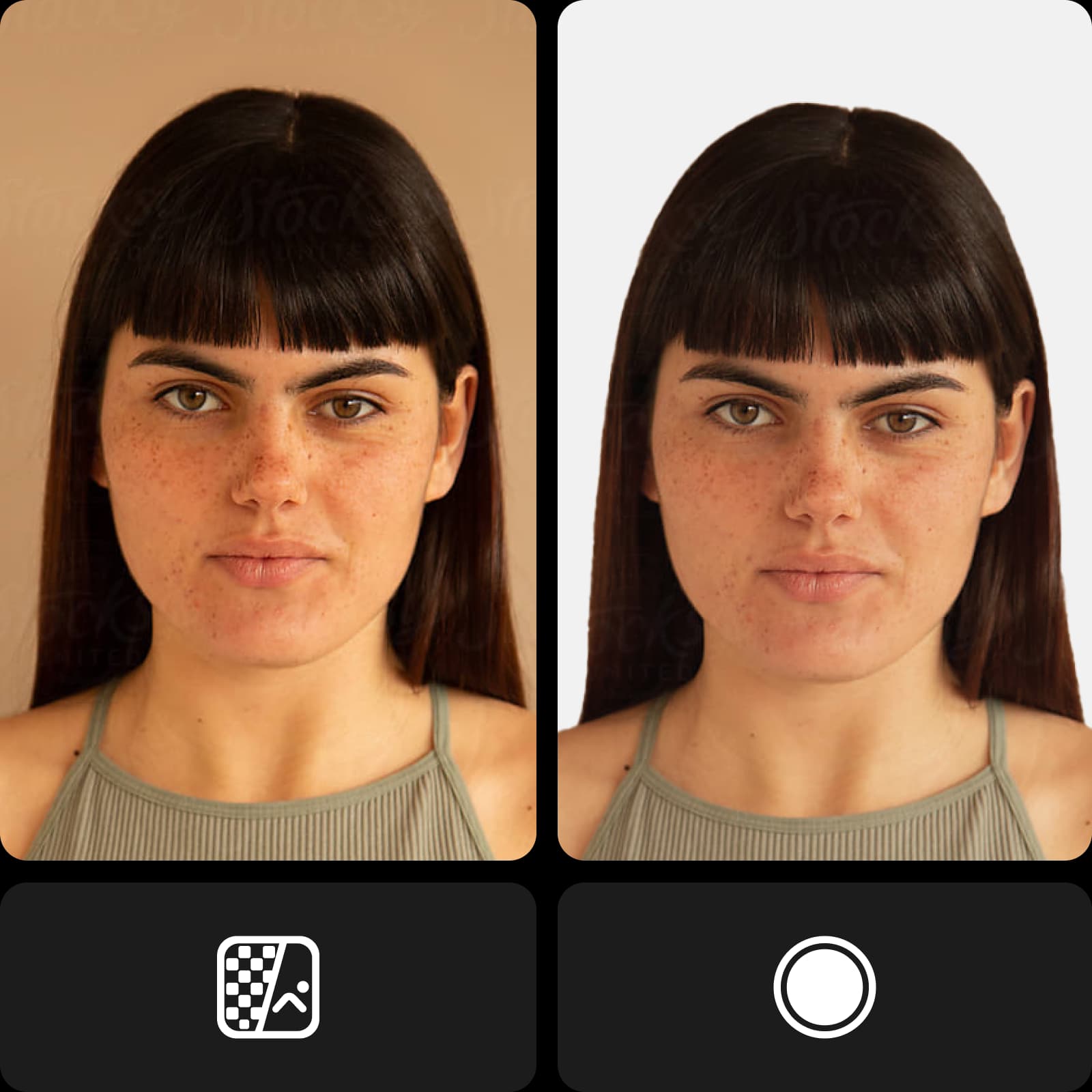
셀카를 편집하든 증명사진 배경을 바꾸든, 원하는 작업을 도와드립니다. PNG 색상을 변경하려면 사진을 업로드하고 배경 제거 도구를 사용한 다음 편집 목적에 맞는 색상을 고르면 됩니다. 예를 들어 신분증, 여권 또는 면허증용 사진을 업로드할 때 한 번의 클릭으로 원래 배경을 제거하고 흰색 배경을 추가할 수 있습니다. 그런 다음 온라인 사진 편집기에서 이미지 설정을 조정해 새 배경과 어울리게 꾸며 보세요. 크기를 변경해야 한다면 Photo Resizer를 사용해 이미지 품질 저하 없이 사진 크기를 조정할 수 있습니다.
PNG 색상 변경 도구로 브랜드 이미지 유지
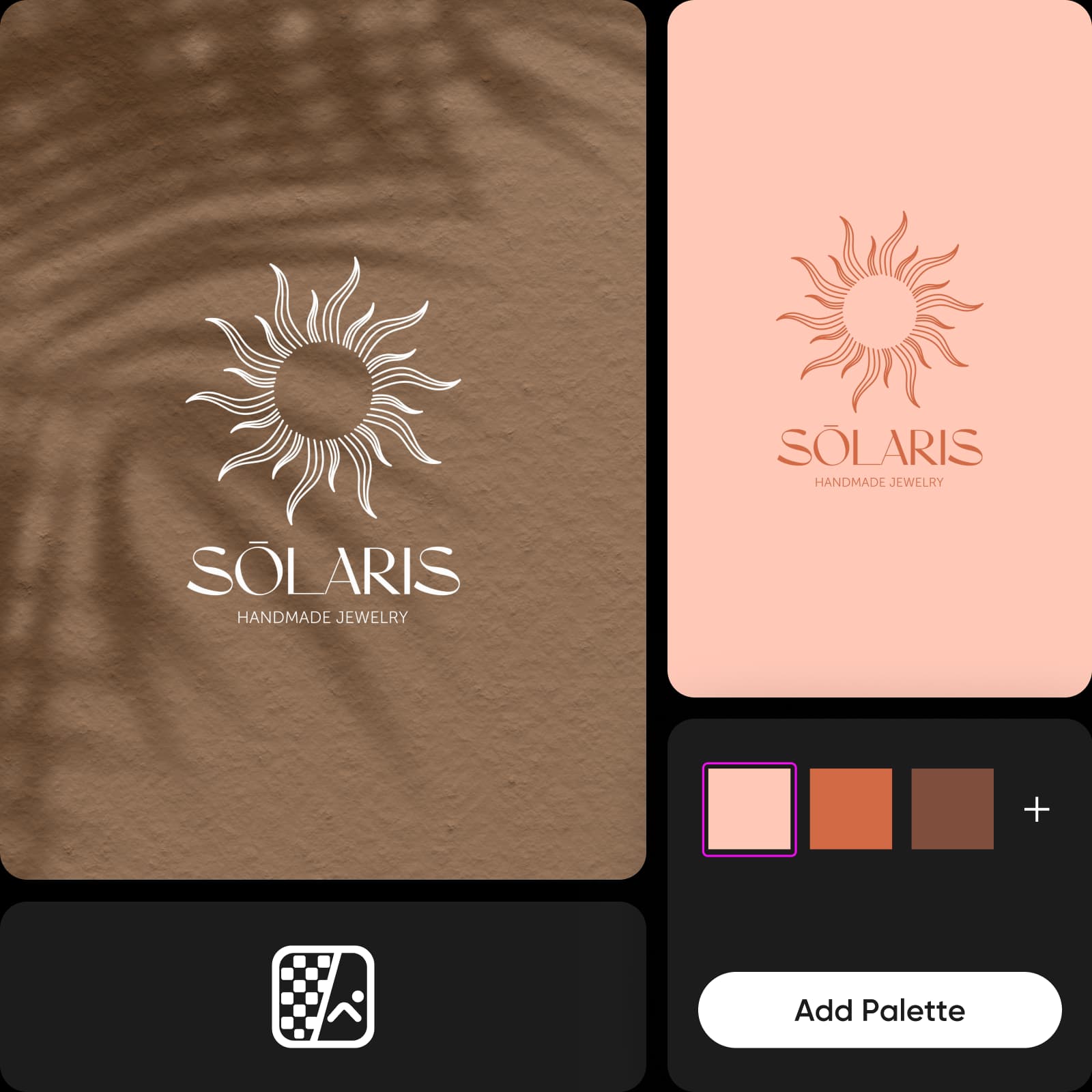
배경을 늘 똑같이 유지할 필요는 없습니다. 브랜드 로고를 새롭게 꾸미거나 새로운 캠페인을 홍보할 때 기존 배경을 손쉽게 지우고 새 색상으로 바꿔 고객의 시선을 사로잡아 보세요. PNG 색상 변경 도구를 사용하면 브랜드 로고를 업로드하고 필요에 맞게 배경을 변경할 수 있습니다. 브랜드 색상 팔레트를 업로드하거나 HEX/RGB 코드를 입력해 완벽하게 어울리는 색상을 찾을 수도 있습니다. 배경 제거 도구가 로고의 윤곽을 자동으로 따라가므로 직접 배경을 지울 필요도 없습니다. 또한 일괄 배경 변경 도구를 사용하면 여러 이미지의 배경을 한 번에 편집할 수 있습니다. 마케팅 목표가 바뀌어도 일관된 브랜드 이미지를 유지할 수 있습니다.
PNG 색상을 바꿔 창의력 표현하기
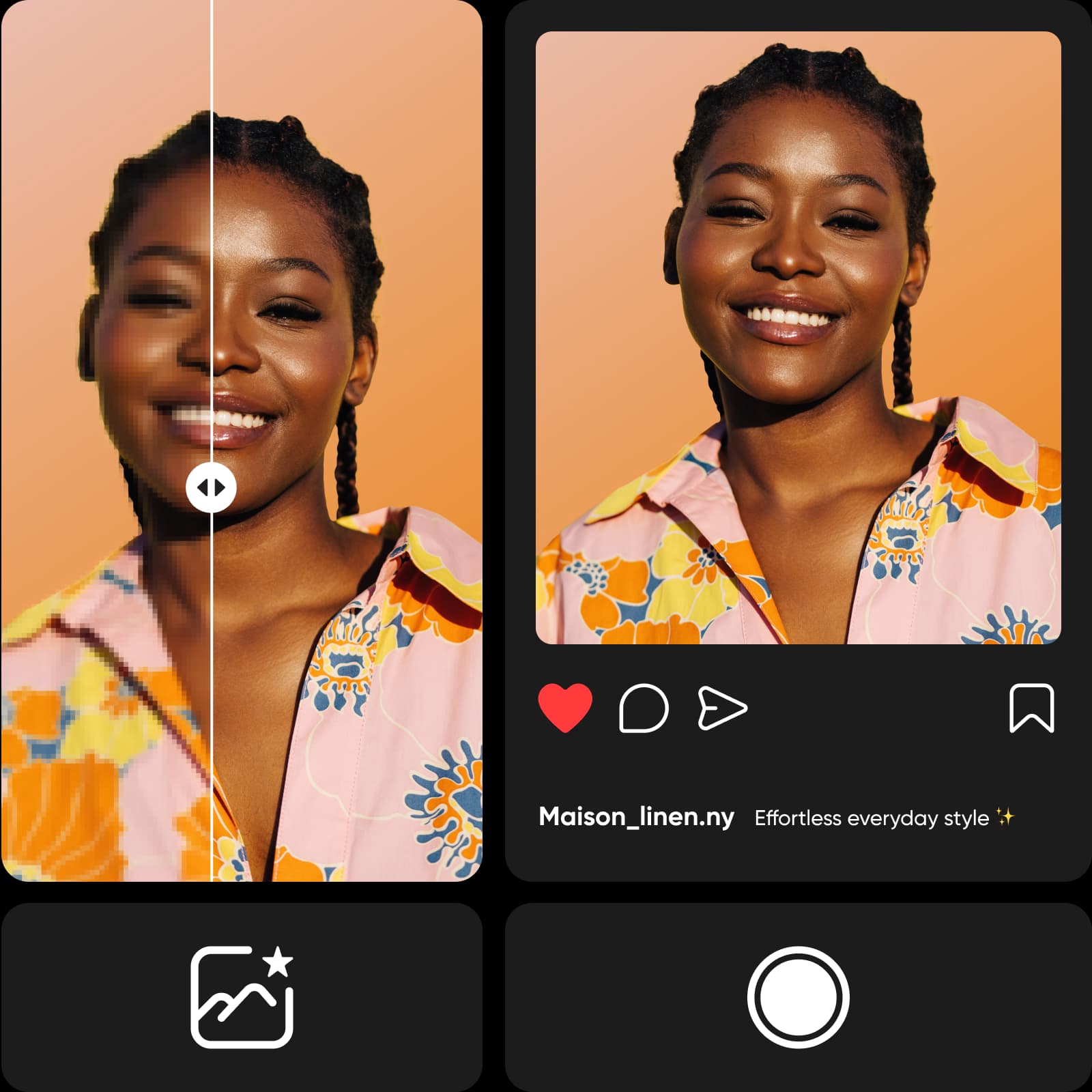
이미지에 어울리는 배경색을 골랐다면 마무리 작업을 해 보세요. 편집한 PNG를 더욱 돋보이게 하려면 다양한 AI 사진 편집 도구를 사용해 보세요. 마케팅 자료를 만들거나 증명사진을 선명하게 다듬을 때도 자동 온라인 사진 편집기를 활용하면 고품질 이미지와 멋진 배경 등으로 나만의 개성을 표현할 수 있습니다.
AI 이미지 모델로 컬러 PNG 배경 만들기
이미지 모델을 사용해 배경, 제품 사진, 누끼 이미지를 세련된 비주얼로 바꿔 보세요.
PNG 색상 변경 FAQ
PNG 이미지의 색상을 변경하려면 사진을 업로드하고 배경을 제거한 다음 새 배경색을 선택하세요. 정말 간단합니다!
도구 평가
Picsart를 직접 사용해 보고 수백만 명이 즐겨 찾는 편집 도구인 이유를 확인해 보세요.




콘텐츠, 제품 사진, 캠페인에 맞게 배경 변경하기
Pro
Most popularAI tools for everyday creative work.
Ultra
Most powerfulHeavy AI usage for creators & teams.
Enterprise
Custom AI solutions for large organizations.
- Volume discounts on credit rate
- On-demand top-ups
더 많은 배경 편집 기능 살펴보기
AI 도구를 창작 파트너로 활용해 아이디어를 완성도 높은 프로젝트로 만들어 보세요.


