
本当に素晴らしいです!こんな無料ツールを提供してくださってありがとうございます。背景を削除するツールをいくつも試しましたが、こちらはいつも見事な仕上がりです。
Margaret画像のグリーンスクリーンをオンラインで除去
Picsartの無料・自動・高品質なグリーンスクリーン除去ツールを使って、画像からグリーンスクリーンをオンラインで取り除きましょう。
なぜグリーンスクリーン除去を使うのか?



画像からグリーンスクリーンを除去する方法
How to
画像を選択
「画像をアップロード」ボタンを使うだけ。Picsartがグリーンスクリーンを自動で除去します。
写真をすばやく透過画像に
- 切り抜きを新しいデザインに重ねる

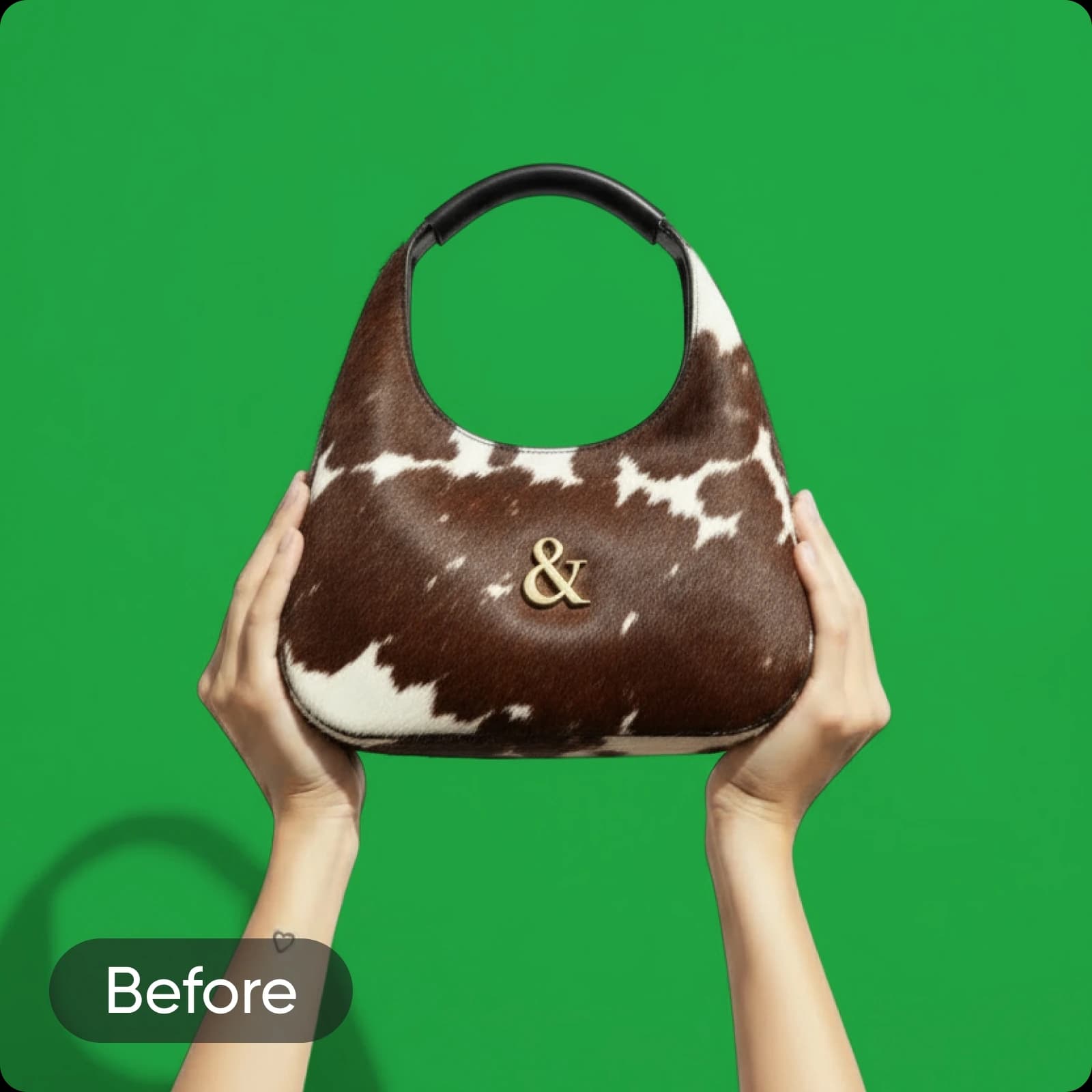
After
グリーンスクリーンを瞬時に消去
Picsartの無料グリーンスクリーン除去ツールで、画像をすぐに加工しましょう。単色の緑色の背景、クロマキー、グリーンスクリーン効果を使った画像も、PicsartのAIがシームレスに背景を削除し、わずか数秒で背景のない写真に仕上げます。


After
グリーンスクリーン背景編集ツールで正確に仕上げる
Picsartなら、グリーンスクリーンの除去中に細部が失われることはありません。髪の毛のような細かな部分も、仕上がりにきれいに残ります。透過PNGを作成する際も、除去後に元の画質が圧縮されたり変わったりすることはありません。元の写真が思ったより鮮明でない場合は、別のツールに切り替えずに、内蔵の補正ツールで写真のぼかしを除去できます。
ビジネスのグリーンスクリーン除去を効率化
編集作業にグリーンスクリーン・クロマキー除去ツールを取り入れて、短時間でより多くの作業をこなしましょう。ECサイトの商品写真から緑色の背景を消す場合も、スタジオで撮影した顔写真の場合も、Picsartにおまかせください。ブランドのビジュアルを洗練させたり、新たに作成した透過背景の写真を使って、SNS投稿やパッケージデザインなどのグラフィックを作成したりできます。
- ブランドのビジュアルで被写体を再利用
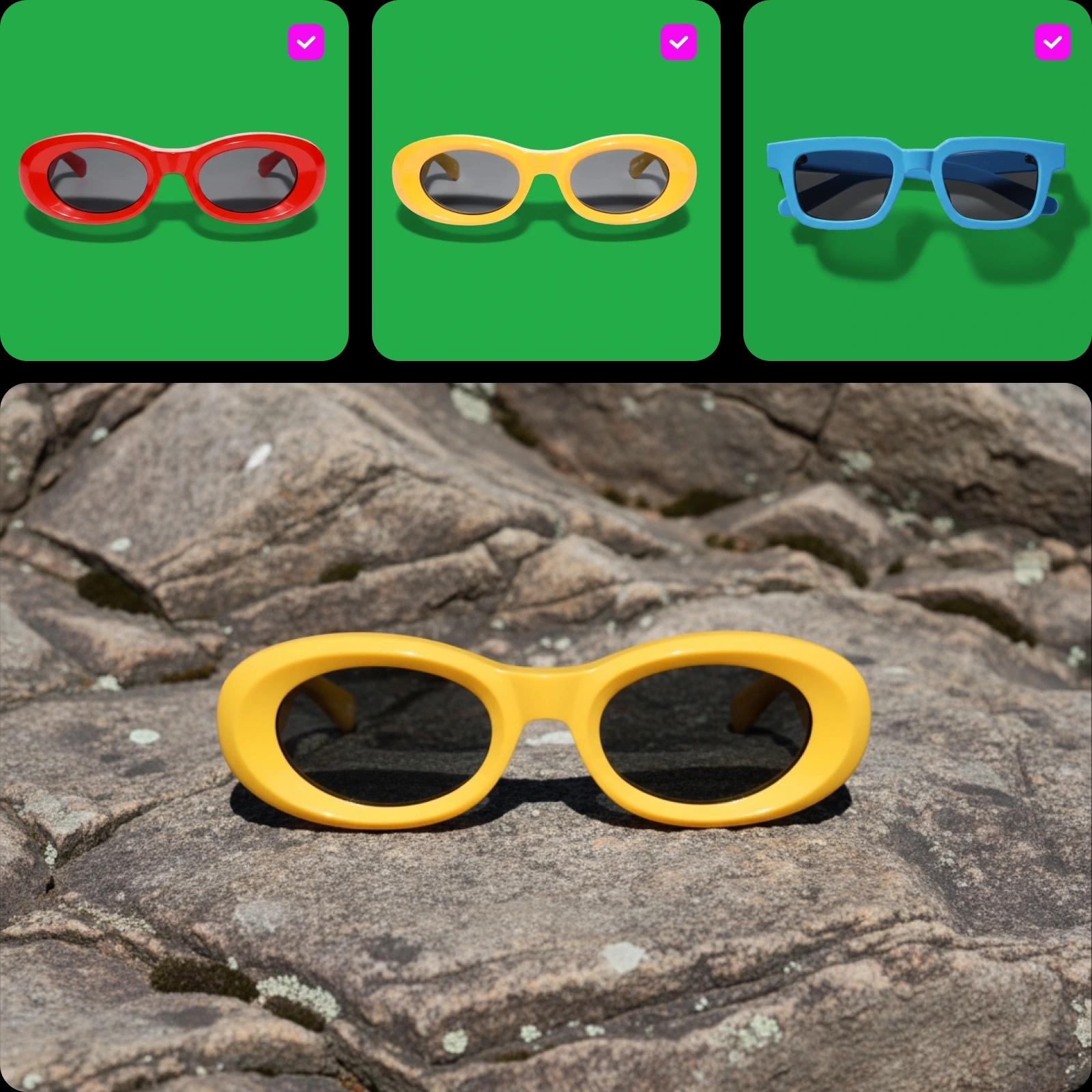
最大50枚のグリーンスクリーン写真を一括で消去
Picsartの一括編集ツールで、グリーンスクリーンを1枚ずつ除去する手間を省きましょう。写真をアップロードして、ボタンを1回クリックするだけで緑色の背景をまとめて除去できます。さまざまなプロジェクトで大量の画像を扱うときも、時間と労力を節約できます。
Picsartのグリーンスクリーン除去ツールの主な機能
編集を簡単にし、わずか数秒でプロ品質の仕上がりを実現する、Picsartのグリーンスクリーン除去ツールの便利な機能をご紹介します。
手間なくグリーンスクリーンを除去
最高です!ツールで困ったことは一度もありません。どれも効果的で助かっています。本当にありがとうございます。
Patとても素晴らしく、感動しました!Picsartは最高の中の最高だと言ってもいいくらいです。
EmmanuelAI画像モデルでグリーンスクリーンを作成
画像モデルを使って、背景、商品写真、切り抜きを洗練されたビジュアルに仕上げましょう。
グリーンスクリーン除去ツールに関するよくある質問
グリーンスクリーン除去ツールは、画像から緑色の背景を自動で認識して削除するツールです。緑色の背景を別の背景に差し替えたり、背景を透過したりできます。
あらゆるクリエイティブプロジェクトに使える、きれいな切り抜きを作成
Pro
Most popularAI tools for everyday creative work.
Billed yearly
Ultra
Most powerfulHeavy AI usage for creators & teams.
Billed yearly, per seat
Enterprise
Custom AI solutions for large organizations.
Custom credit volume
- Volume discounts on credit rate
- On-demand top-ups
Custom
Contact for pricing
Picsartでクリエイティブな勢いをそのままに

背景削除ツールAIで背景をきれいに削除したり、透過したりできます。

背景変更ツール背景を差し替えたり、完全に削除したりできます。

PNGの色変更ツール透過PNGファイルに背景色を追加できます。

ロゴの背景削除ツールロゴファイルの背景を簡単に透過できます。

AI写真編集ツールAI搭載の写真編集ツールで、編集作業をスピードアップ。

写真の一括編集ツールPicsartの一括編集ツールで、最大50枚の写真を一度に編集できます。

背景色を変更簡単に単色の背景に変更できます。

写真の背景削除ツールボタンをクリックするだけで、写真の背景を正確に削除できます。

商品画像の背景削除ツール商品写真の背景を手軽に削除して、商品を際立たせる写真を作成できます。