
ยอดเยี่ยมมาก! ดีมากที่คุณเสนอโปรแกรมฟรีเช่นนี้ ลองลบพื้นหลังหลายที่ของคุณแล้วและผลลัพธ์นั้นยอดเยี่ยมเสมอ ขอบคุณ
Margaretเครื่องมือกำจัดฉากหลังสีเขียวออนไลน์สำหรับรูปภาพ
ลบฉากหลังสีเขียวจากรูปภาพของคุณออนไลน์ด้วยเครื่องมือกำจัดฉากหลังสีเขียวฟรี และคุณภาพสูงของ Picsart
ทำไมต้องใช้การลบกรีนสกรีน?



วิธีลบฉากหลังสีเขียวจากรูปภาพ
How to
เลือกภาพ
ใช้ปุ่มอัพโหลดภาพ เพียงเท่านี้. Picsart จะลบฉากหลังสีเขียวโดยอัตโนมัติ
สร้างรูปภาพโปร่งใสอย่างรวดเร็ว
การทำให้ภาพของคุณโปร่งใสไม่ควรเป็นกระบวนการที่ซับซ้อน ด้วยเครื่องมือสร้างพื้นหลังโปร่งใสของ Picsart ใช้เวลาเพียงวินาทีเดียว สิ่งที่คุณต้องทำคือเลือกภาพและเครื่องมือจะลบพื้นหลังจากภาพของคุณโดยอัตโนมัติ ทิ้งไว้กับ PNG โปร่งใสที่สามารถนำไปใช้กับพื้นหลังสี, แพทเทิร์น หรือพื้นผิวต่างๆได้
- นำภาพตัดไปวางในดีไซน์ใหม่

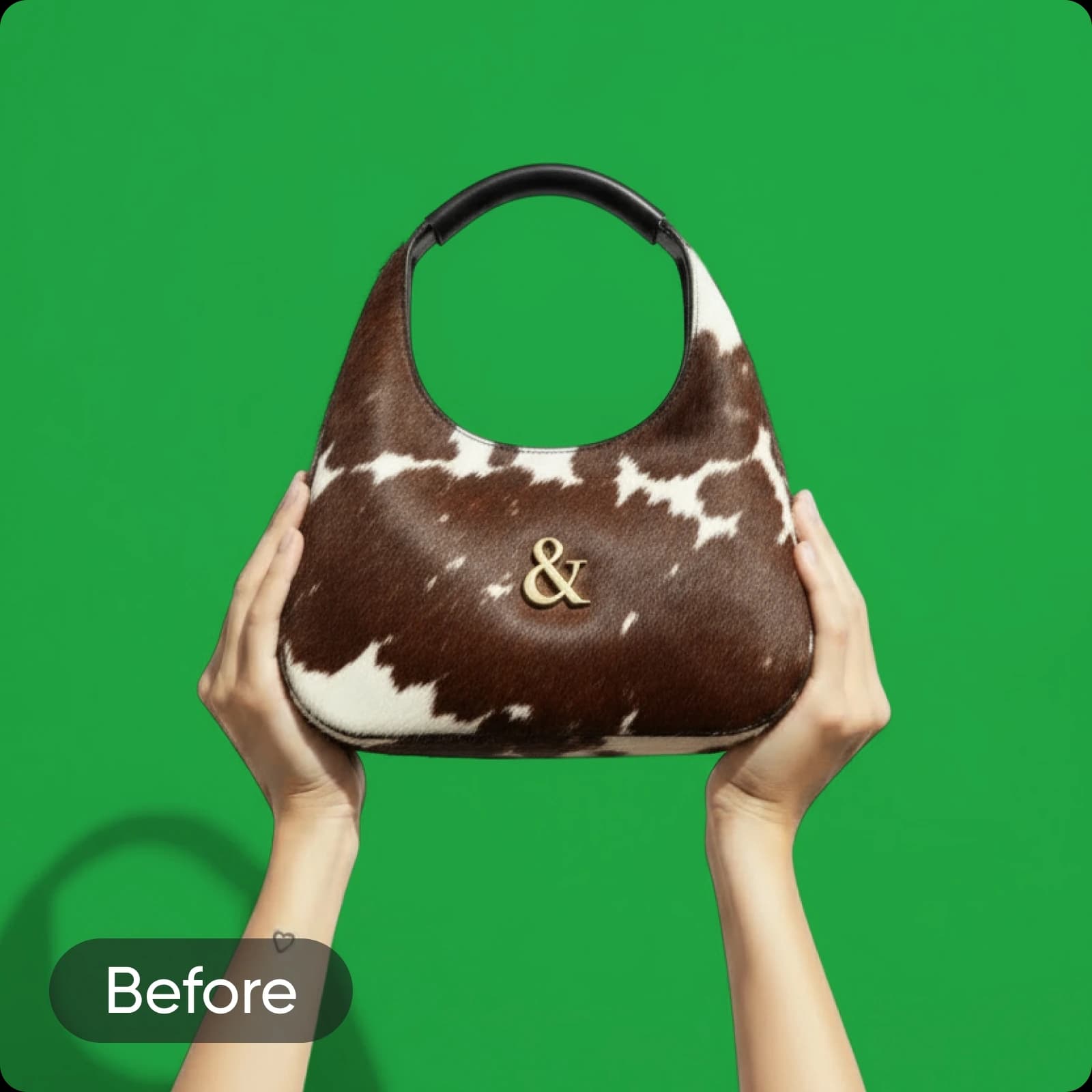
After
ลบฉากหลังสีเขียวได้ในพริบตา
เปลี่ยนรูปภาพของคุณทันทีด้วยเครื่องมือกำจัดฉากหลังสีเขียวฟรีของ Picsart ไม่ว่าคุณจะกำลังจัดการกับพื้นหลังสีเขียวล้วน คีย์สี หรือภาพที่มีเอฟเฟกต์หน้าจอสีเขียว AI ของ Picsart สามารถ ลบพื้นหลังได้อย่างไร้รอยต่อ และผลิตภาพที่ไม่มีพื้นหลังในเวลาเพียงไม่กี่วินาที
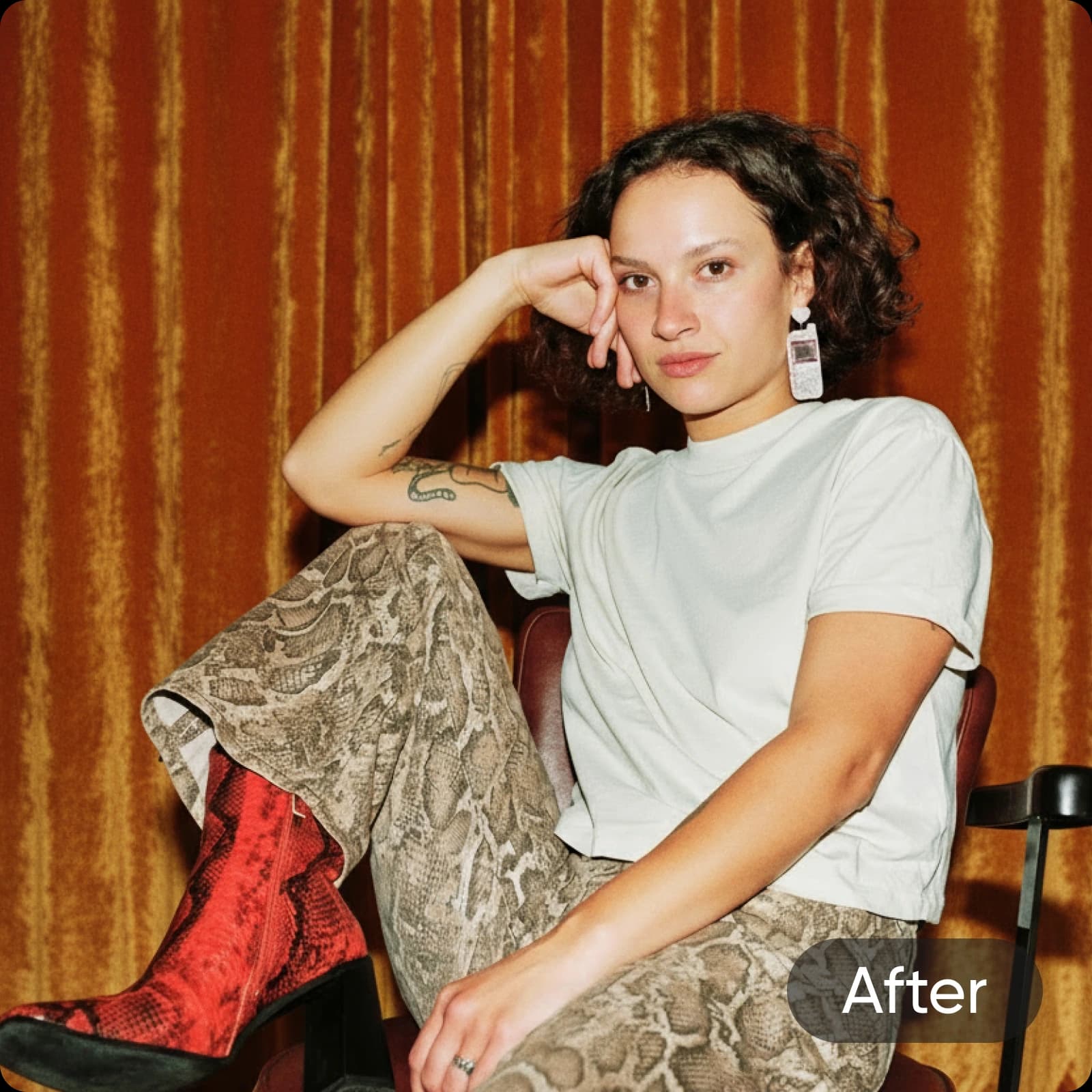

After
ให้ผลลัพธ์ที่แม่นยำด้วยเครื่องมือแก้ไขพื้นหลังสีเขียว
ด้วย Picsart คุณจะไม่สูญเสียรายละเอียดใดๆ ในกระบวนการลบฉากหลังสีเขียว รายละเอียดเล็กๆ น้อยๆ เช่น เส้นผมจะยังคงถูกเก็บรักษาอย่างดีในผลลัพธ์สุดท้าย และคุณภาพดั้งเดิมจะไม่ถูกบีบอัดหรือเปลี่ยนแปลงหลังจากการลบเมื่อทำ PNG โปร่งใส อย่างไรก็ตามหากคุณภาพภาพต้นฉบับไม่คมชัดเท่าที่คุณต้องการ คุณสามารถใช้เครื่องมือเพิ่มความคมในตัวเพื่อ ทําให้ภาพของคุณชัดเจน โดยไม่ต้องเปลี่ยนไปใช้เครื่องมืออื่น
ปรับกระบวนการลบฉากหลังสีเขียวให้คล่องตัวสำหรับธุรกิจของคุณ
นำเครื่องมือกำจัดฉากหลังสีเขียวและคีย์สีเข้ามาในกระบวนการแก้ไขของคุณเพื่อประหยัดเวลาให้ทำงานได้มากขึ้นไม่ว่าคุณจะลบพื้นหลังสีเขียวจากภาพถ่ายสินค้าที่ขายออนไลน์หรือภาพถ่ายในสตูดิโอ เครื่องมือของ Picsart สามารถจัดการได้ทั้งหมด ให้ภาพลักษณ์แบรนด์ของคุณดูดีหรือใช้รูปถ่าพื้นหลังโปร่งใสใหม่นี้เพื่อสร้างกราฟิกสำหรับโพสต์ในโซเชียลมีเดีย การออกแบบบรรจุภัณฑ์และอื่น ๆ
- ใช้วัตถุซ้ำในงานแบรนด์
ลบฉากหลังสีเขียวแบบแบตช์ได้สูงสุด 50 รูปในคราวเดียว
ทำให้กระบวนการลบพื้นหลังสีเขียวทีละภาพอย่างน่าเบื่อหน่ายเป็นอัตโนมัติด้วย ตัวลบแบบแบตช์ ของ Picsart เพียงแค่อัปโหลดภาพของคุณและลบพื้นหลังสีเขียวพร้อมกันด้วยปุ่มเดียว ประหยัดเวลาและความพยายามโดยเฉพาะเมื่อจัดการกับภาพจำนวนมากสำหรับโครงการต่างๆ
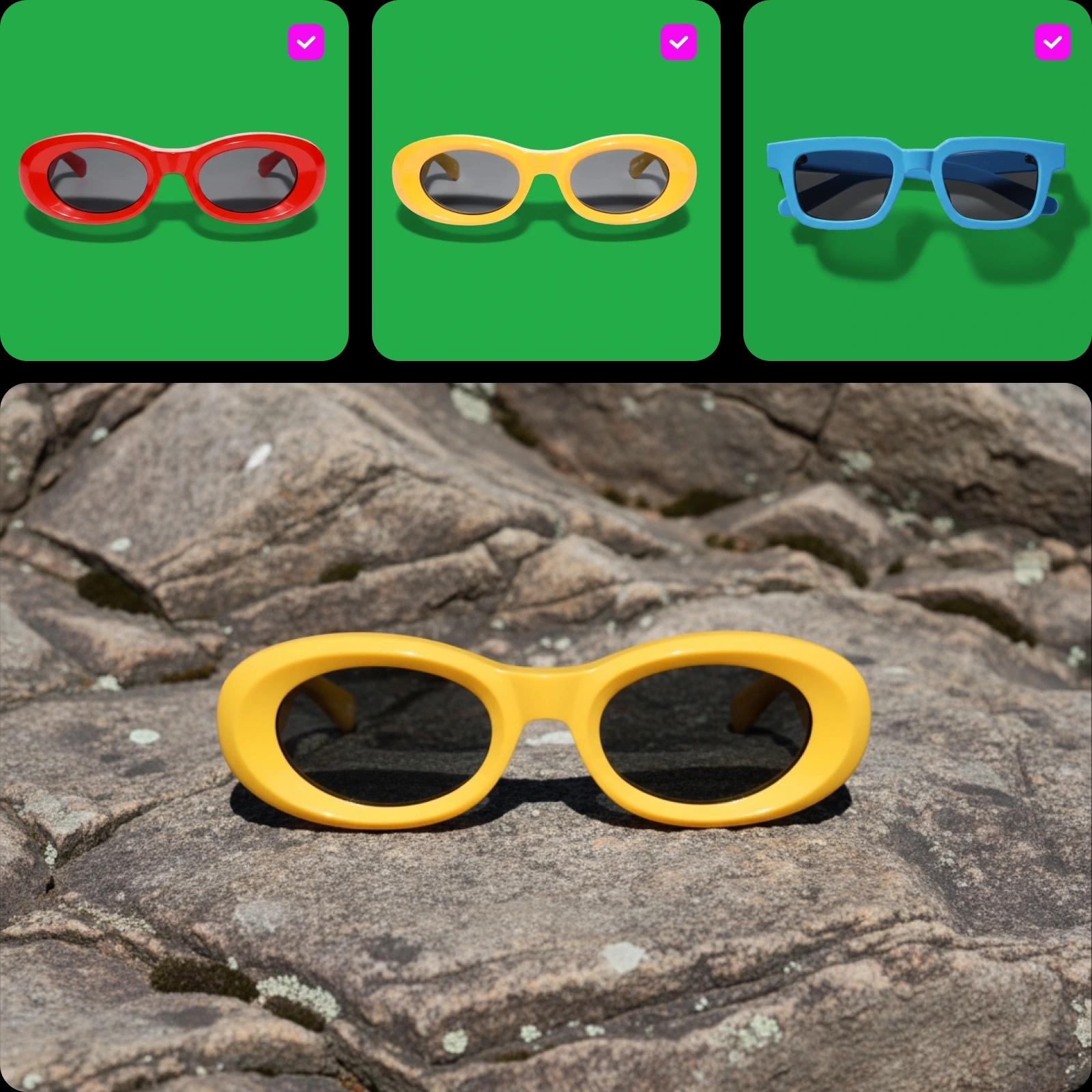
คุณสมบัติเด่นของเครื่องมือกำจัดฉากหลังสีเขียวของ Picsart
ค้นพบคุณสมบัติทรงพลังของเครื่องมือกำจัดฉากหลังสีเขียวของ Picsart ซึ่งออกแบบมาเพื่อทำให้ง่ายต่อการแก้ไขและให้ผลลัพธ์คุณภาพมืออาชีพในไม่กี่วินาที
ลบฉากหลังสีเขียวแบบไม่ยุ่งยาก
ยอดเยี่ยม! ไม่เคยมีปัญหากับเครื่องมือของคุณ ขอบคุณมากสำหรับความสามารถของพวกเขา
Patยอดเยี่ยมมาก ฉันประทับใจมาก! ไม่ขัดข้องใจเรียก Picsart ว่าดีที่สุดในบรรดาดีที่สุด
Emmanuelสร้างฉากหลังสีเขียวด้วยโมเดลภาพ AI
ใช้โมเดลภาพเพื่อเปลี่ยนฉากหลัง ภาพผลิตภัณฑ์ และการตัดให้เป็นภาพที่ดูดี
คำถามที่พบบ่อยเกี่ยวกับการลบฉากหลังสีเขียว
เครื่องมือกำจัดฉากหลังสีเขียวคือตัวเครื่องมือที่ทำการระบุและลบพื้นหลังสีเขียวออกจากรูปภาพโดยอัตโนมัติ เครื่องมือนี้ช่วยให้คุณเปลี่ยนพื้นหลังสีเขียวเป็นพื้นหลังใหม่หรือปล่อยให้โปร่งใสได้
สร้างภาพตัดไม่มีความวุ่นวายสำหรับทุกโครงการสร้างสรรค์
Pro
Most popularAI tools for everyday creative work.
Billed yearly
Ultra
Most powerfulHeavy AI usage for creators & teams.
Billed yearly, per seat
Enterprise
Custom AI solutions for large organizations.
Custom credit volume
- Volume discounts on credit rate
- On-demand top-ups
Custom
Contact for pricing
ให้แรงจูงใจสร้างสรรค์ให้อยู่ต่อเนื่องกับ Picsart

ตัวลบพื้นหลังลบฉากหลังที่มีความชำนาญด้วย AI หรือทำให้โปร่งใส

เครื่องเปลี่ยนพื้นหลังสลับเปลี่ยนพื้นหลังหรือเอาออกทั้งหมด

เครื่องเปลี่ยนสี PNGเพิ่มสีพื้นหลังให้กับไฟล์ PNG โปร่งใสของคุณ

ตัวลบพื้นหลังโลโก้สร้างพื้นหลังโปร่งใสสำหรับไฟล์โลโก้ได้อย่างง่ายดาย

AI เครื่องมือแก้ไขรูปภาพเร่งกระบวนการแก้ไขของคุณด้วยเครื่องมือแก้ไขรูปภาพที่ใช้ AI

ตัวแก้ไขภาพแบบแบตช์แก้ไขภาพได้สูงสุด 50 ภาพพร้อมกันด้วยตัวแก้ไขแบบแบตช์ของ Picsart

เปลี่ยนสีพื้นหลังปรับเปลี่ยนเป็นพื้นหลังสีทึบได้อย่างง่ายดาย

ตัวลบพื้นหลังการถ่ายภาพลบพื้นหลังจากภาพของคุณด้วยความแม่นยำโดยใช้ปุ่ม

ตัวลบพื้นหลังผลิตภัณฑ์ลบพื้นหลังการถ่ายภาพผลิตภัณฑ์อย่างง่ายดายเพื่อสร้างภาพผลิตภัณฑ์ที่ไร้สิ่งรบกวน